

Introduction
In this guide you will know why and how to prevent students from signing into personal accounts on school-managed devices. In the learning environment, many schools report that students sign in with personal Google accounts on school devices after school hours. Using which students bypass school restrictions, access blocked websites, use personal email and install apps or extensions that are not allowed on school accounts.
This creates a security and monitoring gap because administrators can only manage school accounts but not personal accounts. Hence restricting students is an important step for school administrators.
Why Students Sign In with Personal Accounts
Students mainly switch to personal accounts because school devices limit access and restrict entertainment sites. Personal accounts provide unrestricted access to non-educational content.
With personal accounts, students can access YouTube, Google Search and play games without any school-imposed restrictions. They can install any app they want, bypass blocked content and use services that are restricted in their school environment. Additionally, students use personal accounts to avoid monitoring and activity tracking by educators. Hence it is important to prevent students using personal Google Accounts on school devices.
What is the Impact of This Behavior on Schools
Logging in personal accounts on school-managed devices introduces several challenges for administrators.
- Students can bypass filtering and monitoring policies configured in the Google Admin Console. This creates a gap in visibility where admins have no idea about students' activities.
- Using personal emails increases exposure to inappropriate content, including entertainment platforms and social media. This directly impacts productivity and learning outcomes, especially when students use devices for homework or assignments.
- Unrestricted login on school devices introduces security threats. Since personal accounts are not monitored, students may share sensitive data files, provide access to third-part apps and may lead to malware risks.
Who is this Guide for?
This guide is intended for school administrators and educators. Educational institutions who want control of students' behavior even after school hours will be benefited by reading this blog.
How to Prevent Personal Account Use on School Devices
Google Admin Console offers administrators a way to configure Chrome sign-in restrictions by allowing only the school domain accounts. This prevents students from adding personal Google accounts directly into the browser profile.
The limitation here is that these controls are not always enforced consistently after school hours, especially when devices are used outside the school network or when students find ways to switch sessions.
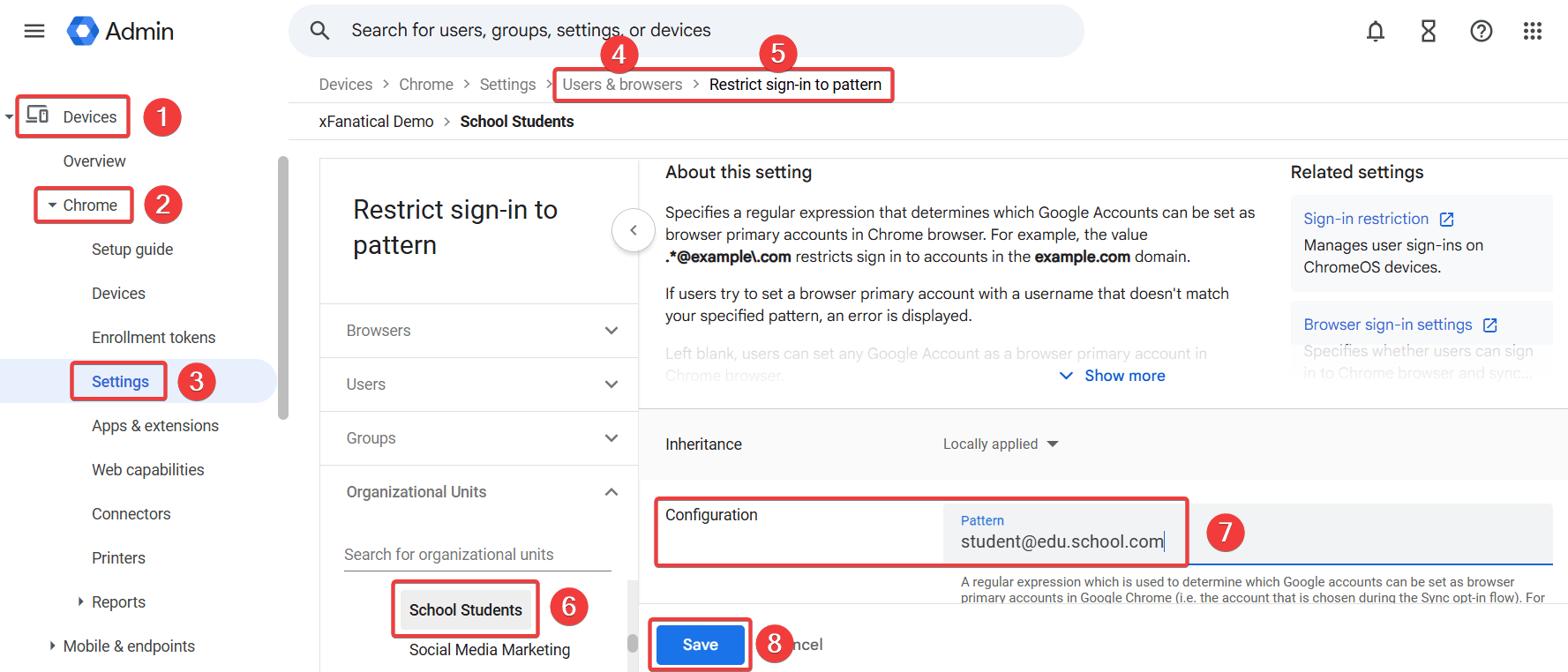
Follow these steps to configure restrictions using the Google Admin Console:
- Sign in to Google Admin Console with your administrator account.
- Navigate to Devices > Chrome > Settings > Users & browsers
- Select the OU that contains student devices.
- Find Restrict sign-in to pattern configuration.
- Next click on Configuration and provide the domain which you want to allow.
For example: [email protected] - Finally, save the changes.

Another way to prevent students from adding personal accounts at the device login level.
- Navigate to Devices > Chrome > Settings > Device settings.
- Look for Sign-in settings and select Restrict sign-in to a list of users.
- Next click on Configuration and provide the list of users who are allowed to sign in.
- Next, go to the Guest mode setting and disable it.
- Finally, click save to apply the changes.


Best Practices for Schools
- Schools should adopt a layered approach to manage this challenge effectively. Restricting account sign-in at the device level should be the first step, ensuring only school-managed accounts are allowed.
- It is equally important to combine this with browser-level enforcement tools like Safe Doc to close gaps that appear outside school networks or schedules.
- Clear policies and communication also play a role. Students should be informed about acceptable device usage, and parents should be aware of restrictions applied on school devices used at home.
- Regular audits and monitoring help ensure policies remain effective and adapt to evolving student behavior.
Conclusion
By now you understand why students sign in with personal accounts on school-managed devices, its risks and how to restrict this behavior using the Google Admin Console. Managing personal account access is essential to maintain visibility, enforce policies, and ensure a safe learning environment.
While Google Workspace provides foundational controls to manage student accounts, it does not completely prevent personal account login on school-managed devices especially after school hours. Follow the steps given in this blog to reduce security risks and ensure that student devices remain only for learning purposes.
xFanatical Articles -
- How to Forward Messages in Google Chat
- How to Integrate Trello with Google Chat and Spaces
- How to Manage Emoji Reactions in Gmail
- How to Turn Off Smart Reply in Gmail
- Daily Standup Reminder in Google Chat
For more article please visit our website: xFanatical Articles
 xFanatical Foresight Login
