

Introduction
This blog explains why and how to disable student camera in Google Meet. As we are growing, technology is growing too. Nowadays interactions have become easy through virtual meetings. Google Meet is one of the big players in conducting digital meetings. Google Meet provides various features like captions, raising hands, recording meet sessions and adding timers for meetings. One of the feature is accessing camera as well. However this is good to see participants through meetings but it may create distractions and privacy concerns in educational settings. Some students are self-conscious about camera, so it may cause concern for such students.
Why Disable Student Camera in Google Meet for Education?
During virtual meeting in Google Meet, students who turn on their camera may cause unintentional distraction among other students with background noises and off-topic conversations. Controlling distraction during classes is very important for effective learning. Additionally, enabling the camera slows down the internet connection and reduce the call quality. Hence disabling the cameras ensure smooth internet and focused learning environment.
Let’s understand the scenario through a user story:
- Problem: One fine day, teacher Roberts, conducts a science class through Google Meet and asks students to turn on camera. Instead of focusing on learning, students starts making funny faces and make others laugh. This behavior disturbed the teachers and other students too. And some students did not turn on their camera due to shy nature. This caused inconsistency in classroom.
- Solution: Understanding the problem, teacher Roberts spoke to IT administrator about disabling cameras by default in Google Meet. Then they found Safe Doc and policy to block cameras in Google Meet.
- Result: After implementing the Safe Doc policy, teacher noticed improvements in learning environment. Students were focused and concentrated only on learning. Additionally, it helped students with low internet connection and students who felt uncomfortable being on camera.
Introduction to xFanatical Safe Doc
xFanatical Safe Doc a browser extension which provides various policies for administrators to control and safeguard students learning environment. Safe Doc offers polices to manage Google Workspace such as preventing students from adding people to Google Meet, force muting talkative students in Google Meet and disabling chat in Google Meet etc.
Disable Student Camera in Google Meet with xFanatical Safe Doc
In Google Meet, students can turn their cameras on for better engagement but it may lead to distractions, privacy concerns especially in virtual classrooms. At this time, xFanatical Safe Doc comes in picture. Safe Doc is a extension providing policy to disable students camera and prevent them from turning it on. Once EnableMeetCameraOffCommand policy is set to true, students will no longer be able to turn on their cameras.
xFanatical Safe Doc includes a magic chat command that allows teachers to disable specific students' cameras instantly. Let's see the magic:
- Find the email address of the student whose camera you want to disable.
- Open the chat side panel in Google Meet.
- Type /cameraoff, followed by a space and the student’s email address.
For example - /cameraoff [email protected]. - Finally, click send.
Once this command is sent, the student’s camera will be turned off and the camera button will be disabled, preventing the student from turning it back on. 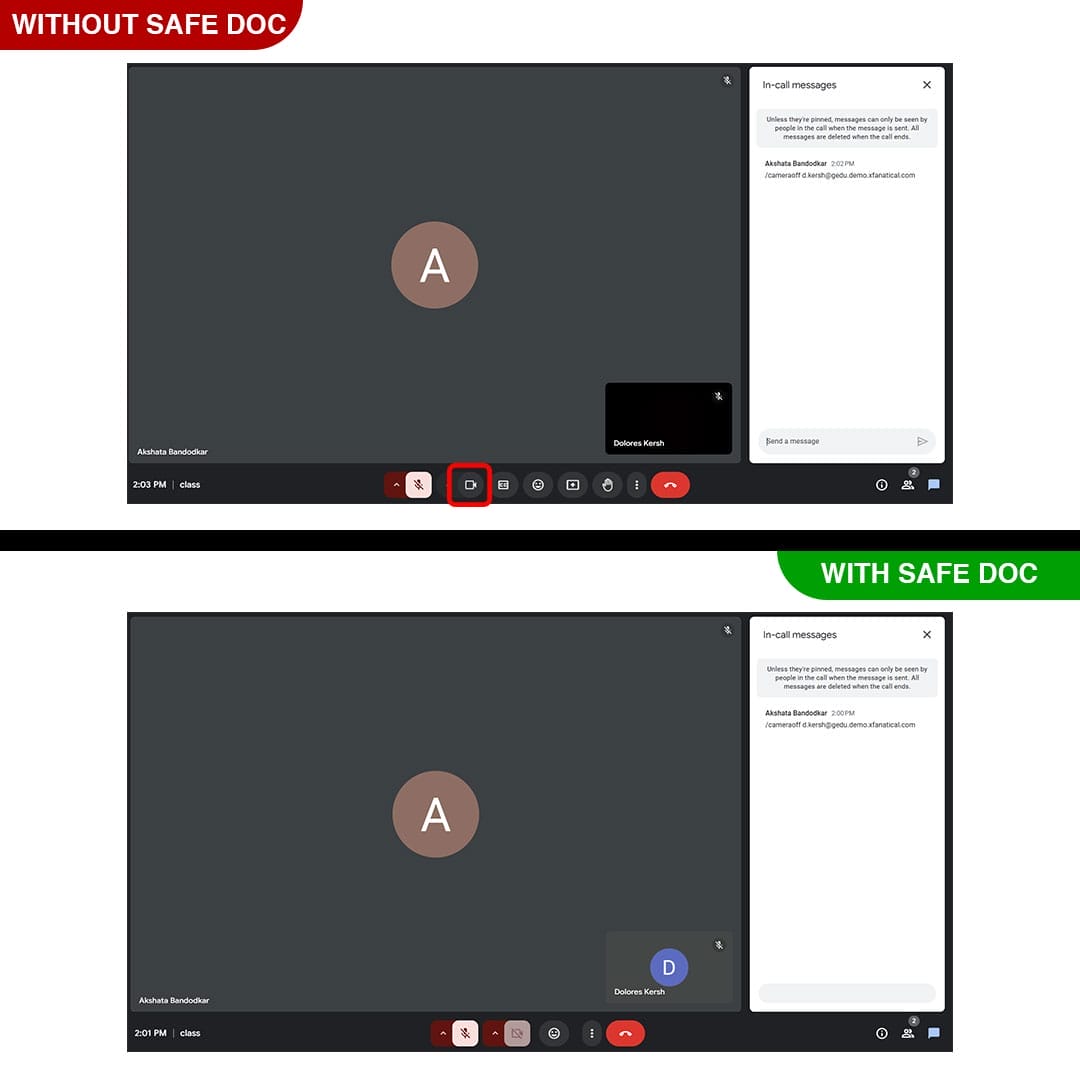
xFanatical Safe Doc blocks the camera in Google Meet
How to Disable Student Camera in Google Meet using xFanatical Safe Doc
Step 1: Install Safe Doc
At the start install Safe Doc in your Google Workspace environment.
Step 2: Configure Safe Doc settings
After you install Safe Doc, configure its settings to disable the student camera in Google Meet.
Step 3: Access Google Admin Console
Next, navigate to the Google Admin Console. and click on Devices > Chrome > Apps & Extensions > Users & Browsers.
Step 4: Review the Policy
Find the policy from the list above and set it true if not set already. The policy format is provided below:
"EnableMeetCameraOffCommand": {
  "Value": true
}
Step 5: Save the Policy
Finally, save the policy by clicking Save button.
How to configure Safe Doc?
Ensure the deployment of Safe Doc on your students' Chrome browsers and review the xFanatical Safe Doc Configuration document for detailed instructions.
Conclusion
In conclusion, disabling camera for students in virtual meetings promotes privacy, discipline and reduces distractions. With this essential step, educators can minimize disruption during teaching and deliver high impart lessons. Moreover this helps students feel more comfortable while learning. With xFanatical Safe Doc, schools can enforce privacy settings and create secured and focused digital classroom experience.
To learn more about how xFanatical Safe Doc can help enhance online safety in your educational institution, visit our website xFanatical Safe Doc and install to get 30 days free trial.
 xFanatical Safe Doc
