

Introduction
Google Chrome is essentially used in school environments and the administrator's primary responsibility is to monitor the usage of Google Chrome. Google Chrome’s split view feature helps in multitasking by allowing students to split the Chrome window into two tabs. But students may misuse this feature for entertainment and cheating during assignments or exams.
Since Google Workspace does not provide a direct way to disable split screen on Chromebook, administrators have to look for a solution to do so.
This guide will walk you through:
- Information about split view feature
- Why to disable split screen for schools
- The challenges of split view feature in managed environments
- What solutions are available for administrators to block split view on chrome
- And how to block split screen on student Chromebooks using xFanatical Safe Doc
Video Demo
What is Split View in Google Chrome
Split view in Chrome allows users to open two tabs within the single Chrome window. It helps users to multitask by reducing the switching between different tabs. While this feature is helpful, in educational settings, educators request to block this feature due to students' security reasons and classroom discipline concerns.
The Problems Caused by Split View Feature
Split view features can create multiple challenges in K-12 environments, including cheating during exams and increased administrative overhead to manage Chrome effectively. The split view feature is useful in many ways but students often misuse it to trick educators.
For example, they may keep an educational site open on one side and YouTube on the other to watch non-educational content. In such cases, it becomes difficult for administrators and teachers to detect or monitor students' behavior.
Administrators and teachers find it difficult to monitor such behavior effectively, leading to gaps in classroom management and policy enforcement on student devices.
Following are some risks:
- Using the split view feature, students may attempt to cheat during exams. They can keep the exam screen on one side and study material on the other.
- Administrators and teachers find it difficult to monitor such behavior effectively, leading to gaps in classroom management and policy enforcement on student devices.

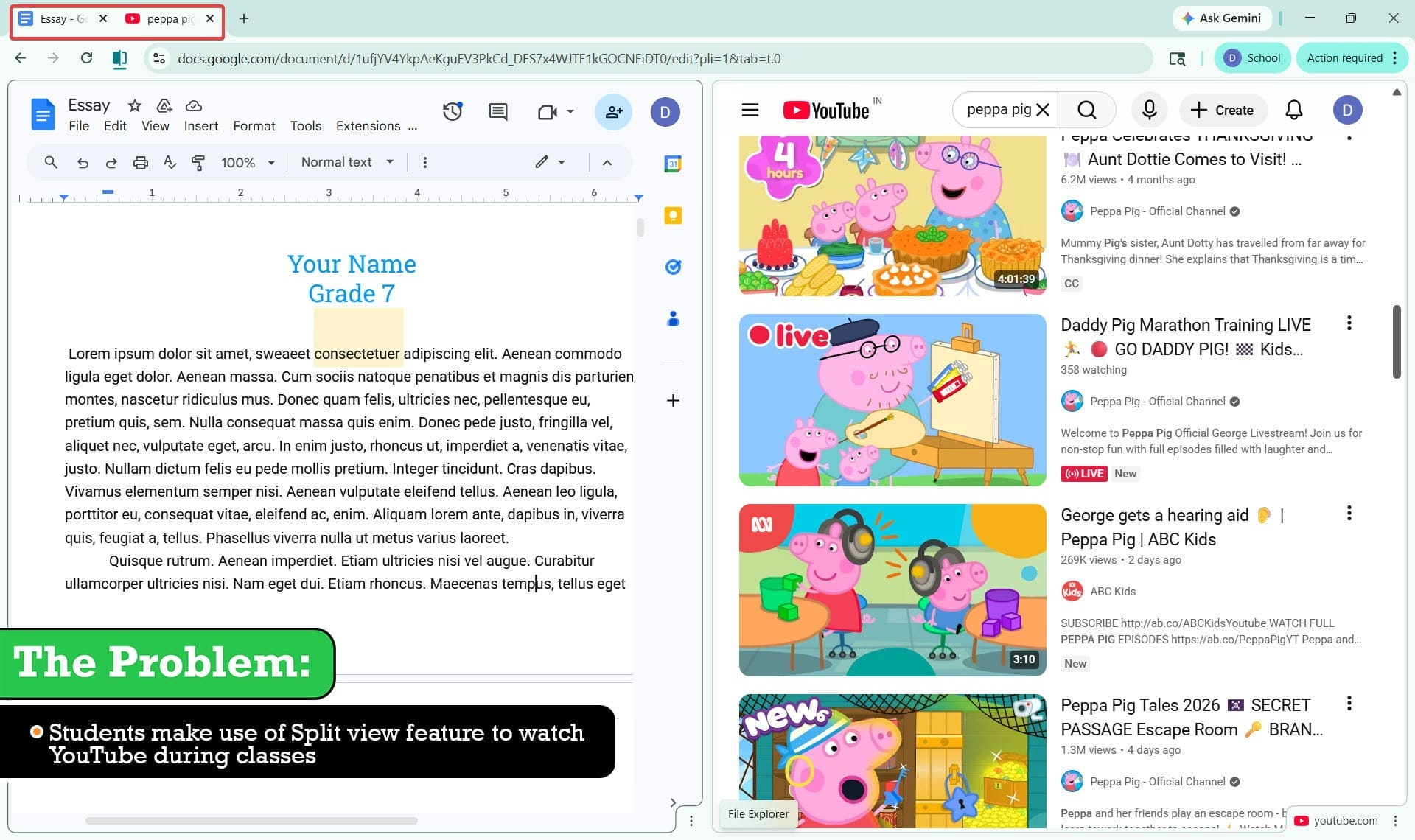
Why Google Workspace Cannot Disable Split View
It is important to understand the limitation of Google Workspace, why it cannot block split view on Chrome. While administrators need centralized control over students user devices and Google Workspace policies.
Split View is a native functionality of the Chrome browser and the operating system. Since it is built into the browser experience, Admin Console cannot control the behavior and administrators cannot restrict Split View through the Admin Console.
Impact of feature on Schools and Managed Environments
In managed school environments, the real challenge is to control how students use the screen becomes important, especially when features like split view exist.
Some major difficulties are listed below:
- One major difficulty is that split view is a built-in browser and operating system feature and not a separate application. This means students can easily divide their screen into multiple sections and access different content simultaneously, without triggering any restrictions.
- Another challenge is that the Google Admin Console does not provide a direct policy to block split views in Chrome. As a result, there is no native setting to prevent split screen during exams on Chromebook.
Let’s consider a real-time examples -
“Students often keep study material open on one side of the screen, but within seconds they use a split view to open unrelated content on the other side. Since both are visible in the same browser window, it becomes very difficult for us to identify and stop this behavior in real time on school devices.”
“We’ve applied restrictions using Google Workspace, but split screen still allows students to access multiple tabs side by side. They continue switching attention between study content and distractions, which disrupts classroom focus and reduces the effectiveness of our device controls.”
Available Solutions to Prevent Split Screen
Since split view feature is an in-build in Chrome browser it is not possible to disable split screen completely using native controls. Administrators use relative solutions, but they come along with their own limitations.
Few approaches are given below to prevent split view on Chromebook. The listed solutions are having some limitations. The final solution using the xFanatical Safe Doc Chrome extension provides a more effective and scalable way to strengthen control and reduce misuse.
- Solution 1: Enforce Full-Screen Mode (Basic Control)
Administrators can enforce full-screen mode during exams using browser-based tools or assessment platforms. This ensures that students stay focused on a single window while attending classes or taking tests.
Limitation: Full-screen mode is not a strict restriction. Students can exit it using keyboard shortcuts like Esc or Alt+Tab and still open another window in split screen.
- Solution 2: Browser-Level Enforcement (Recommended)
This approach provides real-time control directly within the browser. Instead of relying only on backend policies, browser-level enforcement gives administrators more precise control over how students interact with the browser environment. In the context of blocking split view in Google Chrome, this approach helps restrict how multiple windows or tabs are accessed and used during classes or assessments.
Using xFanatical Safe Doc, administrators can block split view on Chrome and prevent students from cheating.
For more detailed technical steps, kindly refer to step-by-step implementation of Safe Doc.
Block Split View Feature with xFanatical Safe Doc
xFanatical Safe Doc is a browser extension that provides policies to maintain focused and secure learning environments for K-12 students. It provides policies to manage a safe and productive digital environment and allows administrators to disable split view on Chrome.
With Safe Doc, administrators can block split view options on student Chromebooks and restrict them from cheating and tricking educators. Admins can enforce this by enabling the BlockBrowserTabsSplitView policy, which removes the split view option in Chrome.
xFanatical Safe Doc blocks the Split view tabs feature in Google Chrome
Steps to Block Split View Tabs using xFanatical Safe Doc
Step 1: Install xFanatical Safe Doc
The first step is to install xFanatical Safe Doc in your Google Workspace environment. Safe Doc is a browser extension that provides policies for enhanced control and security features.
Step 2: Configure Safe Doc settings
Once Safe Doc is installed, you can configure its settings to prevent split view on school devices. To configure Safe Doc successfully, make sure you have deployed Safe Doc on your students' Chrome browsers and review the xFanatical Safe Doc Configuration document for detailed instructions.
Step 3: Access Google Admin Console
Next, navigate to the Google Admin Console. In the Google Admin Console, click on Devices followed by Chrome. Then, click Apps & Extensions > Users & Browsers.
Step 4: Set the Policy
Now, find the policy and set the value to true. The policy will look like below:
"BlockBrowserTabsSplitView": {
  "Value": true
}
Step 5: Save the Policy
After applying the policy, click the Save.
How to configure Safe Doc?
Ensure the deployment of Safe Doc on your students' Chrome browsers, and review the xFanatical Safe Doc Configuration document for detailed instructions.
Conclusion
In conclusion, blocking the split view feature in Chrome, not only enhances classroom discipline but provides control back to the administrator. By preventing students from splitting the tabs, teachers can manage and enhance the learning environment. Follow the steps provided in this blog to install Safe Doc and configure the policy within your environment.
To learn more about how xFanatical Safe Doc can help enhance online safety in your educational institution, visit our website xFanatical Safe Doc and install Safe Doc to get a 30 days trial.
xFanatical Articles -
- Disable Translating Document in Google Docs
- Prevent Students from Opening Too Many Chrome Tabs
- Force Mute Talkative Students in Google Meet
- How to Move Files from a Shared Drive to My Drive in Google Drive
For more article please visit our website: xFanatical Articles
 xFanatical Safe Doc
