

Introduction
Google Slides provides Building Blocks as a productivity feature, which allows insertion of pre-defined content like layouts, placeholders and reusable sections. No doubt this feature improves efficiency but also increases challenges in K-12 classrooms. Students can use Building blocks to insert unnecessary or irrelevant content, bypass assignment guidelines and rely on pre-built layouts instead of creating on their own.
The key challenge for administrators is that Google Workspace does not provide a native control to disable Building Blocks in Google Slides.
In this guide, we’ll explain:
- Why Building Blocks are difficult to control in Google Slides
- The impact of unrestricted usage in classrooms
- Effective solution and its capabilities
- And how to block Building Blocks in Google Slides using xFanatical Safe Doc
Video Demo
What is Building Blocks Feature in Google Slides
Building Blocks are UI-driven components embedded directly into the Google Slides. These elements allow users to insert structured sections without manual formatting.
A technical architecture of the feature:
- Building Blocks are rendered dynamically within the Slides editor
- Building Blocks are not separate service or API-controlled feature
- Their behavior is controlled entirely by the frontend or client-side rendering
Because of this architecture, administrators cannot control the functionality using Google Workspace policies.
The Core Problem: Unrestricted Use of Building Blocks
Building Blocks in Google Slides is the real problem in schools, since students insert ready-made content blocks instead of creating slides based on their own learning and understanding. Once inserted, these elements become part of the slide and can be modified later by the students. Hence administrators cannot manage Google Slides features for students.
Unrestricted use of Building Blocks creates the following challenges for administrators:
- Unrestricted use of Building Blocks creates the following challenges for administrators:
- Students may rely on pre-built layouts instead of creating original content.
- Ready-made blocks can break the educational format given by teachers.
- Students may add irrelevant and decorative sections during class instead of focusing on learning.

Why Building Blocks Cannot Be Blocked Natively
To understand the limitation, it is important to look at how Google Slides operates internally.
When a user interacts with the Slides editor, the UI is rendered in the browser using client-side scripts and Building Blocks are injected dynamically into the interface. And then final content is then synced to Google’s backend.
Since Building Blocks exist only at the UI interaction layer, Google Admin Console does not have any policy to intercept their usage or restrict Building Blocks in Google Slides in schools.
The Risks Associated with Feature in Schools and Managed Environments
The inability to block Building Blocks leads to practical challenges in classrooms. For instance, students rely on pre-built structures instead of following the formats designed by teachers. Consequently, this reduces students' involvement in learning and results in inconsistent submissions. In such cases teachers face difficulty in evaluation.
Let’s understand by the real issues raised by teachers and administrators:
“Students are not following the slide structure we defined. They just insert ready-made blocks and fill minimal content.”
“It becomes difficult to ensure consistency across submissions when students use different pre-built layouts.”
Solution: Blocking Building Blocks Using xFanatical Safe Doc
xFanatical Safe Doc is a browser extension that provides policies to maintain focused and secure learning environments for K-12 students. Additionally, it provides policies for administrators to control specific features inside editors like Google Slides. As a result, it helps in providing a safe and productive digital environment and allows administrators to restrict Google Slides features for students.
Benefits of using xFanatical Safe Doc:
- Building Blocks UI elements can be detected and disabled by Safe Doc extension.
- Students’ interaction with Building Block elements can be blocked and restrictions are applied in real time within the browser.
- Safe Doc ensures other editing functionalities in Google Slides remain unaffected by the policy implementation.
For more detailed technical steps, kindly refer to step-by-step implementation of Safe Doc.
Restrict Building Blocks in Google Slides for School
With Safe Doc, administrators can disable Building Blocks in Google Slides for students. Once the BlockBuildingBlocks policy is enabled and set to true, students will no longer be able to see the Building Blocks menu item and icon anywhere in Google Slides. This restriction ensures students remain focused on learning and create presentations based on their knowledge and creativity.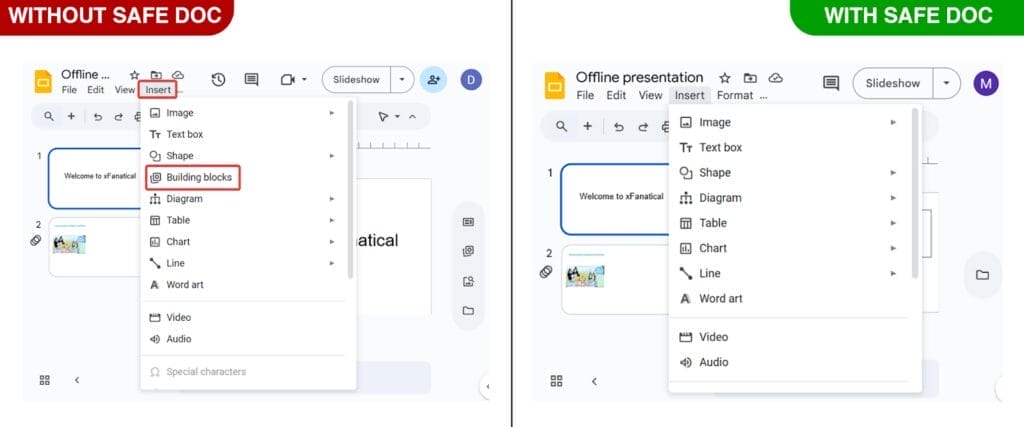
xFanatical Safe Doc blocks Building blocks menu item in Google Slides. xFanatical Safe Doc blocks Building blocks icon in Google Slides.
The Building blocks option is restricted in the help menu by xFanatical Safe Doc.
How to Disable Building Blocks in Google Slides Using xFanatical Safe Doc
Step 1: Install xFanatical Safe Doc:
To get started, first install Safe Doc in your Google Workspace environment. Safe Doc is a web browser extension that seamlessly integrates with Google workspace apps.
Step 2: Configure Safe Doc settings:
Once Safe Doc is installed, you can configure its settings to restrict Building Blocks in Google Slides in school. To configure Safe Doc successfully, make sure you have deployed Safe Doc on your students' Chrome browsers and review the xFanatical Safe Doc Configuration document for detailed instructions.
Step 3: Access Google Admin Console:
Go to the Google Admin Console. In the Google Admin Console, click Devices > Chrome > Apps & Extensions and click Users & Browsers.
Step 4: Apply the policy:
Find the policy that you want to apply and review it. The policy will display in a below format:
"BlockBuildingBlocks": {
"Value": true
}
Step 5: Save the policy:
After applying the policy, click Save.
Conclusion
This blog explains why and how to disable Building Blocks in Google Slides for students. Since Google Workspace does not provide native controls to block Building Blocks in Google Slides, administrators cannot enforce this restriction through the Admin Console alone.
Browser-level enforcement using xFanatical Safe Doc provides a practical and scalable solution. By disabling Building Blocks, administrators can maintain structured learning environments, improve students' focus on creativity and reduce classroom distractions.
To learn more about how xFanatical Safe Doc can help enhance online safety in your educational institution, visit our website xFanatical Safe Doc
Explore xFanatical Safe Doc with 30 days of trial.
 xFanatical Safe Doc
