

Introduction
Google provides an AI-powered search experience called AI Mode, which allows users to interact with search in a more conversational way and get AI-generated responses directly within the search page. While this feature improves accessibility and speed, it introduces significant challenges in educational environments. Students may rely on AI-generated responses instead of researching and understanding concepts independently. Additionally, AI-generated information may sometimes be incomplete or inaccurate for learning purposes.
Additional challenge is there is no official toggle or native setting in Google Admin Console specifically for disabling AI Mode in Google Search.
The guide will cover following topics:
- Why AI Mode in Google Search can create challenges in school environments
- How unrestricted AI-generated results can affect student learning
- What options are available to remove AI results from Google Search page
- And how to disable AI Mode in Google Search using xFanatical Safe Doc
Video Demo
The Problems of AI Mode in Google Search
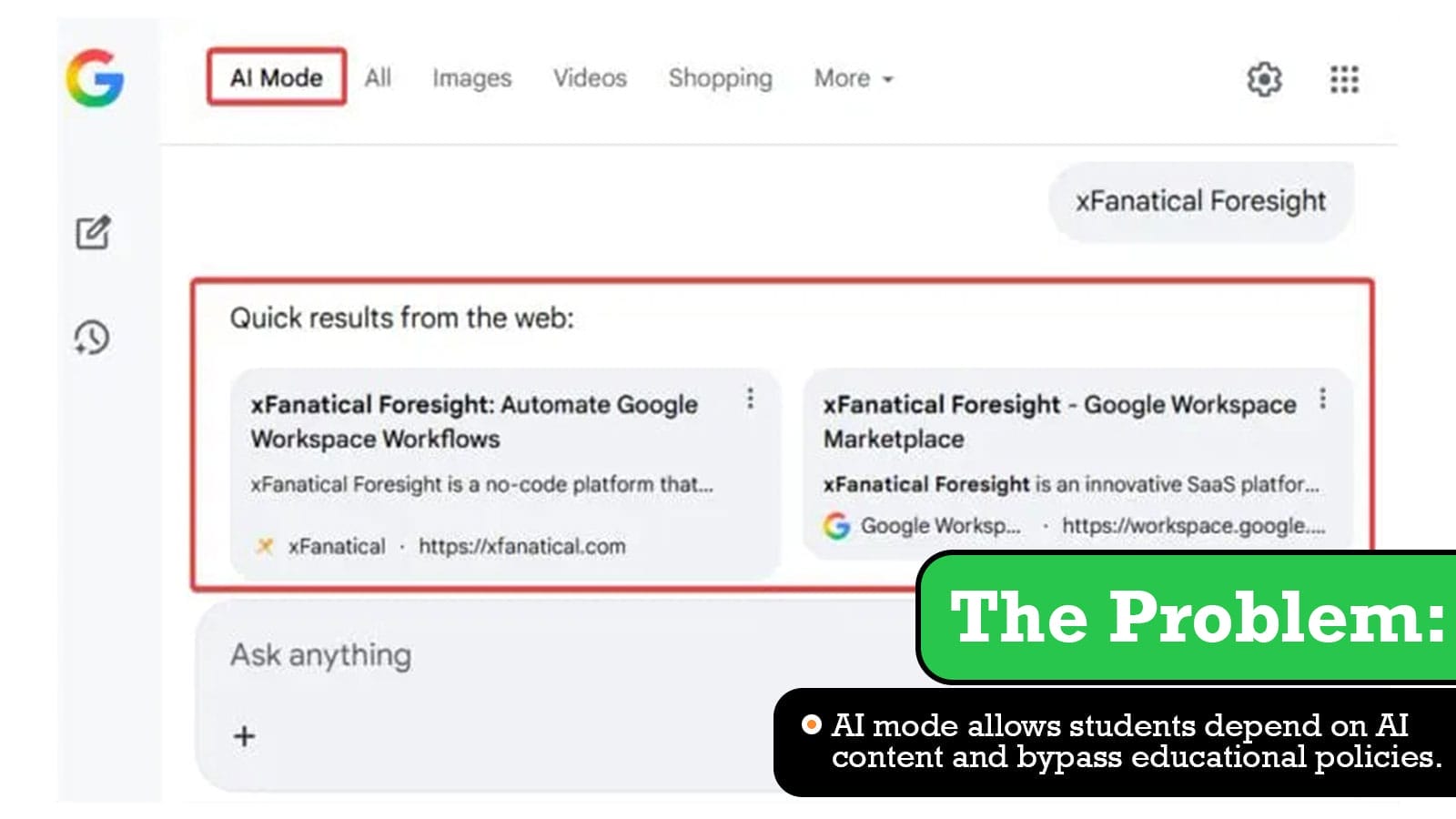
The problem is AI Mode in Google Search introduces an interactive AI experience, where students can ask follow-up questions and explore AI-generated answers directly within the search interface.
For example, when a student searches for a question by clicking on AI Mode, it generates a complete answer and also allows the student to continue asking related questions within the same interface, without the need of students exploring reliable sources and references.
Unrestricted access to AI Mode creates the following challenges for administrators:
- Students rely on AI-generated answers instead of developing critical thinking and research skills.
- AI responses may provide incorrect information, which leads to misunderstandings in learning.
- Students can cheat using AI Mode to quickly generate answers during exams or assignments.
- Admins and teachers may face difficulties since they will not have control over the generated responses.

Why Google Workspace Cannot Stop AI Results in Google Search
Before understanding the limitation, it is important to understand how AI Mode in Google Search works. When a user performs a search by clicking AI mode, Google processes the query on its servers and dynamically generates AI-based responses directly within the search results page.
Since the generated results are part of the search experience and are not separate services, Google Workspace cannot stop AI results in Google Search. It does not have direct control over how search results are generated or displayed. The Google Admin Console can block complete AI usage on apps but does not provide native way to just turn off AI Mode.
The Impact of AI Mode on Students
Uncontrolled use of AI Mode in Google Search creates the following impacts in school environments.
- One of the issues is instead of exploring multiple sources, students depend entirely on instant responses provided by AI. This reduces their ability to think critically, analyze information and develop independent learning skills.
- Teachers expect students to go through articles, references and study materials to understand concepts in detail. With AI Mode, students may only read summarized answers, skip the learning process and miss important context.
- Additionally, there is a risk of academic misuse. Students can use AI-generated responses to quickly complete assignments, homework and exams without genuine effort. This increases the chances of plagiarism and makes it difficult for teachers to evaluate actual student understanding.
- Sometimes AI-generated answers may be incomplete, outdated or incorrect. Since students tend to trust these responses without verification, it can lead to misunderstandings and incorrect learning outcomes.
Available Solutions to Turn Off AI Mode
Since there is no direct setting in Google Workspace to disable AI Mode in Google Search, administrators rely on alternative methods to limit access to this feature. However, each of these approaches comes with its own limitations.
- One possible approach is administrators can restrict AI-related services like Gemini within Google Workspace. This will completely reduce exposure to AI tools across Google services.
Limitation: Disabling Gemini or other AI services does not impact AI Mode in Google Search, as it is part of the core search experience. - The recommended approach is browser-level enforcement. Since the above approach has limitations, schools need to solve the problem by using browser-level enforcement. This approach uses a browser extension to enforce granular, real-time control over student’s Google usage.
With Safe Doc, administrators can disable the AI mode button for students and prevent non-educational usage of Google.
For more detailed technical steps, kindly refer to step-by-step implementation of Safe Doc.

Remove AI answers from Google Search with xFanatical Safe Doc
xFanatical Safe Doc is a browser extension that provides policies to maintain focused and secure learning environments for K-12 students. It provides policies to restrict access to distracting or non-educational content for productive digital experience. One of its key capabilities is the ability to stop AI results in Google Search.
By enabling the BlockGoogleSearchAIMode policy, administrators can prevent students from accessing AI Mode in Google Search. All administrators need to do is set the policy to true and the AI Mode experience will be disabled within the Google Search UI.

xFanatical Safe Doc removes the AI mode in Google Search
How to Block AI Mode in Google Search Using xFanatical Safe Doc
- Step 1: Install xFanatical Safe Doc:
As a first step, install Safe Doc in your Google Workspace. Safe Doc is a web browser extension that provides various policies for Google workspace apps. - Step 2: Configure xFanatical Safe Doc settings:
Once Safe Doc is installed, you can configure its settings to block AI Mode in Google Search. To configure Safe Doc successfully, make sure you have deployed Safe Doc on your students' Chrome browsers and review the xFanatical Safe Doc Configuration document for detailed instructions. - Step 3: Access Google Admin Console:
Go to the Google Admin Console. In the Google Admin Console, click Devices > Chrome > Apps & Extensions and click on Users & Browsers. - Step 4: Apply the policy:
Find the policy that you wish to apply and review it. The policy will display in the format provided below:"BlockGoogleSearchAIMode": {
"Value": true} - Step 5: Save the Policy:
After applying the policy, click Save.
Conclusion
Since Google Admin Console does not provide a direct way to disable AI Mode in Google Search, administrators will rely on limited methods to control its usage. Native controls cannot manage how AI-generated responses are displayed within the search experience.
xFanatical Safe Doc provides an effective solution with the ability to block AI Mode in Google Search for students to prevent them from interacting with AI mode.
To learn more about how xFanatical Safe Doc can help enhance online safety in your educational institution, visit our website xFanatical Safe Doc
Explore xFanatical Safe Doc with 30 days of trial.
 xFanatical Safe Doc
