

Introduction
Google Slides provides built-in templates and theme gallery options that help users to quickly create presentations using pre-designed layouts. While this feature improves speed and convenience, it can create challenges in K-12 classrooms where students are expected to follow specific formats and guidelines. By using controls in the Google Admin Console and browser-level enforcement tool xFanatical Safe Doc, administrators can restrict themes and templates in Google Slides and ensure students create structured and original presentations.
The key challenge for administrators is that students use Google Slides features to bypass learning and violate admin rules.
In this guide, you’ll learn:
- Why ready-made templates are problematic for students
- The impact of templates features in classrooms
- Available solutions for effective templates management in Google Slides
- And how to block templates in Google Slides using xFanatical Safe Doc
The Core Problem with Templates in Google Slides
Templates in Google Slides can become a problem in schools when students rely on pre-built designs instead of following teacher’s instructions. Instead of creating slides based on their understanding, students simply apply a template and add minimal content.
For example, a teacher assigns a presentation with specific formatting guidelines such as headings, bullet structure and slide sequence. However, students open the theme gallery, select any template and submit a presentation that does not follow the required structure. This makes it difficult for teachers to evaluate submissions fairly.
Video Demo
The Risks Associated with Feature in Schools and Managed Environments
The inability to restrict themes in Google Slides creates real classroom challenges. Students prioritize design over content which leads to poor learning outcomes. Teachers lose control over submitted assignments, which affects grading consistency.
Unrestricted template usage leads to several challenges:
- Students ignore predefined formats set by teachers, resulting in inconsistent presentation styles across submissions.
- It reduces focus on content creation and learning, as students rely on ready-made designs.
- Additionally, the overuse of decorative themes can distract from the actual topic and affect the quality of work.
Available Solutions to Block Templates in Google Slides
It is important to understand the available methods with limitations before selecting a solution.
Below are the two approaches to restrict theme gallery in Google Slides on school devices. However, the second solution using the xFanatical Safe Doc Chrome extension provides a more effective and scalable way to strengthen control and reduce misuse.
Solution 1: Restrict templates through the Google Admin Console
Administrators can partially restrict templates in Google Slides for students through the Google Admin Console. To manage templates, navigate to Apps > Google Workspace > Drive and Docs > Templates. Select the appropriate Organizational Unit (OU) for students. Moreover, these settings allow administrators to control organization-specific templates and prevent students from creating or submitting new templates.
However, these controls do not remove default templates or the Theme Gallery within Google Slides. Students can still access built-in templates and apply themes directly inside the editor.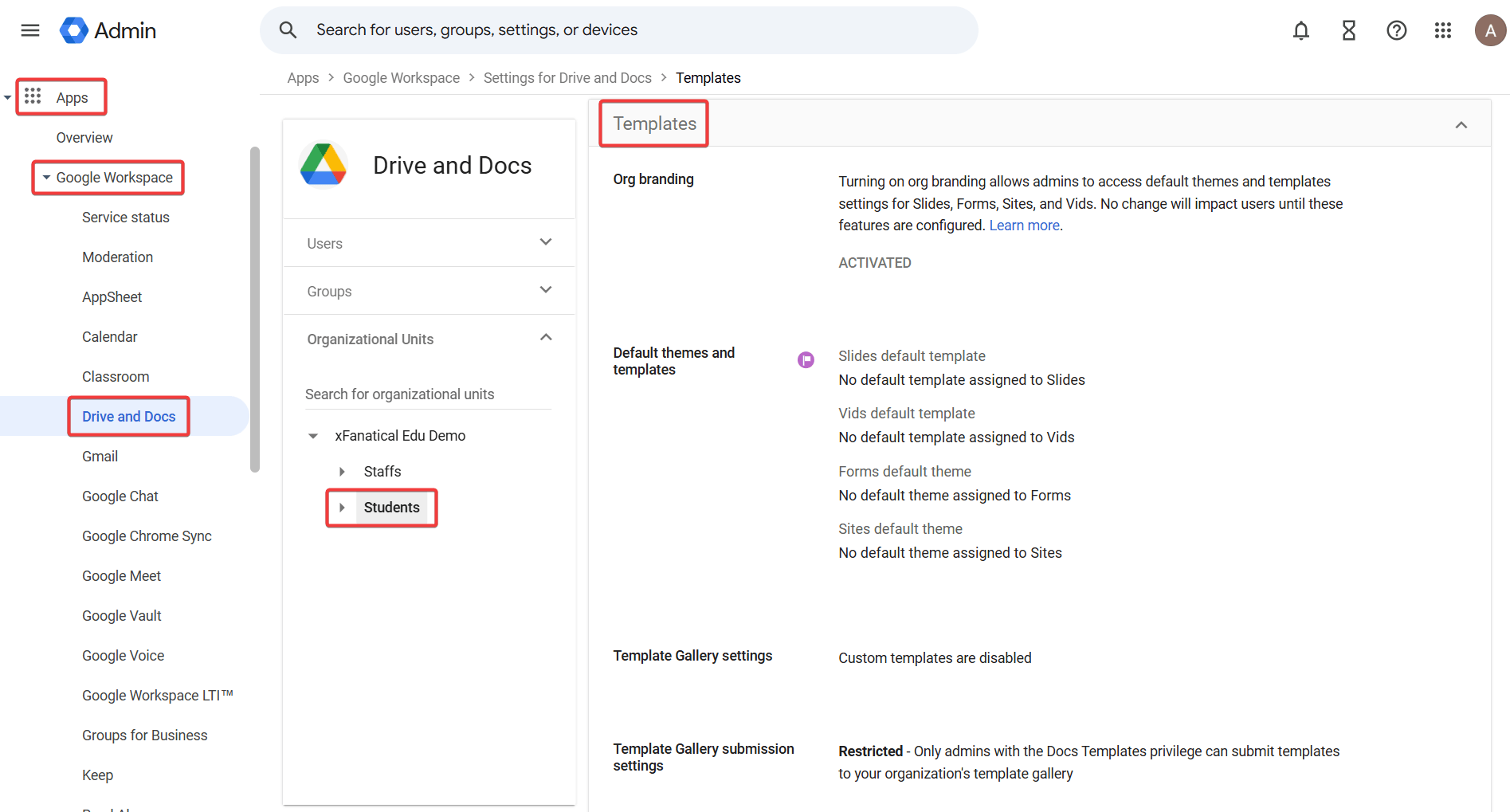
Solution 2: Browser-Level Enforcement (Recommended)
This approach uses a browser extension to enforce granular, real-time control directly within the browser. Unlike native controls, it works at the user interface level and allows administrators to restrict specific features inside Google Slides.
We provide xFanatical Safe Doc, a browser extension that can detect and control access to template-related features in Google Slides. It can disable the templates option Google Slides and prevent students from applying pre-designed templates.
Moreover, this ensures that students cannot rely on ready-made designs and are guided to follow teacher-defined formats and create original presentations.
For more detailed technical steps, kindly refer to step-by-step implementation of Safe Doc.
Block Templates in Google Slides with xFanatical Safe Doc
xFanatical Safe Doc is a browser extension designed to maintain focused and structured learning environments for K-12 students. It enables administrators to control browser behavior and restrict access to distracting features directly within Google Workspace applications.
One of its key capabilities is the ability to block templates in Google Slides. By enabling the BlockSlidesTemplates policy, administrators can remove access to the Theme Gallery and prevent students from using templates in Google Slides.
Additionally, by restricting template usage, schools can improve learning outcomes, maintain academic standards and encourage creativity based on students’ own understanding.
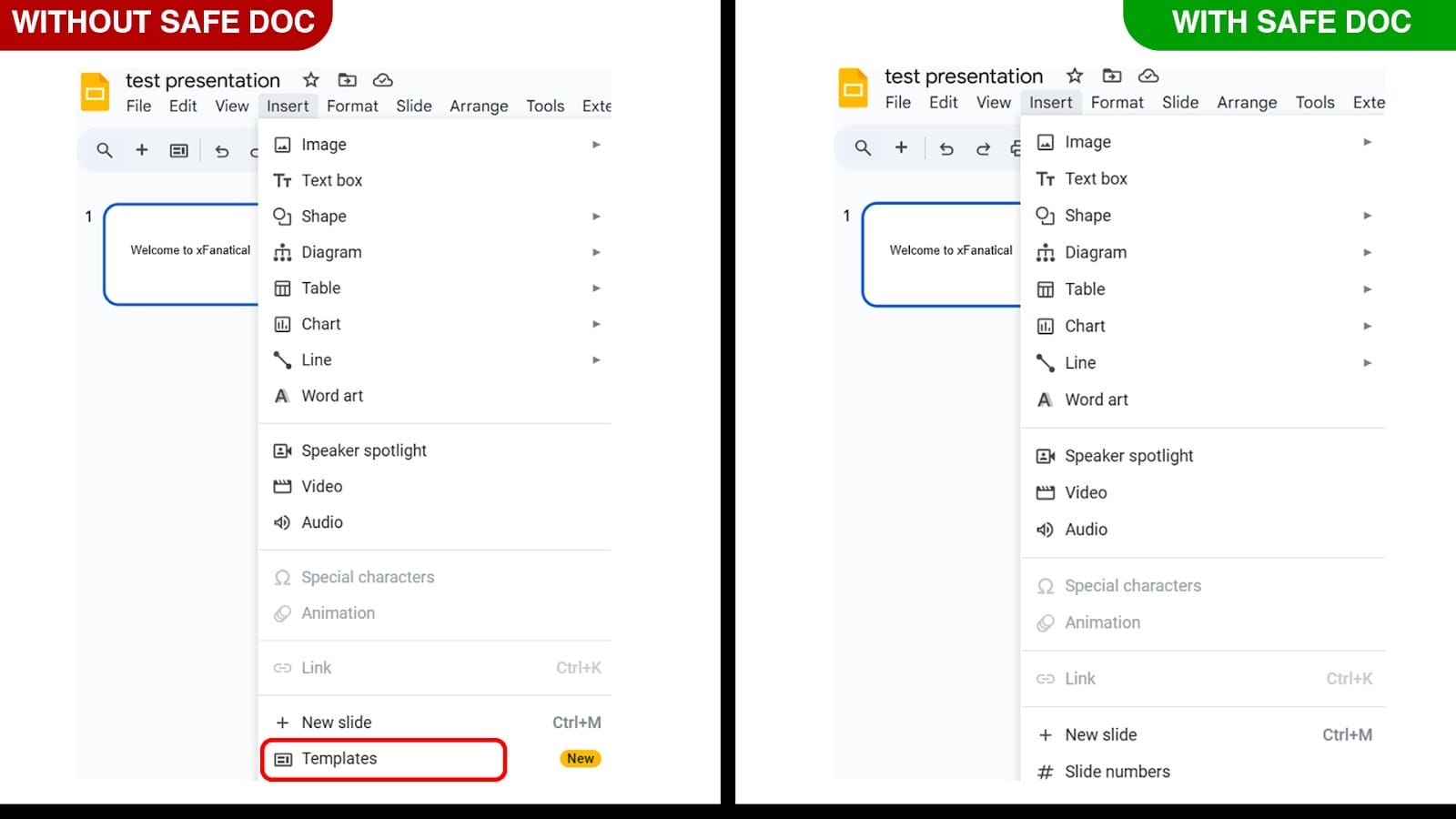
Insert > Templates feature is blocked by xFanatical Safe Doc in Google Slides
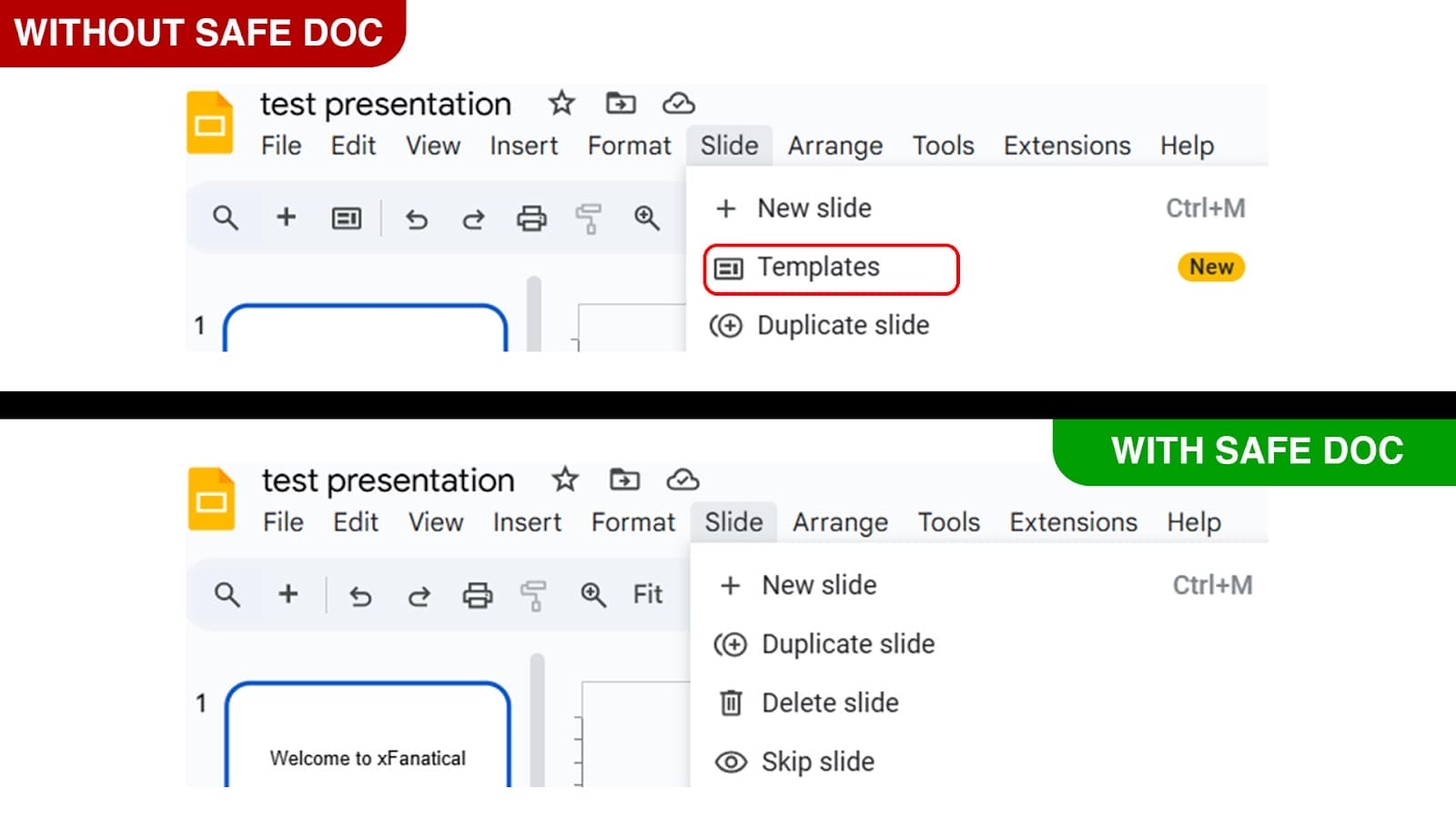
Slide > Templates menu is blocked by xFanatical Safe Doc in Google Slides
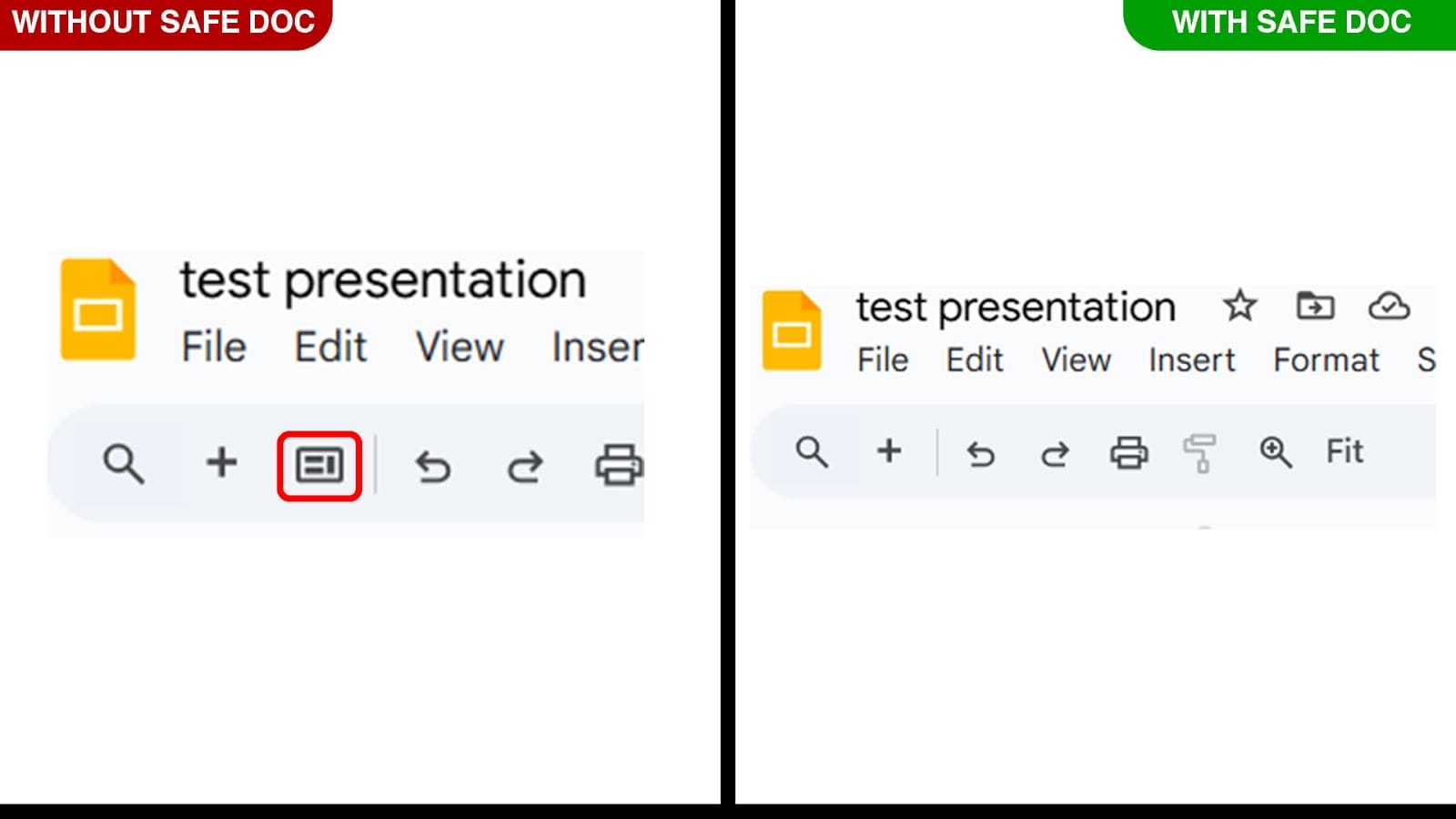
xFanatical Safe Doc removes Templates menu from Toolbar
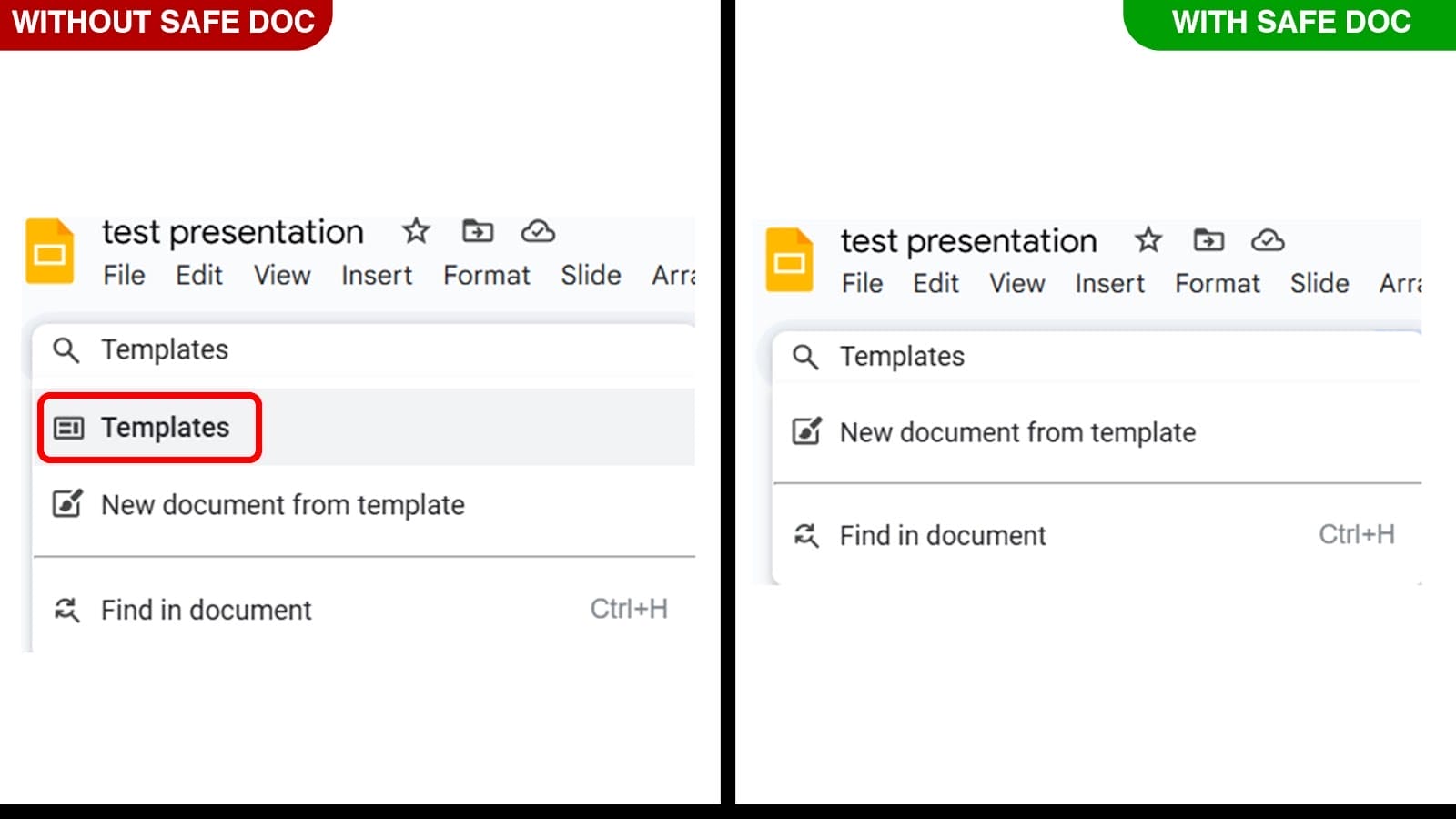
xFanatical Safe Doc removes Templates option from Help > Search for menus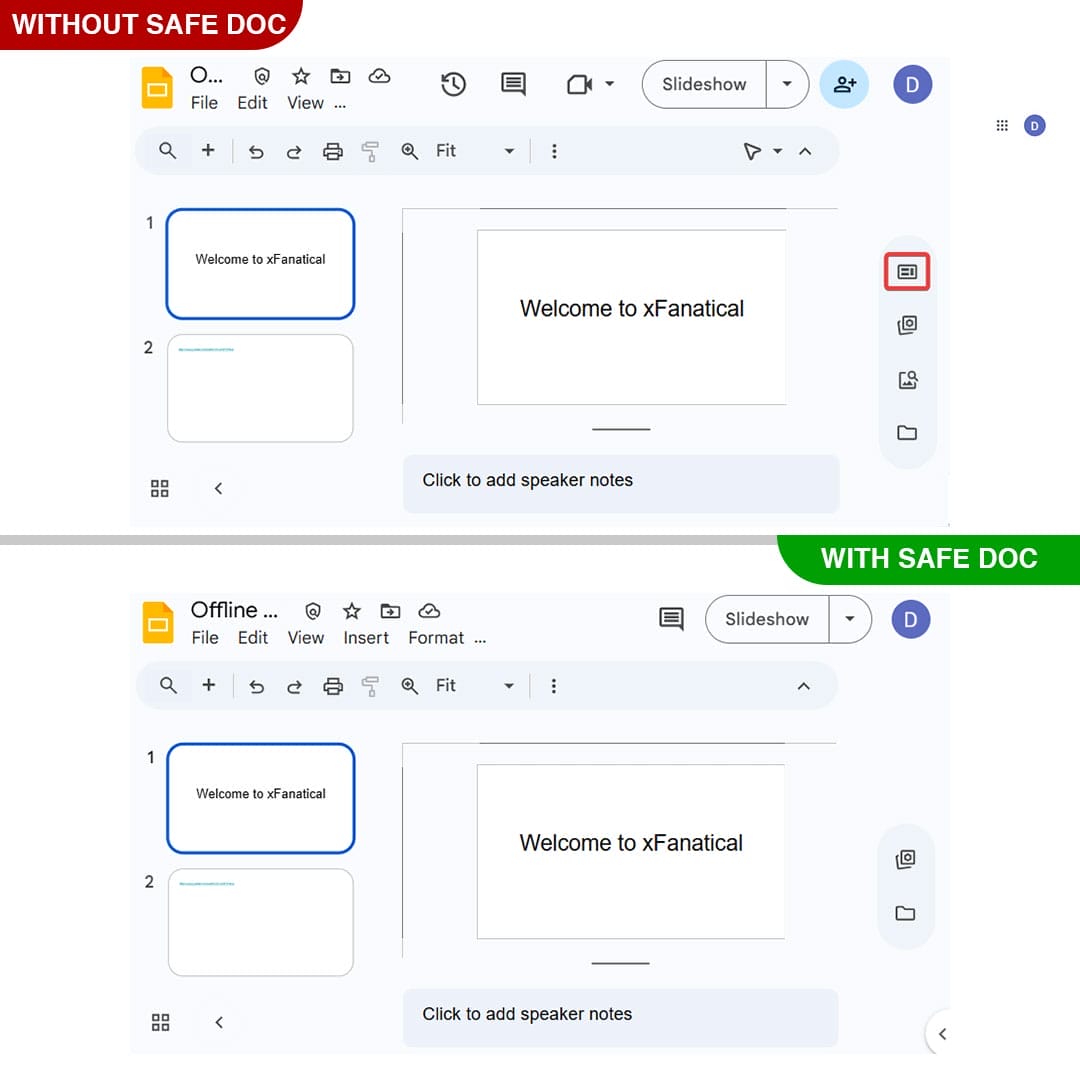
xFanatical Safe Doc removes Templates icon button from the right side navigation pane in Google Slides.
How to Disable Templates in Google Slides Using xFanatical Safe Doc
Step 1: Install Safe Doc:
To get started, first install Safe Doc in your Google Workspace environment. Safe Doc is a web browser extension that seamlessly integrates with Google workspace apps.
Step 2: Configure Safe Doc settings:
Once Safe Doc is installed, you can configure its settings to remove templates option Google Slides. To configure Safe Doc successfully, make sure you have deployed Safe Doc on your students' Chrome browsers and then review the xFanatical Safe Doc Configuration document for detailed instructions.
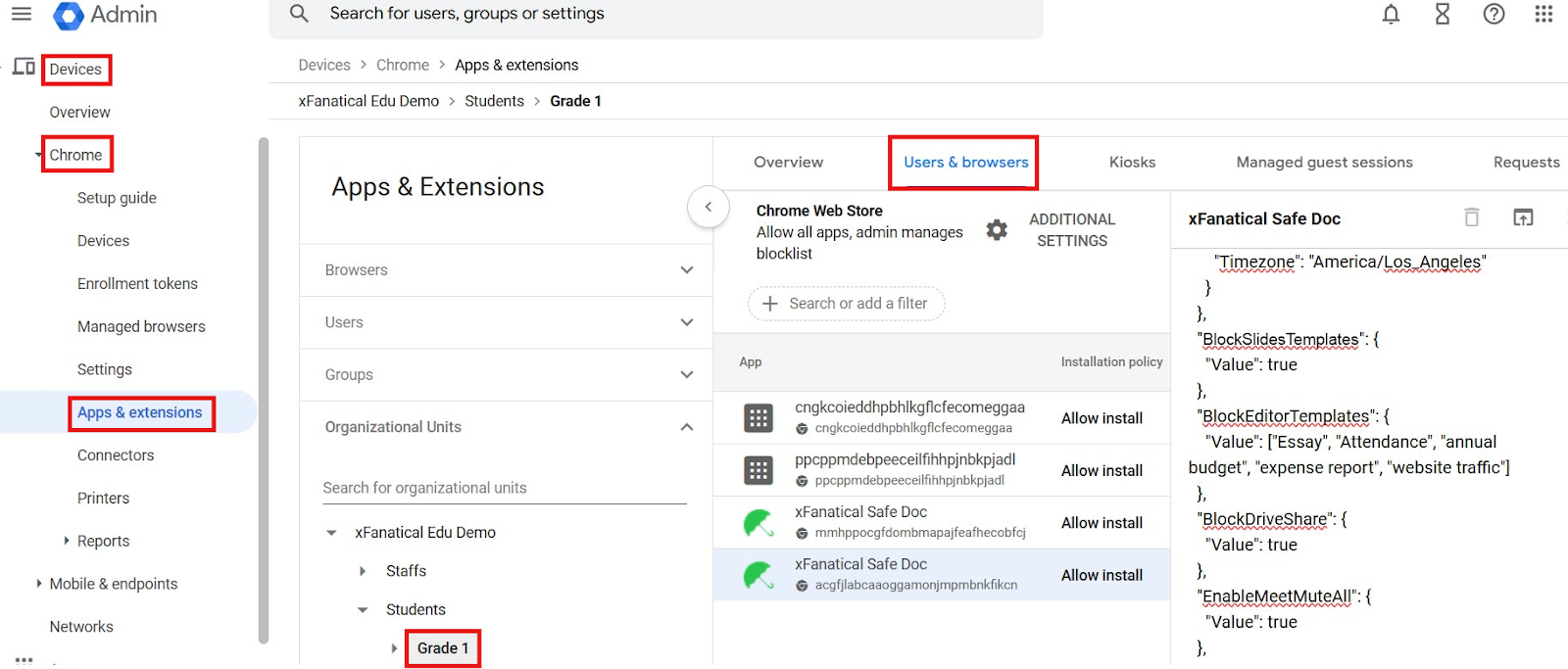
Step 3: Access Google Admin Console:
Now, navigate to the Google Admin Console. In the Google Admin Console, click on Devices >Chrome > Apps & Extensions > Users & Browsers.
Step 4: Review the Policy:
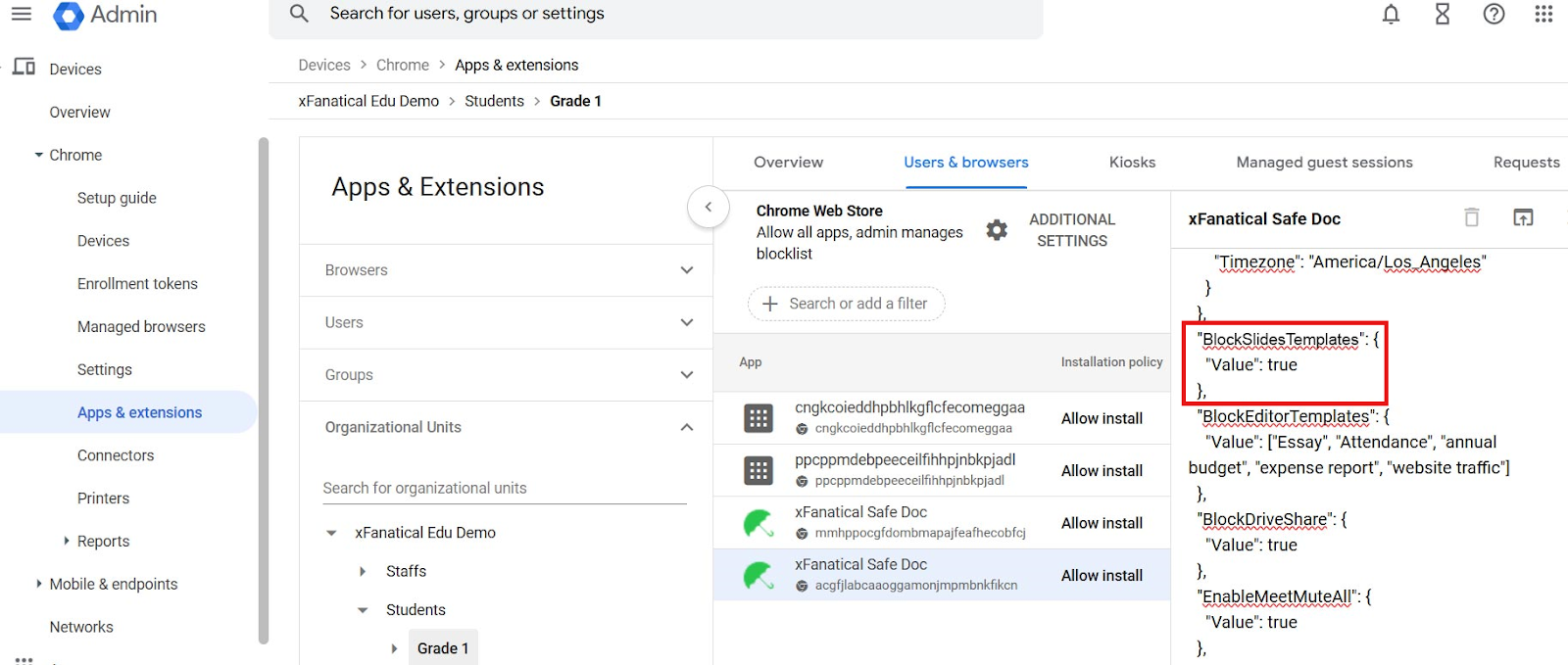
Find the policy that you wish to apply and if not found, then add policy as given below:
"BlockSlidesTemplates": {
"Value": true
}
Step 5: Save the Policy:
After reviewing the policy, click the Save.
Conclusion
While templates help users quickly create visually appealing presentations, they can create challenges in managed environments where students rely on pre-designed layouts instead of following assignment guidelines. However, this often leads to inconsistent submissions and reduced focus on original content creation. By using controls in the Google Admin Console and the browser-level enforcement tool xFanatical Safe Doc, administrators can restrict access to templates and ensure students create structured, consistent and meaningful presentations.
To learn more about how xFanatical Safe Doc can help enhance online safety in your educational institution, visit our xFanatical Safe Doc website.
Explore xFanatical Safe Doc with 30 days of trial.
 xFanatical Safe Doc
