

Introduction
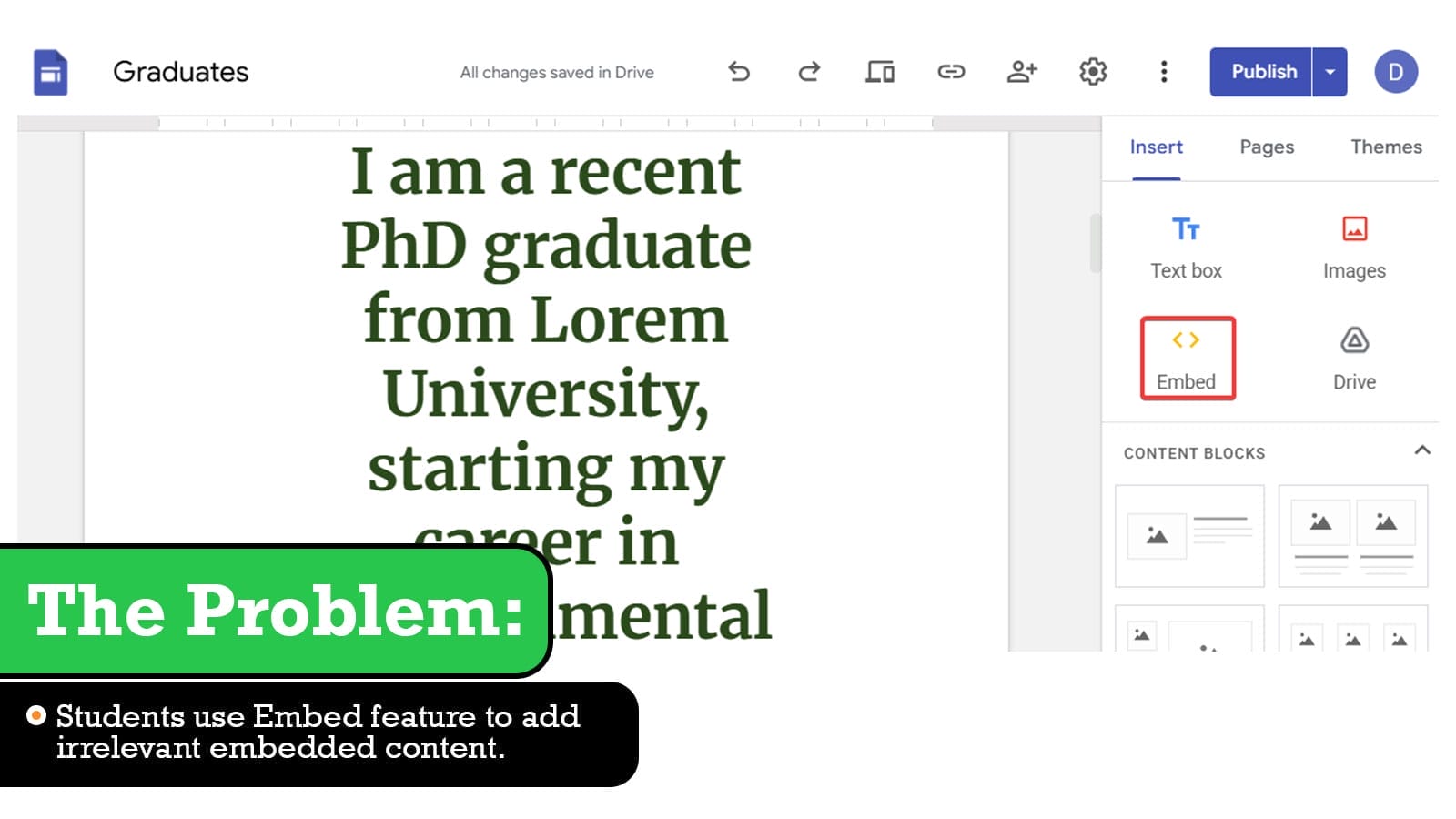
Google Sites allows users to embed external content such as videos, links and iframes directly into webpages. While this feature enhances interactivity and content, it also creates serious challenges in K-12 environments. Students can embed irrelevant, distracting and inappropriate content in learning sites.
The key challenge for administrators is that Google Workspace does not provide a native control to disable embed options in Google Sites for students.
This guide cover following topics:
- Why the Embed feature is difficult to control in Google Sites
- The impact of unrestricted embedding in classrooms
- Effective solution and its capabilities
- And how to disable Embed option in Google Sites using xFanatical Safe Doc
What is the Embed Feature in Google Sites
The Embed feature in Google Sites allows users to insert external content into a site using URLs or embed codes. This includes videos, external webpages, forms and interactive pages.
A technical architecture of the feature:
- The Embed feature is rendered directly within the Google Sites editor
- It relies on iframe-based or link-based content injection
- The functionality is controlled entirely at the frontend or browser level
- It is not exposed as a separate admin-controlled service or API
Because of this architecture, administrators cannot control embedding features using Google Workspace policies.
Video Demo
The Core Problem: Embed Feature of Google Sites
The Embed feature becomes a problem in schools when students insert external non-educational content with their educational sites. Using the feature students directly add content and lack creativity and self-learning.
Unrestricted embed feature creates following challenges:
- Students embed entertaining media into their sites during ongoing class and disturb the whole environment.
- The embedding feature allows students to embed external content and it bypasses school’s content guidelines.
- Embedded elements added by students can break the site structure defined by teachers.
- Teachers find it difficult to evaluate the work done by students, since they use external sources instead of creating original work.

Why Embed Code Cannot Be Blocked Natively
It is important to understand how Google Sites operates internally, before proceeding with risks and finding ideal solutions.
When a user edits a site, much of the interface is rendered in the browser using client-side scripts. The Embed option is exposed through this UI, allowing users to insert external content such as URLs or embed codes. While the interaction happens in the browser, the content is validated, processed and stored on Google’s backend systems.
Since embedding is handled entirely at the UI interaction level, Google Admin Console does not provide any policy to restrict or disable the Embed code in Google Sites.
The Risks Associated with Feature in Schools and Managed Environments
Unrestricted access to the Embed feature in Google Sites creates following risks in classrooms and managed environments:
- Administrators cannot control what external content students are embedding, making it difficult to monitor site content across multiple students.
- Teachers struggle to maintain consistency in assignments, as students embed different external content instead of following the required structure.
- Embedding external websites or links can introduce unsafe or inappropriate content, which may impact the school’s digital safety standards.
Available Solutions to Restrict the Embed Feature
The Embed feature is built directly into Google Sites and there is no native option in Google Workspace to prevent students from embedding content in Google Sites. Therefore administrators rely on alternative approaches.
Below are some common approaches used in schools along with their limitations. The final solution using the xFanatical Safe Doc Chrome extension provides a more effective and scalable way to restrict the Embed feature in Google Sites.
- Solution 1: Disable Google Sites Editing for Students
Administrators can restrict access to Google Sites editing by turning off site creation permissions for students. But this is not advised since it will remove complete access to Google Sites. Teachers may have academic goals associated with Google Sites. Administrators can go to Google Admin Console > Apps > Google Workspace > Sites and turn OFF Sites service.
Limitation: This is not practical in most educational environments, as it completely removes the ability for students to create and submit site-based assignments.
- Solution 2: Browser-Level Enforcement (Recommended)
This approach provides real-time control directly within the browser. Instead of relying only on backend policies, browser-level enforcement allows administrators to restrict how students can use Google Sites features.
Using xFanatical Safe Doc, administrators can block Embed features for students and encourage students to research and add content as per their knowledge.
For more detailed technical steps, kindly refer to step-by-step implementation of Safe Doc.


Restrict Embed Code in Google Sites for School
xFanatical Safe Doc is a browser extension that provides policies to maintain focused and secure learning environments for K-12 students. It provides policies to manage and restrict access to irrelevant features for a safe and productive digital environment and allows administrators to prevent students from misusing Embed features in Google Sites.
Using Safe Doc, administrators can enable the BlockSitesEmbed policy and set its value to true. After the policy implementation, students will no longer be able to access the Embed option and icon anywhere in Google Sites. This restriction ensures students remain focused on learning on their own instead of using readymade embedded contents.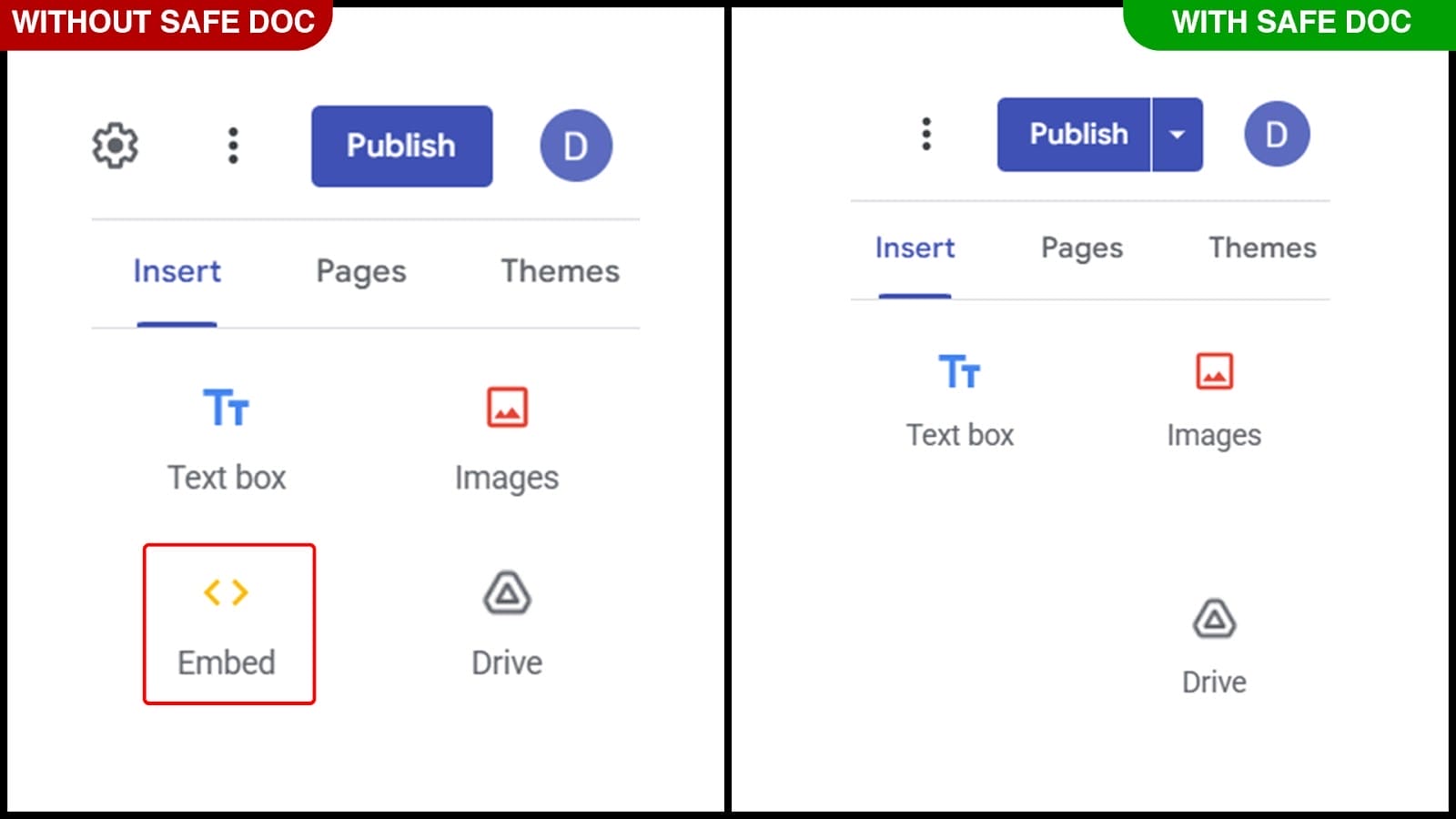
xFanatical Safe Doc blocks Embed feature in Google Sites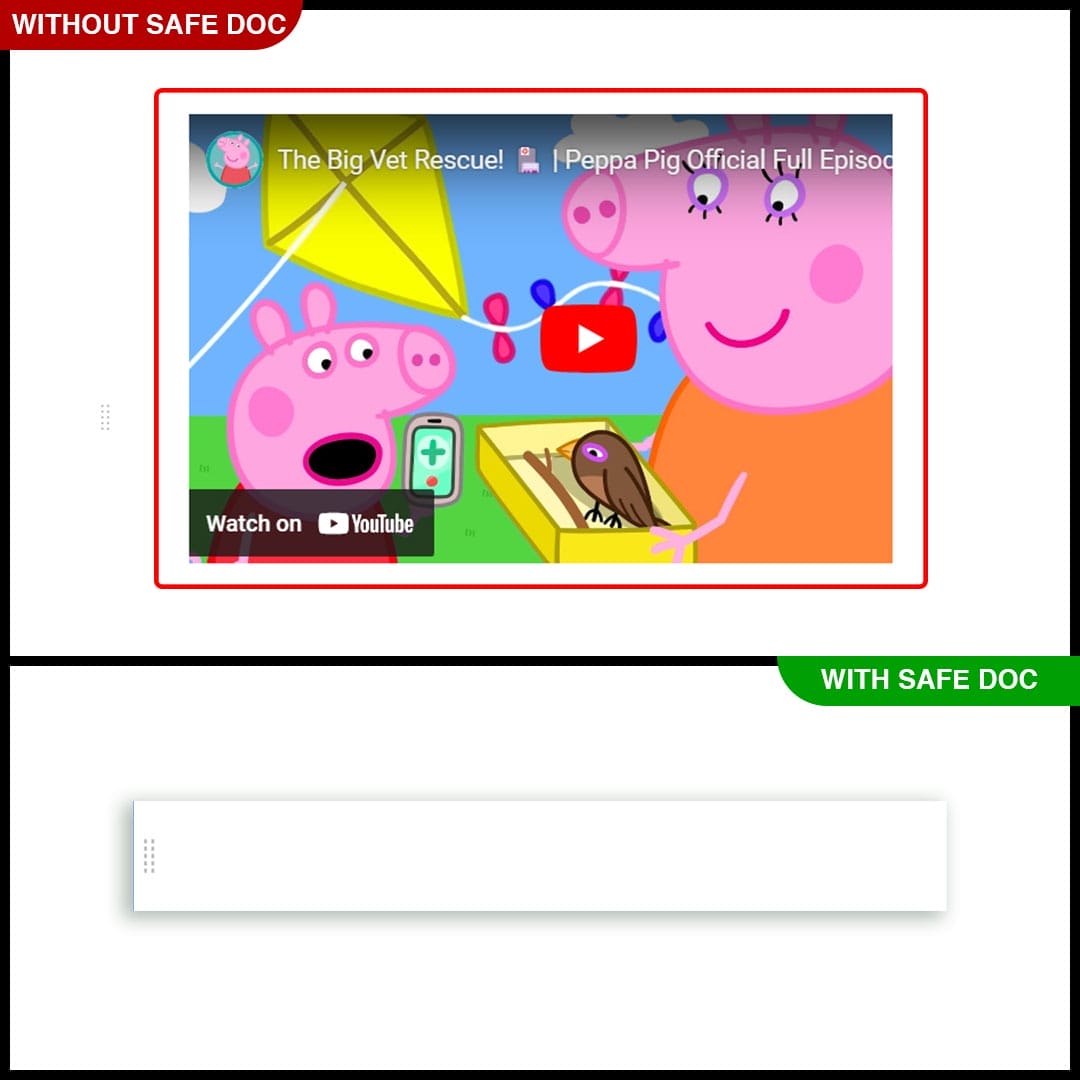
Hide custom embed code block option in Google Sites using xFanatical Safe Doc
xFanatical Safe Doc removes Embed By URL option in Google Sites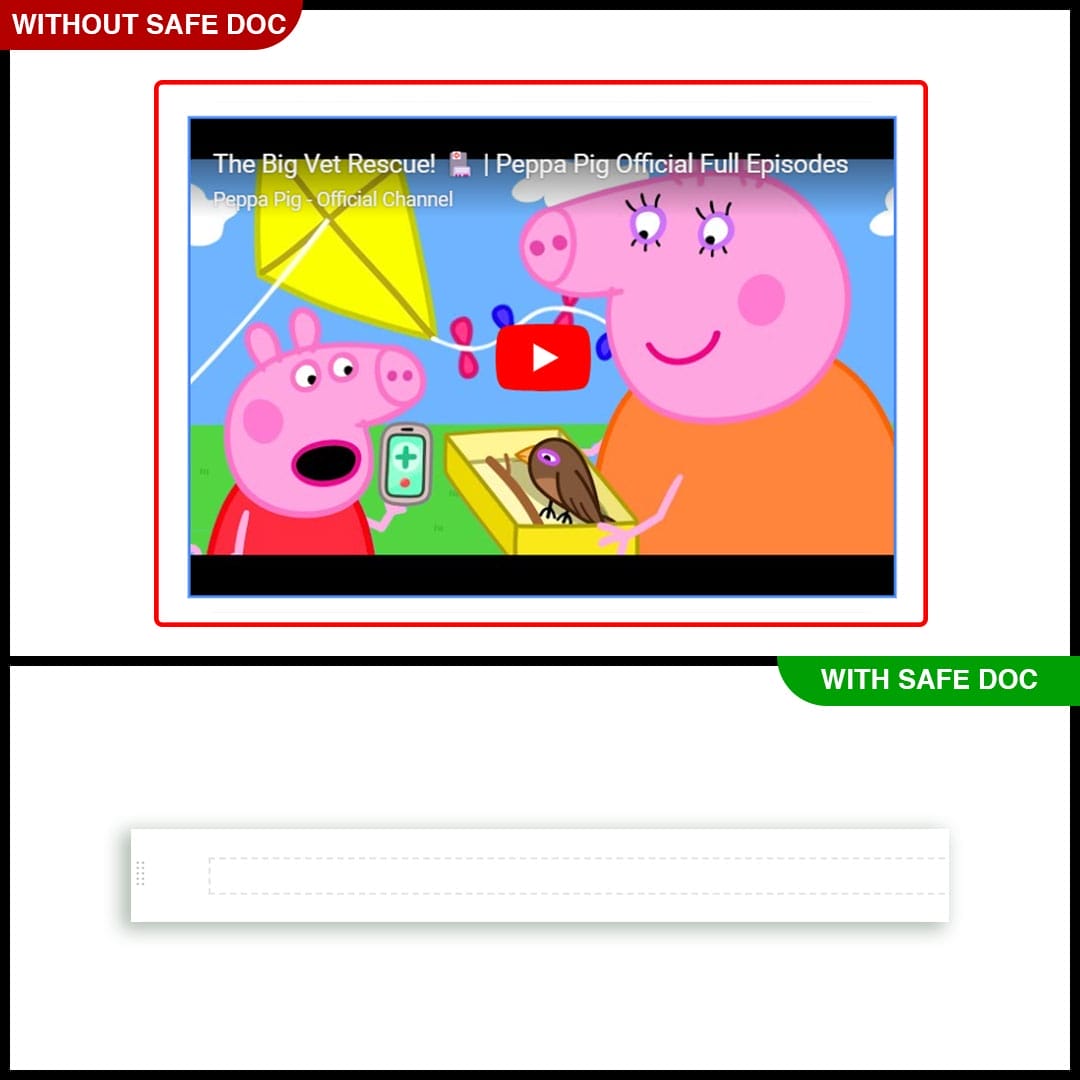
xFanatical Safe Doc removes Embed YouTube URL option in Google Sites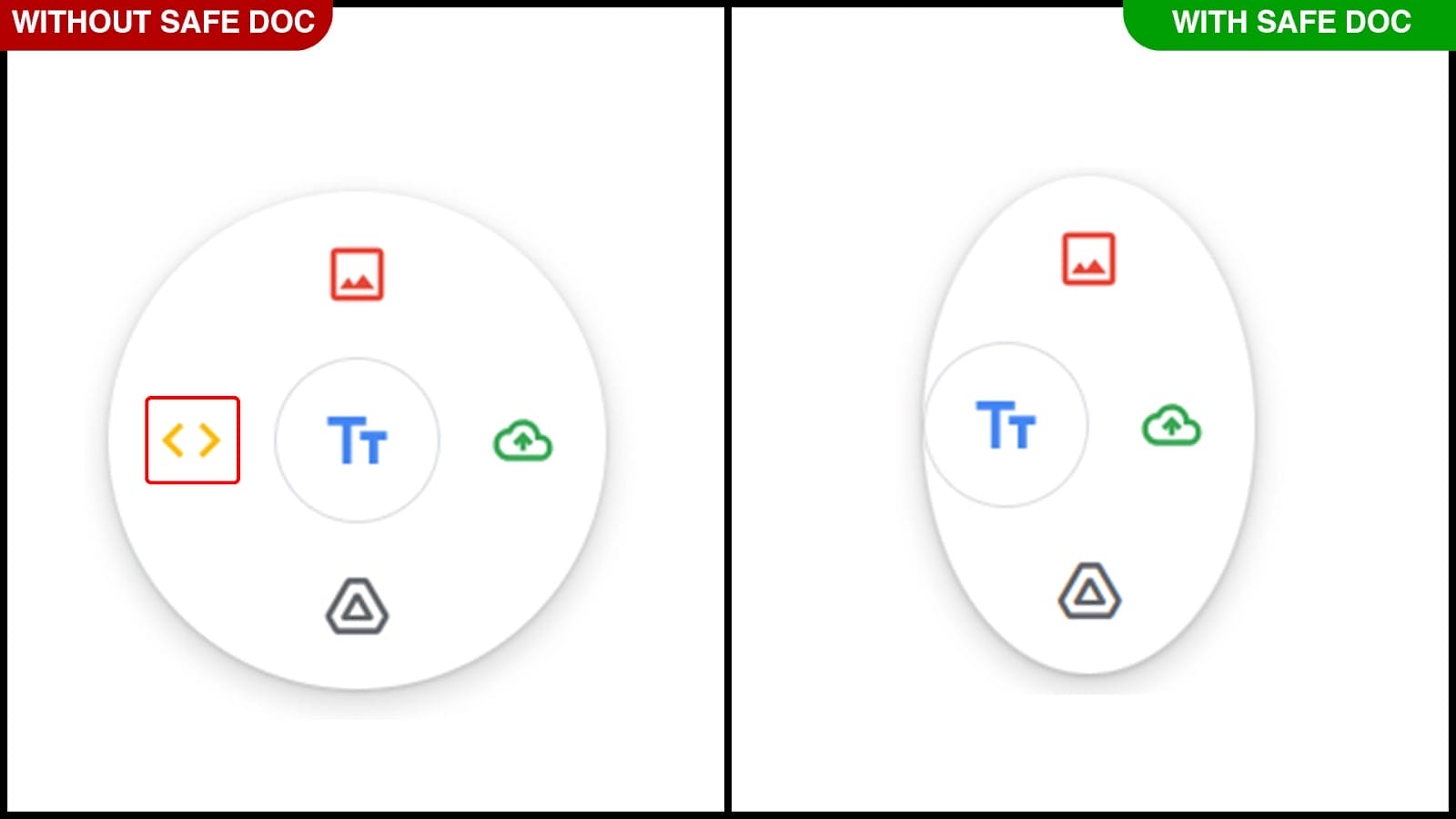
Remove Embed button in Google Sites using xFanatical Safe Doc
How to Disable Embed Feature in Google Sites Using xFanatical Safe Doc
Step 1: Install Safe Doc
At the start, install Safe Doc in your Google Workspace environment.
Step 2: Configure Safe Doc settings
Once Safe Doc is installed, you can configure its settings to disable embed options in Google Sites for students. To configure Safe Doc successfully, make sure you have deployed Safe Doc on your students' Chrome browsers and review the xFanatical Safe Doc Configuration document for detailed instructions.
Step 3: Access Google Admin Console
Next, go to the Google Admin Console and click on Devices > Chrome > Apps & Extensions > Users & Browsers to get list of policies.
Step 4: Review the Policy
Find the policy that you wish to apply and if not found, then add policy as given below:
"BlockSitesEmbed": {
"Value": true
}
Step 5: Save the Policy
Finally, click Save after applying the policy.
Conclusion
Since Google Workspace does not provide native controls to restrict embedding, administrators cannot enforce this limitation using the Admin Console alone.
xFanatical Safe Doc offers a practical solution by enforcing restrictions at the browser level. By blocking the Embed feature, schools can maintain structured learning environments, improve content quality and ensure students focus on original work.
To learn more about how xFanatical Safe Doc can help enhance online safety in your educational institution, visit our website xFanatical Safe Doc
Explore xFanatical Safe Doc with 30 days of trial.
 xFanatical Safe Doc
