

Introduction
Disabling the Reply All option in Gmail is a real challenge for IT administrators in K-12 schools. Imagine a school where the principal sends an important announcement to all 5th grade students. One student clicks Reply All to acknowledge the message and a reply is received by all the 50 students cluttering the emails.
Additional challenge is that Gmail does not provide a built-in, granular control to completely disable the Reply All functionality. While administrators can configure certain compliance and routing rules in the Admin Console, they still cannot directly turn off Reply All in Gmail interface.
The guide will cover following topics:
- Why Reply All option is problematic in school environment
- The impact of unrestricted Reply All usage on teachers and administrators
- Available solutions and the most effective way to manage this behavior
- And how to disable Reply All in Gmail using xFanatical Safe Doc
 xFanatical Safe Doc blocks the Reply all feature in Gmail
 xFanatical Safe Doc blocks the Reply all feature in Gmail
What is the Problem Caused by Reply All in Gmail
Reply All in Gmail can lead to problems such as a single email can get a large number of unnecessary replies and students may accidentally click on the Reply All button to send a simple acknowledgement to hundreds of recipients. An additional issue is about privacy, consider that the teacher shares feedback intended to be confidential between the teacher and a specific student. If a student mistakenly uses Reply All, that sensitive feedback is sent to the entire group instead of just the teacher.
A teacher reports an issue to the IT administrator:
“I sent an assignment update to my class and one student used Reply All to ask a question. After that, multiple students started replying to everyone, some with answers, others with unrelated messages. My inbox was flooded and it disrupted the communication.”
Teachers also highlight the misuse:
“Students are using Reply All to send jokes to the entire class. This creates distractions and makes it hard to keep email communication focused on learning.”
Why Disabling Reply All is Not Possible Natively
The reason disabling Reply All is not possible natively is due to how Gmail is designed.
Gmail focuses on communication flexibility rather than strict interface-level restrictions. The Reply All function is a core part of email and integrated into the user interface. Although the Google Admin Console provides controls for routing, compliance and external sharing, it does not offer UI-level controls to prevent Reply All in Gmail.
Video Demo
The Impact of Uncontrolled Reply All Usage
Uncontrolled use of the Reply All feature in Gmail creates challenges in school environments.
- One of the most common issues is the cluttering of emails. With one simple announcement email, multiple students may start responding to the same thread with unnecessary messages. Piled up emails make it difficult for teachers to identify important ones.
- Another major impact is classroom disruption. Teachers rely on email for structured communication, such as sharing assignments, instructions or updates. When Reply All is misused, the communication goes out of educational track and is filled with non-important details.
- Additionally, there is a risk of misuse and inappropriate communication. Students may use Reply All to send irrelevant messages, jokes or spam to the entire class, leading to distractions and reduced focus during school hours.
Available Solutions to Turn Off Reply All in Gmail
Schools can try multiple approaches to stop Reply All emails in school Gmail, but most of them come with clear limitations.
- Schools can use Gmail routing and compliance rules in the Admin Console. The settings control how emails work within the domain and the rules allow administrators to monitor email activity or apply restrictions based on conditions such as sender, recipient or keywords.
Administrators can go to Google Admin Console > Apps > Google Workspace > Gmail > Compliance and can create a rule to block or quarantine emails sent to large groups or restrict emails that include multiple recipients.
Limitation: This method does not stop a student from clicking Reply All in the first place. These rules work only after the email is sent. They do not control what the student sees or clicks inside Gmail.
- Suitable Solution : Browser-Level Enforcement (Recommended)
Since all the above approaches have some limitations, schools need to solve the problem by using browser-level enforcement, instead of relying on policies.
This approach uses a browser extension to enforce granular, real-time control directly within the browser. The browser extension works at the browser level without depending on backend policies.
With Safe Doc, administrators can enforce browser-level restrictions within Gmail, allowing them to disable or hide the Reply All button for students. This ensures that students can only respond directly to the sender, eliminating the possibility of unnecessary group replies.
For more detailed technical steps, kindly refer to step-by-step implementation of Safe Doc.


Stop Reply All Emails in School Gmail with xFanatical Safe Doc
xFanatical Safe Doc is a browser extension that provides policies to maintain focused and secure learning environments for K-12 students. It provides policies to manage and restrict access to irrelevant online content for a safe and productive digital environment and allows administrators to prevent Reply All in Gmail.
By enabling the BlockGmailReplyAll policy, administrators can stop students from accessing the Reply All option and manage Gmail in a better way. All administrators have to do is set the policy to true and the button will disappear from Gmail UI.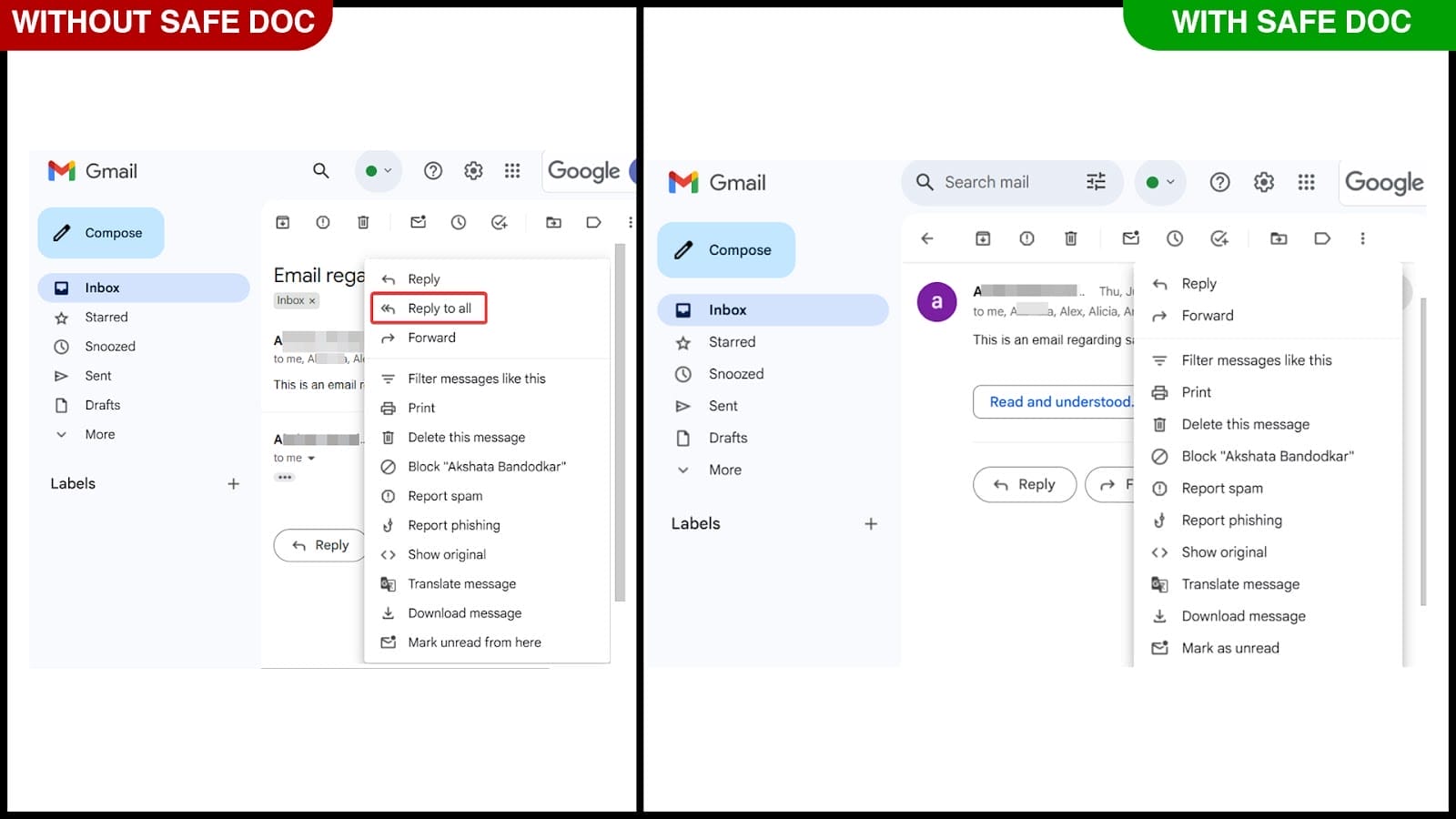 xFanatical Safe Doc blocks the Reply all menu item in Gmail
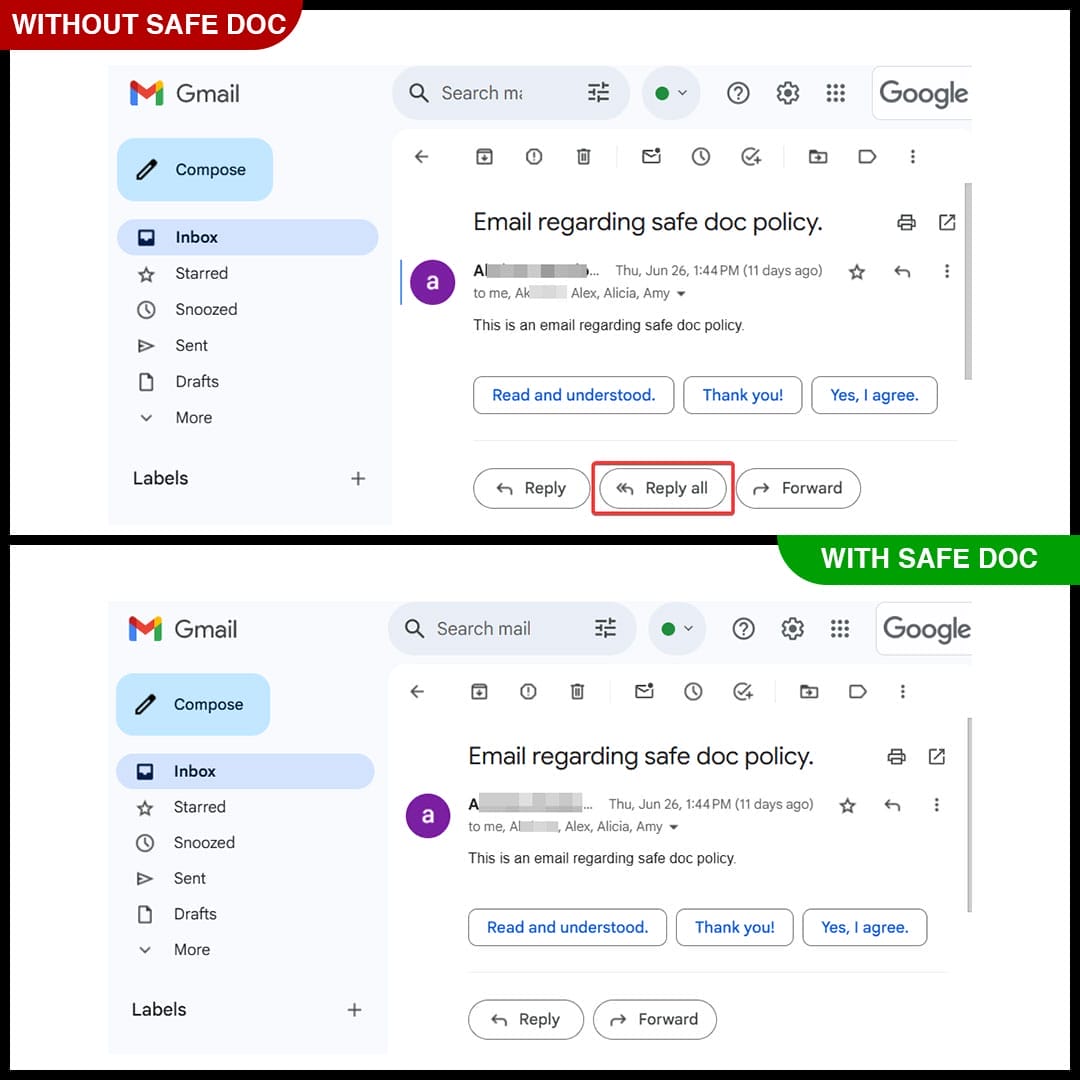 xFanatical Safe Doc disables the Reply all button in Gmail
Reply all dropdown option in Gmail is blocked by xFanatical Safe Doc
How to Disable Reply All in Gmail Using xFanatical Safe Doc
Step 1: Install xFanatical Safe Doc:
To get started, first install Safe Doc in your Google Workspace environment. Safe Doc is a web browser extension that seamlessly integrates with Google workspace apps.
Step 2: Configure Safe Doc settings:
Once Safe Doc is installed, you can configure its settings to restrict Reply All in Gmail. To configure Safe Doc successfully, make sure you have deployed Safe Doc on your students' Chrome browsers and review the xFanatical Safe Doc Configuration document for detailed instructions.
Step 3: Access Google Admin Console:
Now, navigate to the Google Admin Console. In the Google Admin Console, click on Devices followed by Chrome. Then, select Apps & Extensions and click on Users & Browsers.
Step 4: Apply and save the Policy:
Enable the policy to true and save. The policy will display in a specific format similar to the example provided below:
"BlockGmailReplyAll": {
   "Value": true
}
Conclusion
Since Gmail or Admin Console does not provide a direct way to disable the Reply All feature in Gmail, administrators rely on other methods to prevent the misuse. Native controls lack the ability to restrict Gmail’s internal features but xFanatical Safe Doc is an effective solution to get the control over Gmail features. By disabling Reply All, admins can reduce email clutter, prevent confidentiality among students and educators and improve communication.
To learn more about how xFanatical Safe Doc can help enhance online safety in your educational institution, visit our website xFanatical Safe Doc.
Explore xFanatical Safe Doc with 30 days of trial.
 xFanatical Safe Doc
