

Introduction
In this article, you will learn how to set new users’ default language by organizational units in Google Workspace using xFanatical Foresight. As an organization grows and hires individuals from different parts of the world for different organizational units, the need for setting a language favourable to the employees of a particular organization unit arises. Doing this task manually in Google admin console is very time consuming and is prone to error, especially when dealing with hundreds or thousands of users.
Let’s take an example: A multinational company has teams spread all across the world, like Japan, USA, India and Germany. Each location has its own language preferences and it's essential for Google Workspace to open in the correct local language from the moment a new account is created. Manually updating the interface language for every new user is very time-consuming for the Admin and this often leads to inconsistencies, especially during mass onboarding cycles.
With xFanatical Foresight’s automation, administrators can assign a default language to each Organizational Unit, such as Japan OU = Japanese or Germany OU = German. Once configured, every newly created user in that particular OU automatically receives the correct language settings across Gmail, Drive, Google Classroom, Calendar and other Google services. This ensures accuracy, reduces onboarding friction and gives users a seamless experience from day one.
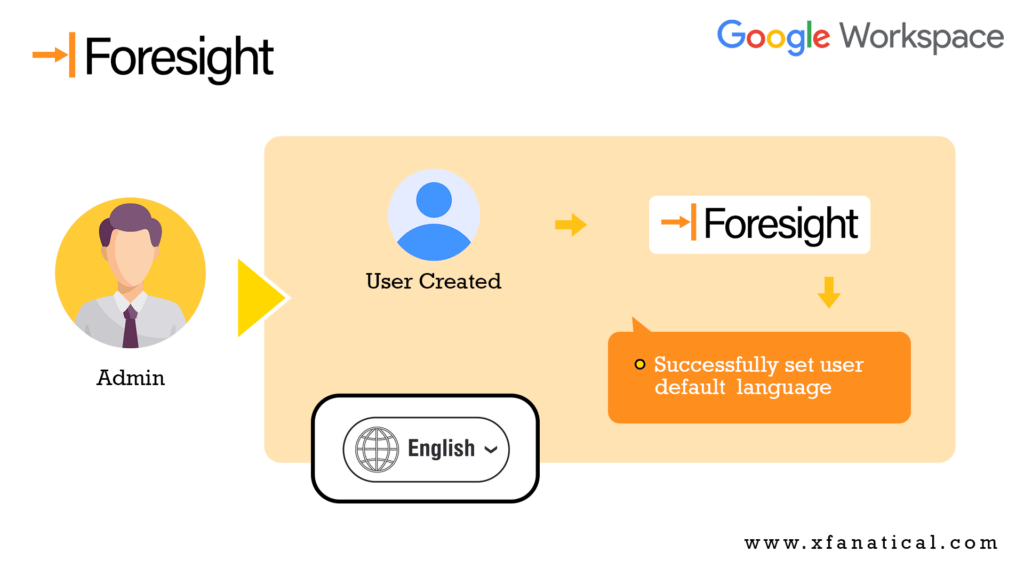
Illustration of how xFanatical Foresight automates the bulk change preferred language for users in Google Workspace.
Introducing xFanatical Foresight Automation
xFanatical Foresight is a powerful automation platform designed specifically for Google Workspace. It enables administrators to efficiently set the preferred language for newly created users joining a specific organizational unit in Google Workspace. Instead of manually updating language settings for each user in the Google Admin Console, administrators can rely on automation to apply the correct preferred language at the time of user creation. This ensures a consistent user experience, reduces confusion and supports multilingual teams across the organization. With xFanatical Foresight’s intuitive interface and powerful automation, language assignment becomes fast, accurate and hassle-free.
Automation Setup Instructions
In this section, we guide you through the automation setup in xFanatical Foresight. Setting up automation rules is now faster and simpler than ever with ready-to-use templates, check Set up automation from a template section. After completing the automation rule, verify whether the automation meets your requirements.
Set Up Automation From a Template
Supported plans: xFanatical Foresight Elite plan.
- Sign into xFanatical Foresight with your Google Admin account.
- Go to the Templates page.
- Search for Set new users default language by organizational units and click on it.

- In the Templates > Set new users default language by organizational units page, click Copy rule.

- For the first time use of the template rule, an dialog Action needed will display requesting necessary permissions required to copy the rule. Click Connect with Google and authorize the permissions.
- Upon authorization, a dialog titled Copy of Set new users default language by organizational units will display.
- Click on the If action.

- (Optional) You can rename the branch based on your use case.
- In the branch condition, update the OU path for which you want to update the language.
- (Optional) If you want to create additional branches, click Add Branch.

- Click on the Update user language action.
- In the Edit actions > Update user language screen.

- In the New preferred language field, select the language you want to set for users from the dropdown.
- Click Review.
- Repeat step 9 to Update user language (1) => New preferred language field.
- In the Review screen.

- In Rule name, customize the automation rule name.
- Click Save.
- The rule is created in the Rules page.


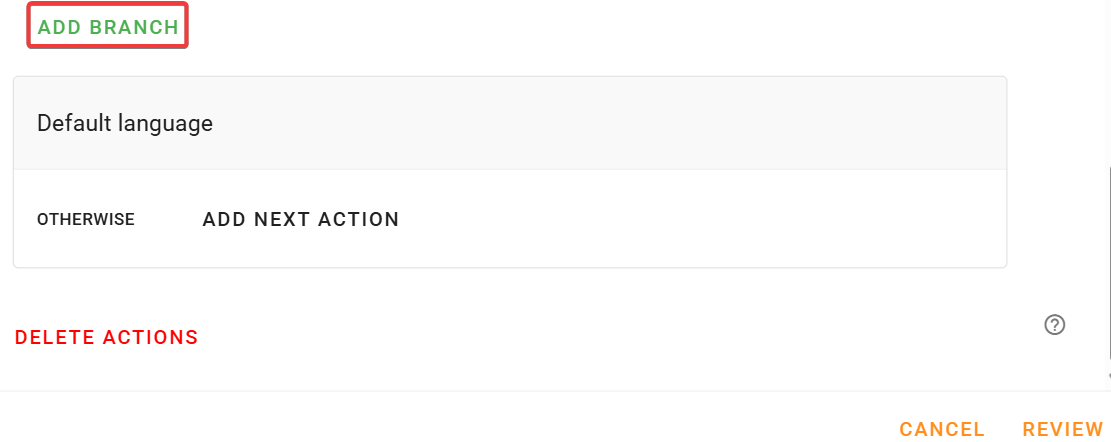


xFanatical Foresight rule to set new users’ default language by Organizational Units.
Verify Automation
To ensure your rule is configured correctly and runs as expected, it’s important to perform a quick test. The steps below demonstrate how xFanatical Foresight automates the preferred language assignment for new users in accordance with the organizational unit they join, helping administrators save time, maintain consistency and enforce organizational language settings efficiently.
- Sign into your Google Admin Console.
- Add a new user to your Google Workspace. For more information, see Google’s documentation to add a new user in Google Admin.

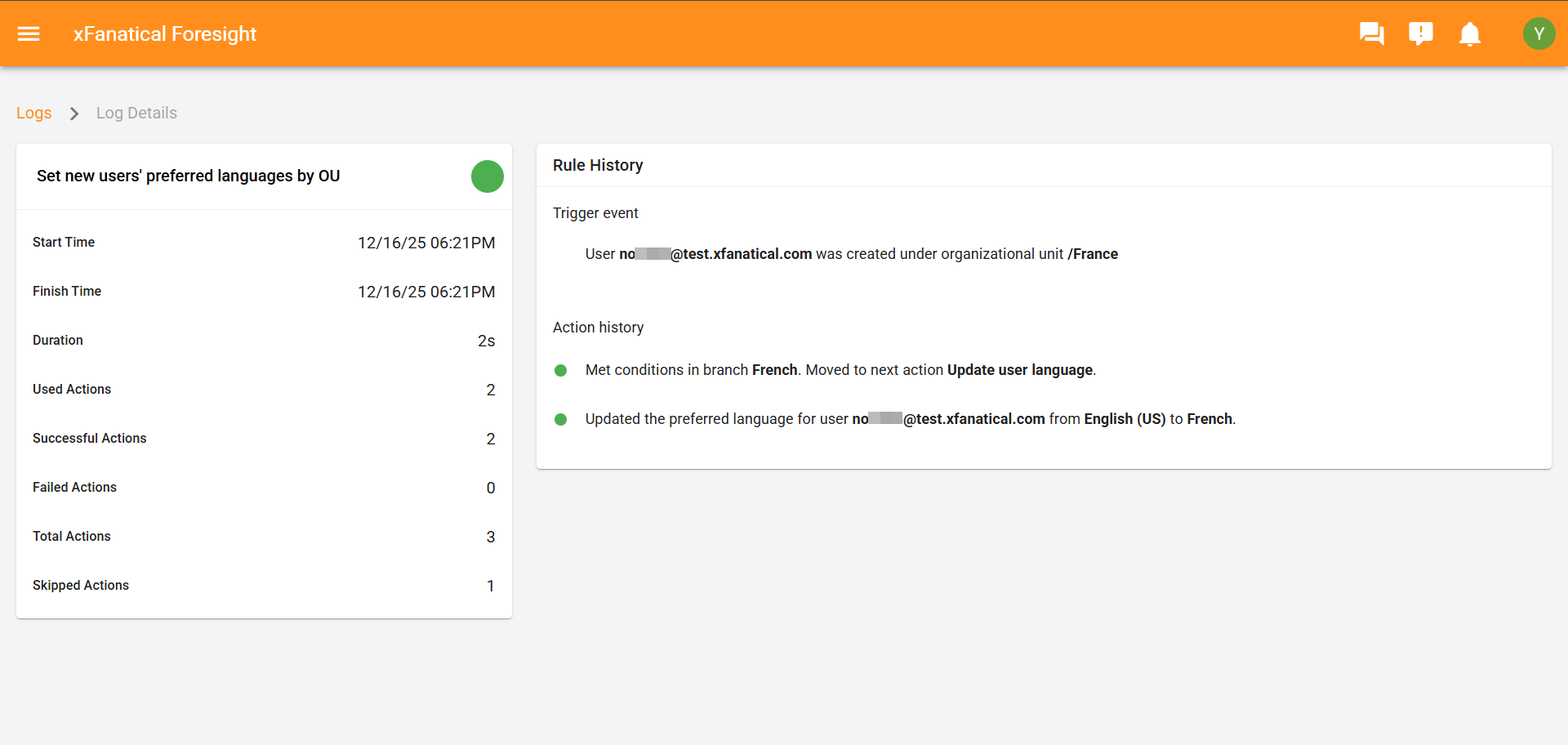
- Wait momentarily, and you’ll receive a notification in the top right corner of xFanatical Foresight. In the notification message, click View log to review the execution details.

- In the Logs > Log details page, the Rule history section explains the automation history and task xFanatical Foresight has automated on behalf of your Google account.

- Sign into the user account, you newly created and verify that the automation has successfully updated the preferred language.



Conclusion
Automating the process of updating preferred languages for new users in accordance with the organizational units they join in Google Workspace with xFanatical Foresight ensures efficiency, accuracy and consistency. Instead of manually changing language settings for each Organizational Unit's user , IT admins can seamlessly update preferred languages for new users at the time of creation. It saves time and reduces administrative workload. This streamlined approach ensures every user receives the correct language setting, improves usability across Google services and supports smooth onboarding and daily operations for multilingual teams.
Try a 14-day free trial with xFanatical Foresight and manage your tasks.
Related Articles
For more article please visit our website: Articles
 xFanatical Foresight Login
