

Introduction
In this blog you will know about importance of disabling Link Preview feature in Google Docs, Slides and Drawings. The link preview is a feature that automatically generates a preview of the link you paste and preview will be visible even when you hover over a link. Instead only a plain URL, it shows additional details such as the page title, file name, icon or a small card-style preview. While this feature is useful, in school settings it becomes distraction among students. Sometimes the preview images will be inappropriate for students, which leads to safety concerns. By turning off the link preview feature, teachers can maintain more focused and secure learning environment.
For example - When you paste a link to a Google Doc, Slide or Sheet, a smart chip or preview card is shown to let users open the file, see details or access it within the document.
Why Disable Link Preview Feature in Google Workspace ?
Disabling the Link Preview feature helps educators to maintain students focus by preventing unnecessary distractions caused by auto-generated previews. It also ensures that shared content is not misrepresented or taken out of context. This simple step can help create a more streamlined and controlled learning environment.
Let’s understand the scenario:
- Problem: Mr. Thompson a social teacher, assigned a research project to students, including Sarah and Alex. Students were allowed to use Google Slides. While working on the project, Sarah inserted a link to an article which generated an preview image. Alex got distracted from his own research and started checking in link image and other details. Although the preview image was inappropriate for them. It was a safety concern of Mr. Thompson.
- Solution: To address the issue, Mr. Thompson started looking for a solution and found xFanatical Safe Doc. He implemented the Safe Doc policy to block link previews for Google Docs editors.
- Result: After disabling the link preview feature, students were focused only on their project and it mitigated the students safety issue. It helped students to stay on track with their research and restore productivity within the k-12 classroom.
Disable Link Preview Feature in Google Docs
Google Docs link preview feature automatically generates a preview of any link inserted into a document and disrupt the focus. In today's digital era, it is essential to manage distraction among students for their success. Hence xFanatical Safe Doc provides policy to block such distractions.
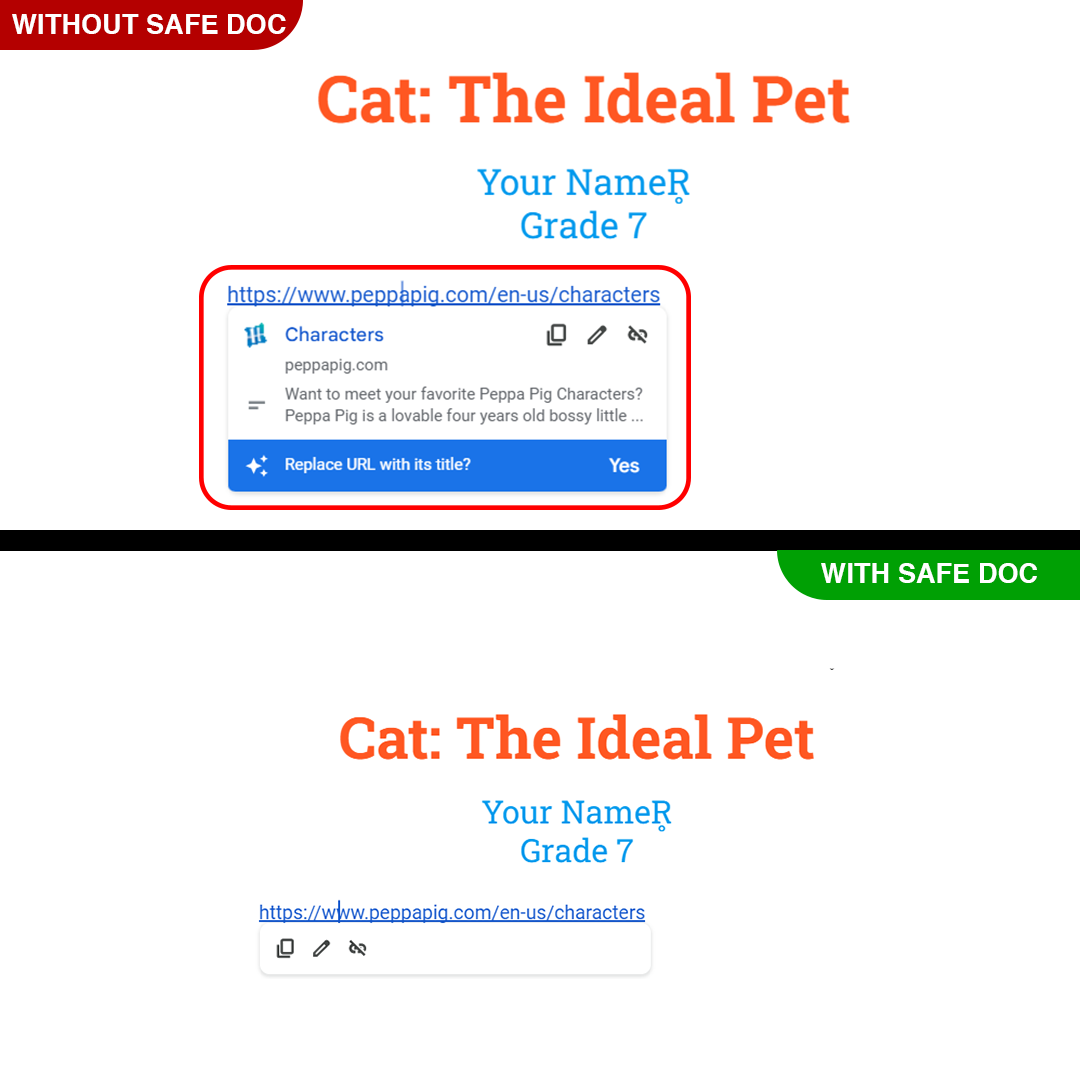
xFanatical Safe Doc Disables Link Preview Feature in Google Docs
Restrict Link Preview Feature in Google Slides
Link preview is available in Google Slides as well. It helps to enhance the presentation with its additional context but also divert students attention towards it, which leads to disturbance in classroom.
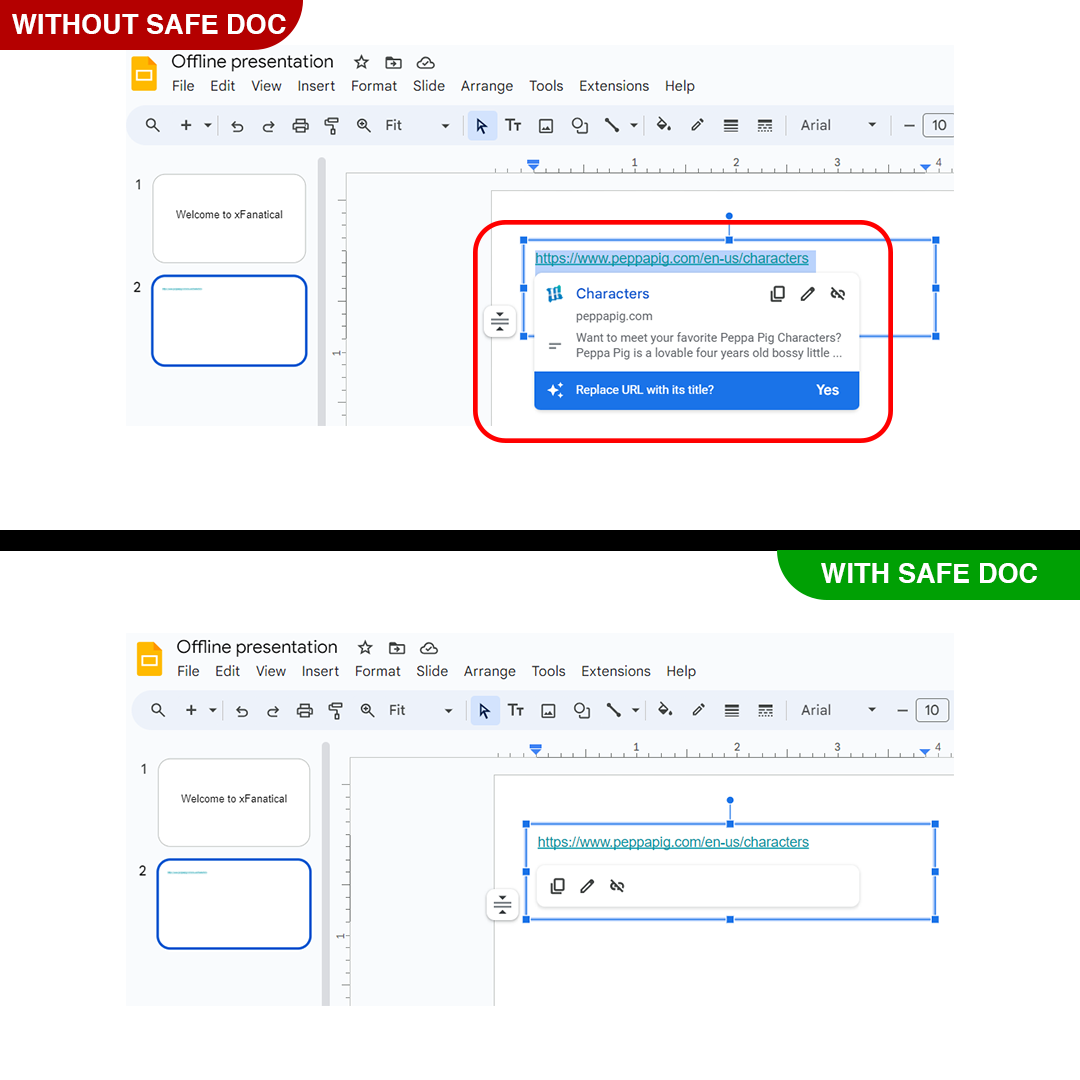
Disable Link Preview Feature in Google Slides using Safe Doc
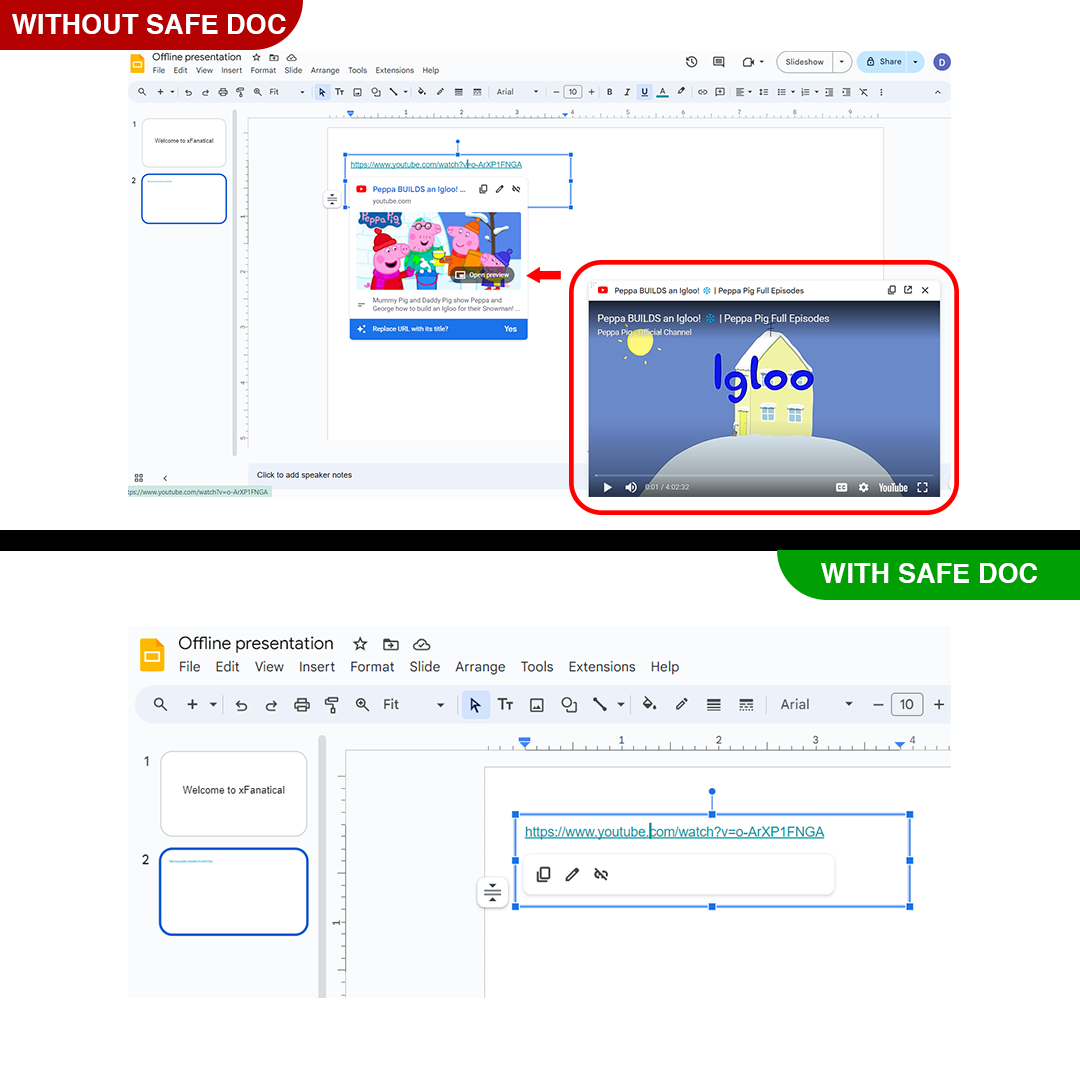
Safe Doc Disables Link Preview Feature in Google Slides
Block Link Preview Feature in Google Drawings
Google Drawings is helpful for students to create dynamic and engaging graphics for their projects. However, it creates chaos as well. Google Drawing allows students to include hyperlinks in their drawings, which generates a preview and leads to distractions from their priority tasks.
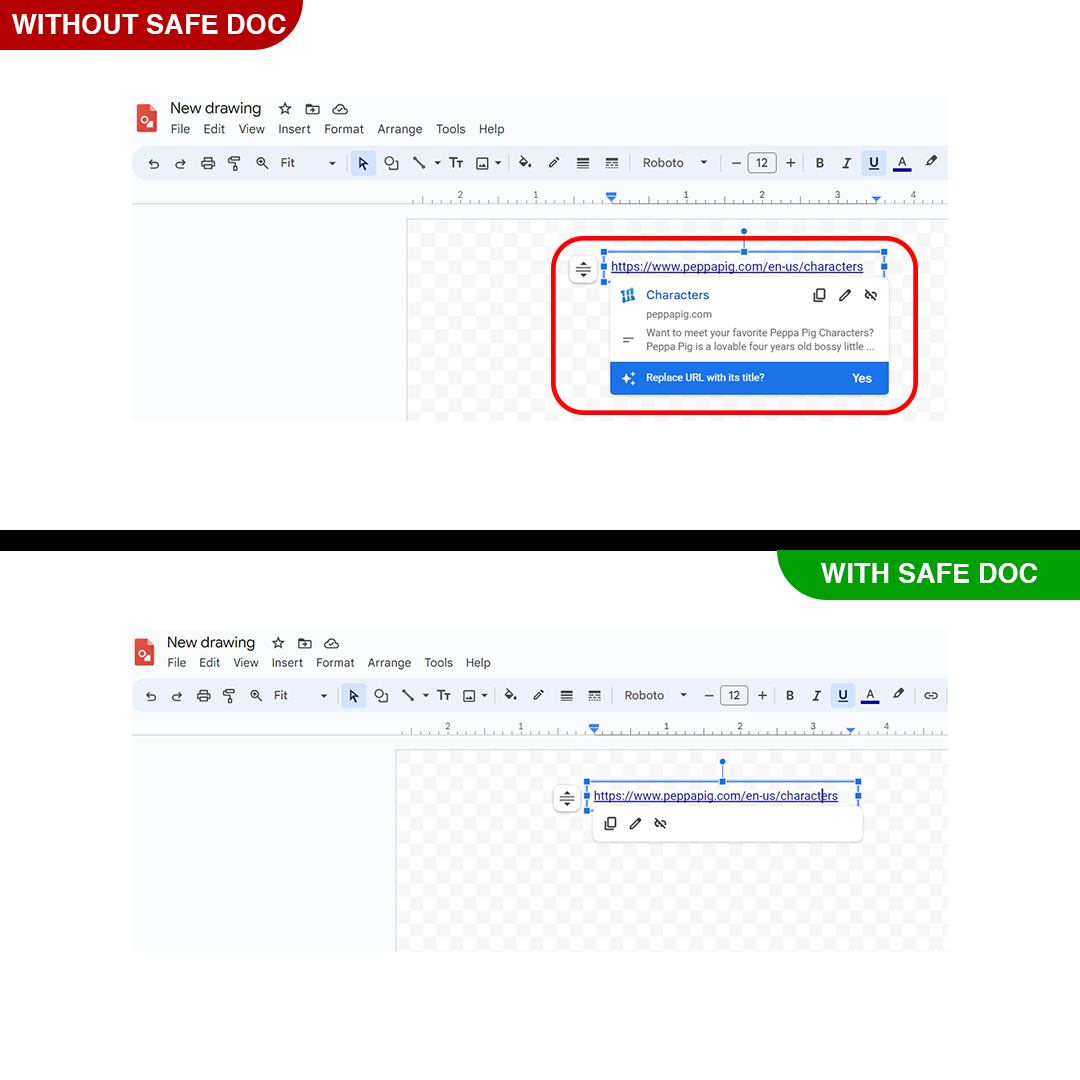
Safe Doc Disables Link Preview Feature in Google Drawings
Remove Link Preview Feature in Google Classroom
In Google Classroom, when a teacher pastes a link into an announcement, assignment or class comment, Google automatically generates a preview, with a large thumbnail and additional content. In K-12 classrooms, it distracts students and add unnecessary clutter. Safe Doc offers a solution by allowing administrators to disable this feature, ensuring that only the link text is displayed.
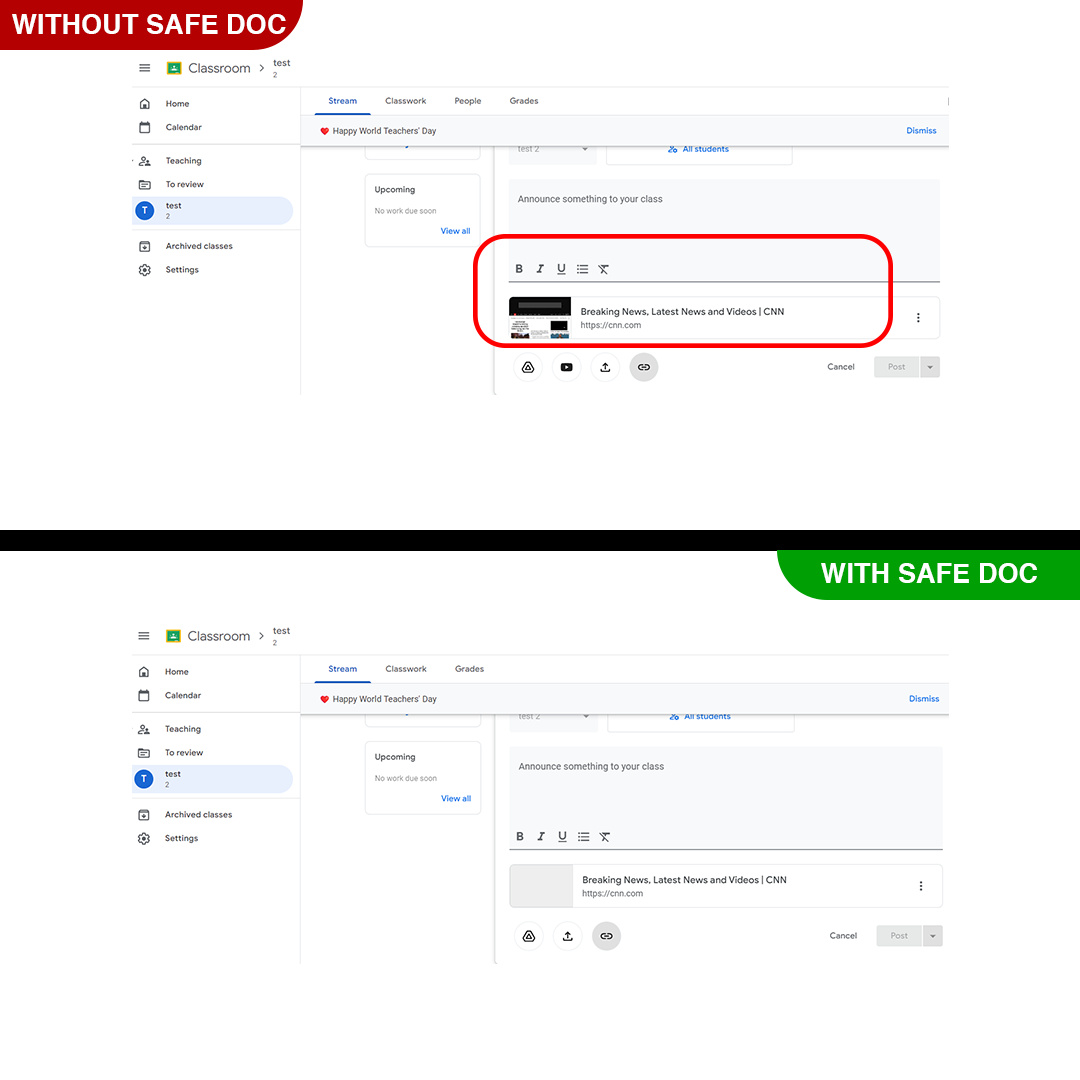
Safe Doc Disables Link Preview Feature in Google Classroom
Introduction to xFanatical Safe Doc
xFanatical Safe Doc is an extension for Google Workspace for Education (GWFE) that offers a solution to block link preview feature in Google Docs Editors. This allows administrators to restrict the link preview feature and create a secure digital learning environment for students. With xFanatical Safe Doc, provides various policies to administrators to selectively disable the features for more secure digital learning environment. By implementing the policy, educators can prevent the risks associated with irrelevant images usage and ensure focused learning classrooms.
Video Demo
How to Disable Link Preview Feature in Google Workspace using xFanatical Safe Doc
Step 1: Install Safe Doc:
The first step is to install Safe Doc in your Google Workspace environment. Safe Doc is a browser extension that seamlessly integrates with Google Workspace, providing enhanced control and security features.
Step 2: Configure Safe Doc settings:
After you install xFanatical Safe Doc, configure its settings to remove the link preview feature in Google Workspace.
Step 3: Access Google Admin Console:
Next, navigate to the Google Admin Console and click on Devices followed by Chrome. Then, select Apps & Extensions > Users & Browsers.
Step 4: Find and Review the Policy:
Locate the policy and set value as true to block the options. The policy format will be similar to the below example -
"BlockDocLinkPreview": {
  "Value": true
}
Step 5: Save the Policy:
Finally, click the Save button to apply it.
How to configure Safe Doc?
First of all, ensure the deployment of Safe Doc on your students' Chrome browsers, and review the xFanatical Safe Doc Configuration document.
Conclusion
In conclusion, the simple step of blocking link previews using xFanatical Safe Doc can maintain focus and productivity among students. After reading this blog, now you know the benefits for disabling the feature for Google Docs editors.
To know more about how xFanatical Safe Doc can policies help in enhancing online safety of students, visit our website xFanatical Safe Doc and install xFanatical Safe Doc to get a 30-day trial.
"BlockDocLinkPreview": {
"Value": true
}
You may also like
- Disable Chat in Google Docs, Sheets, Slides and Drawings
- Disable Spell Check in Google Docs
- Disable Comments in Google Docs Editors
- Block Insert Link Feature in Google Docs, Slides, and Sheets
- How to Disable Dictionary in Google Docs?
- Disable Voice Typing in Google Docs
- Disable Translating Document in Google Docs
 xFanatical Safe Doc
