

Introduction
This blog explains why and how to hide the People tab in Google Classroom. Nowadays Google Classroom is widely used for learning by most of schools. Enhancing privacy and streamlining classroom management is an essential step for school administrators. The People tab in Google Classroom allows students to view the list of classmates and teachers. It may sometimes lead to misuse by students by sending inappropriate messages or initiating unauthorized communications. If any teacher is using personal account, this feature may cause security concerns.
Let's understand more about why to disable the feature, what is Safe Doc and how to set up a policy to block people tab in Google Classroom.
What is People Tab in Google Chrome?
People tab in Google Classroom shows the details of students and teachers associated with the class. It allows you to invite teachers and students and you can email as well.
Why Hide the People Tab?
In academic environment it is important to hide people tab from students because they can misuse the teachers and peer students details. Students may invite teachers and students from other classes. Students can email other students and engage in off-topic conversations.
Let’s explore this with a user story:
- Problem: Ms. Elizabet conducted science assignment using Google Classroom. Instead of completing the the assignment students started inviting other friends and teachers from other classes. They wasted time by checking profiles which shifted their focus from learning.
- Solution: To find out the solution, Ms. Elizabet discussed with IT administrator. Admin found xFanatical Safe Doc polices useful in this case. Then, they implemented Safe Doc policy to hide the people tab completely for students.
- Result: Finally, after hiding the people tab, students focused on their own assignment and delivered within the deadline. They stopped spending time on checking on other's profiles.
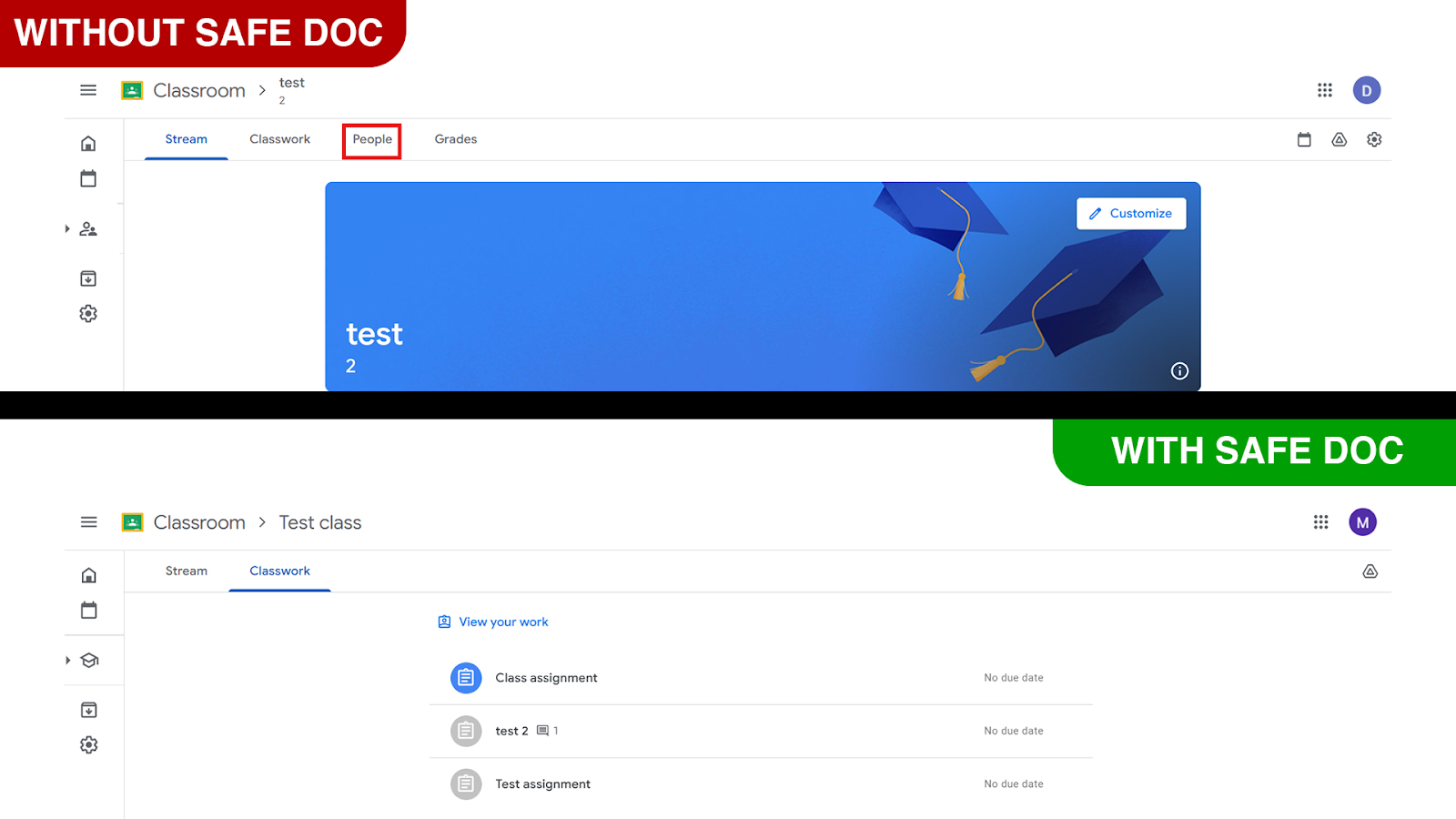
xFanatical Safe Doc removes the People tab in Google Classroom
Video Demo
What is a xFanatical Safe Doc?
xFanatical Safe Doc is a browser extension that provides policies to enhance students safety and provides control over digital learning. Safe Doc provides various policies manage classroom discipline and safety of students.
How to Hide the People Tab in Google Classroom with xFanatical Safe Doc
Step 1: Install Safe Doc
The very first step is to install Safe Doc in your Google Workspace environment. Safe Doc is a Chrome extension that provides policies for enhanced management and security features.
Step 2: Configure Safe Doc settings
After you install a Safe Doc, configure its settings to block people tab in Google Classroom.
Step 3: Access Google Admin Console
Go to Google Admin Console. Go to Devices > Chrome > Apps & Extensions and click on Users & Browsers.
Step 4: Set up the Policy
Next, find the policy and set the value to true. The policy will look something like below:
"BlockClassroomPeopleInfo": {
"Value": true
}
Step 5: Save the Policy
After applying the policy, click the Save.
How to configure Safe Doc?
Before proceeding, ensure the deployment of Safe Doc on your students' Chrome browsers and review the xFanatical Safe Doc Configuration document for detailed instructions.
Conclusion
In conclusion, hiding the people tab using Safe Doc is an effective way to reduce distractions and enforce students to focus on their learning instead of checking profiles or engaging irrelevant conversations. This setup is beneficial for teachers too, for protecting their data from students.
To learn more about how xFanatical Safe Doc can help enhance online safety in your educational institution, visit our website xFanatical Safe Doc and install to get a 30 days trial.
 xFanatical Safe Doc
