

Introduction
This article explains why and how to block Building Blocks in Google Slides using Safe Doc. Google Slide provides a menu to insert Building Blocks within the presentation. Building Blocks are pre-designed elements that help you to create polished slides. It allows users to quickly insert pre-formatted structures such as cards, quotes, text callouts etc. to the presentation to speed up slides preparation. However, this feature boosts the task but it introduces many pictures that may not be intended for young students. Students may insert inappropriate images and quotes that will keep them distracted from learning.
By disabling the building blocks menu in Google Slides, teachers can foster a safe learning environment. Blocking the feature will encourage students to focus on their learning rather than wasting time playing with Building Block structures. This article will guide you how Safe Doc disables the menu in Google Slides.
Why Block Building Blocks in Google Slides For Educational Purposes ?
In a classroom environment, whether physical or virtual, maintaining focus and limiting distractions is essential to deliver an effective learning experience. Building Blocks menu will hamper the safety of students while it allows them to add structure and images from the web. The pre-provided cards, headers and agenda may contain inappropriate images, hence it is necessary to block the Building Block menu in Google Slides.
Let’s understand the scenario through a user story:
- Problem : Mrs. Parker, a high school teacher, assigned an assignment of creating the presentation based on their research on mathematics. Students were provided access to Google Slides. Students found the Building Block menu item and started adding pre-defined structures within the Slides. The teacher noticed that students are inserting the images which are not even associated with the topic assigned to them. Mrs. Parker thought of disabling the menu item in Google Slides.
- Solution : With concern Mrs. Parker discussed with the IT admin to block the Building Blocks menu. Admin suggested Safe Doc policy implementation to restrict the feature. By deploying the Safe Doc policy to disable building blocks menu in Google Slides teacher could provide healthy learnings to the students.
- Result : After disabling the feature, Mrs. Parker noticed that students were doing their research in the right way. Students created presentations with researched data and relevant images to the topic given to them. Students submitted more detailed assignments based on their accurate research.
What is a xFanatical Safe Doc?
xFanatical Safe Doc is a web browser extension that is used for maintaining a focused and secure online learning environment for Google Workspace admins and users. Safe Doc provides various policies to maintain discipline and security within the classroom. It offers policies to block Building Blocks in Google Slides, block GIFs and stickers in Google Slides and Drawings, disable YouTube video playback in Google Slides, block templates in Google Slides and many more.
Video Demo
Disable Building Blocks Menu in Google Slides with xFanatical Safe Doc
Google Slides provides pre-designed structures to help users quickly create visually appealing presentations with Building Blocks. In educational settings, it may lead to cheating, inappropriate submissions and off-tract research.
At this point, xFanatical Safe Doc becomes an invaluable tool. By implementing the BlockBuildingBlocks policy, you can remove the Building Blocks option in Google Slides. Once this policy is enabled, students will no longer have access to the menu item and ensure they create presentations from scratch based on their research. 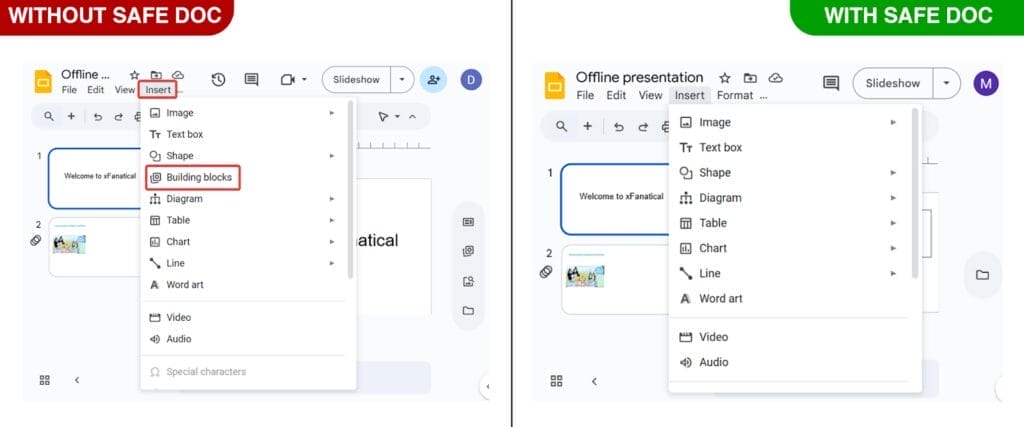
xFanatical Safe Doc blocks Building blocks menu item in Google Slides. xFanatical Safe Doc blocks Building blocks icon in Google Slides.
The Building blocks option is restricted in the help menu by xFanatical Safe Doc.
How to Block Building Blocks Using xFanatical Safe Doc
Step 1: Install xFanatical Safe Doc:
First, install xFanatical Safe Doc in your Google Workspace environment. Safe Doc is a web browser extension that seamlessly integrates with Google workspace apps.
Step 2: Configure xFanatical Safe Doc settings:
Once xFanatical Safe Doc is installed, configure its settings to disable the building blocks menu in Google Slides.
Step 3: Access Google Admin Console:
Go to the Google Admin Console. Then, click Devices > Chrome > Apps & Extensions >Users & Browsers to get the list of policies.
Step 4: Apply the policy:
Find the policy that you want to apply and review it. The policy will display in a below format:
"BlockBuildingBlocks": {
"Value": true
}
Step 5: Save the policy:
After applying the policy, click Save.
How to Configure xFanatical Safe Doc?
To configure Safe Doc successfully, make sure you have deployed Safe Doc on your students' Chrome browsers and review the xFanatical Safe Doc Configuration document for detailed instructions.
Conclusion
In conclusion, disabling the building blocks menu item is a practical way to provide a focused digital learning environment to students. Hopefully after reading the article you have successfully understood how you can use xFanatical safe doc to disable distracting building blocks feature in Google Slides. For successful implementation, please follow all the steps mentioned in this article.
If you have any questions regarding Safe Doc or policy implementation, feel free to share your comments below. We will respond to your queries as soon as possible.
To learn more about how xFanatical Safe Doc can help enhance online safety in your educational institution, visit our website xFanatical Safe Doc
Explore xFanatical Safe Doc with 30 days of trial.
 xFanatical Safe Doc
