

Introduction
This blog explains why and how to disable the AI mode in Google Search using Safe Doc. Google provides an AI-generated search results feature called AI mode to provide quick AI answers within the search page. This can be a useful feature but in educational environments, it may reduce thinking capabilities. Students may rely on AI generated results rather than self research from their end. The AI information can be inaccurate and inappropriate, if not verified.
By turning off the AI mode, educators can conduct proper research and evaluation based on student’s submissions. Blocking AI mode will engage students to find reliable sources and learn research skills. This blog will guide you on how to use Safe Doc to restrict AI mode access in Google Search.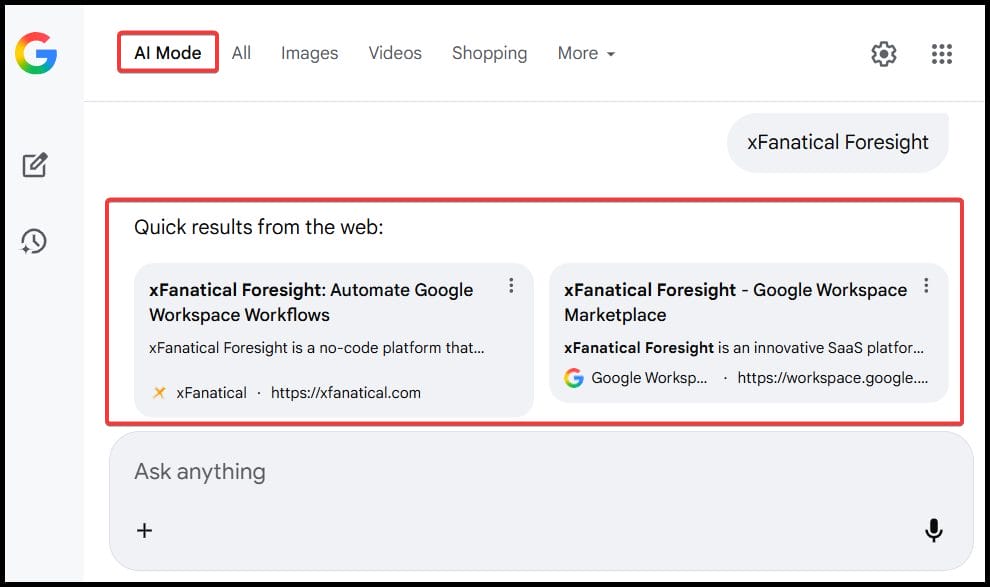
What is AI Mode?
AI Mode in Google Search is a feature provided by Google where generative AI is used to create instant, summarized answers directly at the top of search results. Instead of showing the relevant list of links, AI Mode analyzes the query, gathers information from multiple sources and presents it at the top of the search page.
Why Block AI Mode in Google Search for Education?
In an academic environment, disabling AI Mode in Google Search is important because students need to learn research skills and critical thinking capabilities. AI generated information contains outdated and incomplete information because they rely on machine learning models. If AI mode is not disabled, students may copy the content directly without verifying the result. It will be useful for teachers as well to assess student’s capabilities correctly and evaluate their efforts.
Disabling this feature can help encourage students to develop research skills by seeking information through more reliable educational resources.
Let’s understand the scenario through a user story:
- Problem: Mr. Rivera, an English teacher at a middle school, provided an assignment to the students to conduct a research on environmental changes. Students started seeking help from AI Mode provided by Google Search. They directly copied the results displayed by the AI and added it into their research without verifying. The teacher observed the student’s activities and got concerned about the student's learning progress.
- Solution: To find a solution, Mr. Rivera discussed with the IT administrator to disable the AI mode feature for better learning. Using Safe Doc’s policy to block AI mode, teachers can encourage students to perform research through valid educational sources for accurate results.
- Result: After disabling the feature, Mr. Rivera was relieved and witnessed significant improvements in students’ research work. Students submitted more detailed assignments based on their accurate research. Students developed research skills and critical thinking ability.
What is a xFanatical Safe Doc?
xFanatical Safe Doc is a Chrome extension to maintain a focused and secure learning environment for K-12 students. It provides robust policies to manage and restrict access to inappropriate online content to provide safe and productive digital environment. xFanatical Safe Doc provides policies to block Google Search games, block YouTube in Google Search and prevent students from sending feedback in Google Workspace.
Video Demo
Turn off the AI Mode in Google Search with xFanatical Safe Doc
Google Search includes AI mode results that provide quick information at the top of the page. This content is quick but may contain inaccuracies due to lack of research. In educational settings, students may misuse it during assessments, and completely rely on AI generated results. This may decrease students' thinking capability and decision making skills.
At this point, xFanatical Safe Doc becomes an invaluable tool. By implementing the BlockGoogleSearchAIMode policy, you can remove the AI overview feature from Google Search. Once this policy is set to true, the AI mode tab will not be accessible for the students. This helps students to create a more reliable research document and promote an independent learning environment.

xFanatical Safe Doc removes the AI mode in Google Search
How to Block AI Mode in Google Search Using xFanatical Safe Doc
- Step 1: Install xFanatical Safe Doc:
As a first step, install Safe Doc in your Google Workspace. Safe Doc is a web browser extension that provides various policies for Google workspace apps. - Step 2: Configure xFanatical Safe Doc settings:
Once Safe Doc is installed, admins can configure its settings to disable the AI mode in Google Search. - Step 3: Access Google Admin Console:
Go to the Google Admin Console. In the Google Admin Console, click Devices > Chrome > Apps & Extensions and click on Users & Browsers. - Step 4: Apply the policy:
Find the policy that you wish to apply and review it. The policy will display in the format provided below:
"BlockGoogleSearchAIMode": {
"Value": true
}
- Step 5: Save the Policy:
After applying the policy, click Save.
How to Configure a Safe Doc?
To configure Safe Doc successfully, make sure you have deployed Safe Doc on your students' Chrome browsers and review the xFanatical Safe Doc Configuration document for detailed instructions.
Conclusion
In conclusion, disabling AI mode in Google Search is best way for independent learning. Removing the AI generated information will help students to research on their own and enhance critical thinking skills. This article is helpful, if you are exploring how to use Safe Doc to disable AI mode. With xFanatical Safe Doc, schools can easily integrate the policy and create discipline and productive educational sessions.
To learn more about xFanatical Safe Doc in your educational institution, visit our website xFanatical Safe Doc
Explore xFanatical Safe Doc with 30 days of trial.
 xFanatical Safe Doc
