

Introduction
This blog explains why and how to disable translating document in Google Docs. Translating a document is built-in feature available in Google Docs to convert the content of document from one language to another language which you choose and create new document with translated content. It doesn't change the format, layout and structure of the document. This is useful but not for students. It causes problems in school environments. Students may use document translation to bypass language learning objectives. Teachers provide assignment to improve reading and writing in a specific but students translates that which skips learning process. So it is important to restrict students from translating documents in Google Docs.
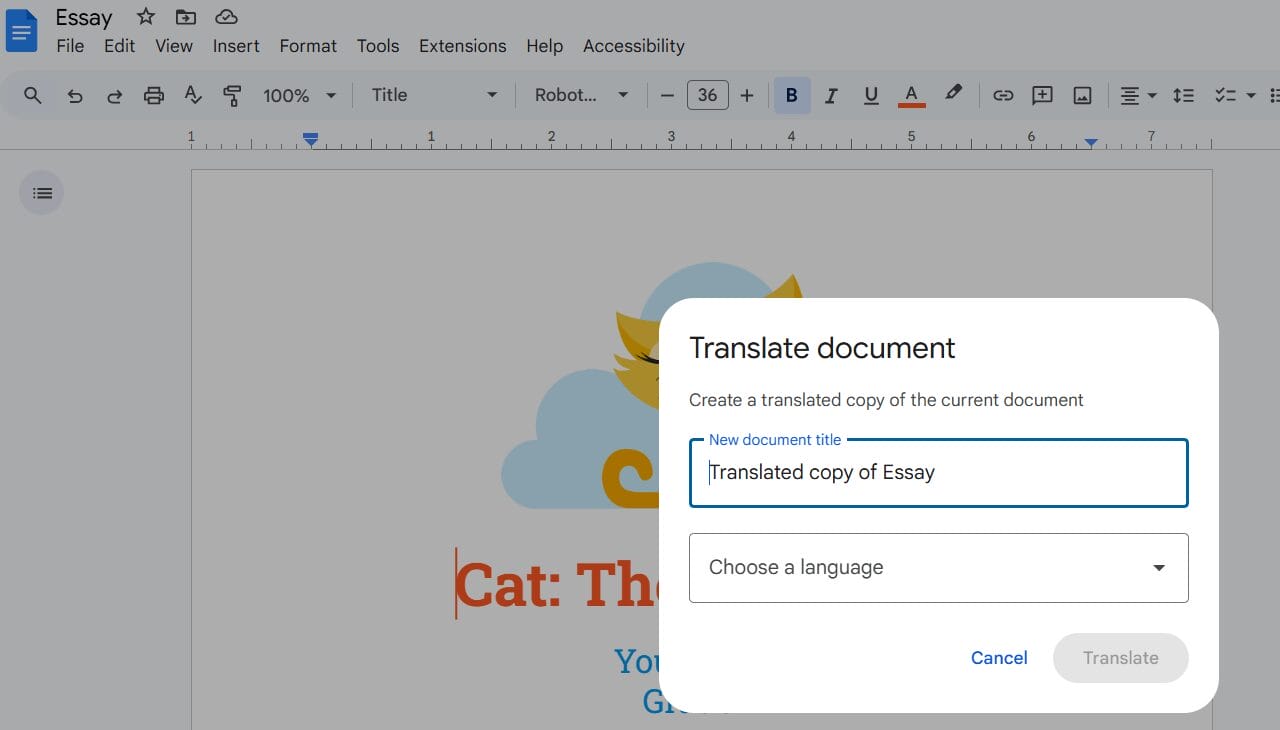
Translating document in Google Docs is disabled by Safe Doc
Why Disable Translating Document in Google Docs
Disabling document translations in Google Docs is important for academic honesty in students. Students may translate content for online sources written in other language and submit it as their own. The feature can be misused during exams and assignment submissions. This results in lack of depth and accuracy in students learning.
Let’s understand the scenario through a user story:
- Problem: Teacher Maria, a high school teacher assigned a English assignment for students to improve their language proficiency. But instead of understanding the content on English students translated it into their native language and stared reading. This completely tempered teacher's intension making students perfect in English language.
- Solution: This was a major issue and teacher Maria wanted to stop this for students better learning. She discussed with IT administrator to implement block on the translation feature. She found Safe Doc policy helpful in this case and implemented the same to stop students from using the feature during assignments and learning.
- Result: Once after policy implementation, teacher Maria observed her motive was completed as students made more efforts in completing assignment in provided language. Students could gain more proficiency in English language.
Introduction to xFanatical Safe Doc?
xFanatical Safe Doc is a browser extension which provides various policies for administrators to control and safeguard students learning environment. Safe Doc offers polices to manage Google Workspace app efficiently to support digital learning.
Disable Translating Document in Google Docs with xFanatical Safe Doc
Google Docs offers a translation feature that allows users to translate their entire document into different languages. The feature can be helpful for multilingual users but in educational settings, it can be misused by students who translate their assignments instead of completing them independently, potentially leading to academic dishonesty.
To stop this xFanatical Safe Doc provides BlockTranslateDoc policy to disable the feature for students. Once policy is set to true, students will no longer ne able to see the translate document feature in Google Docs.
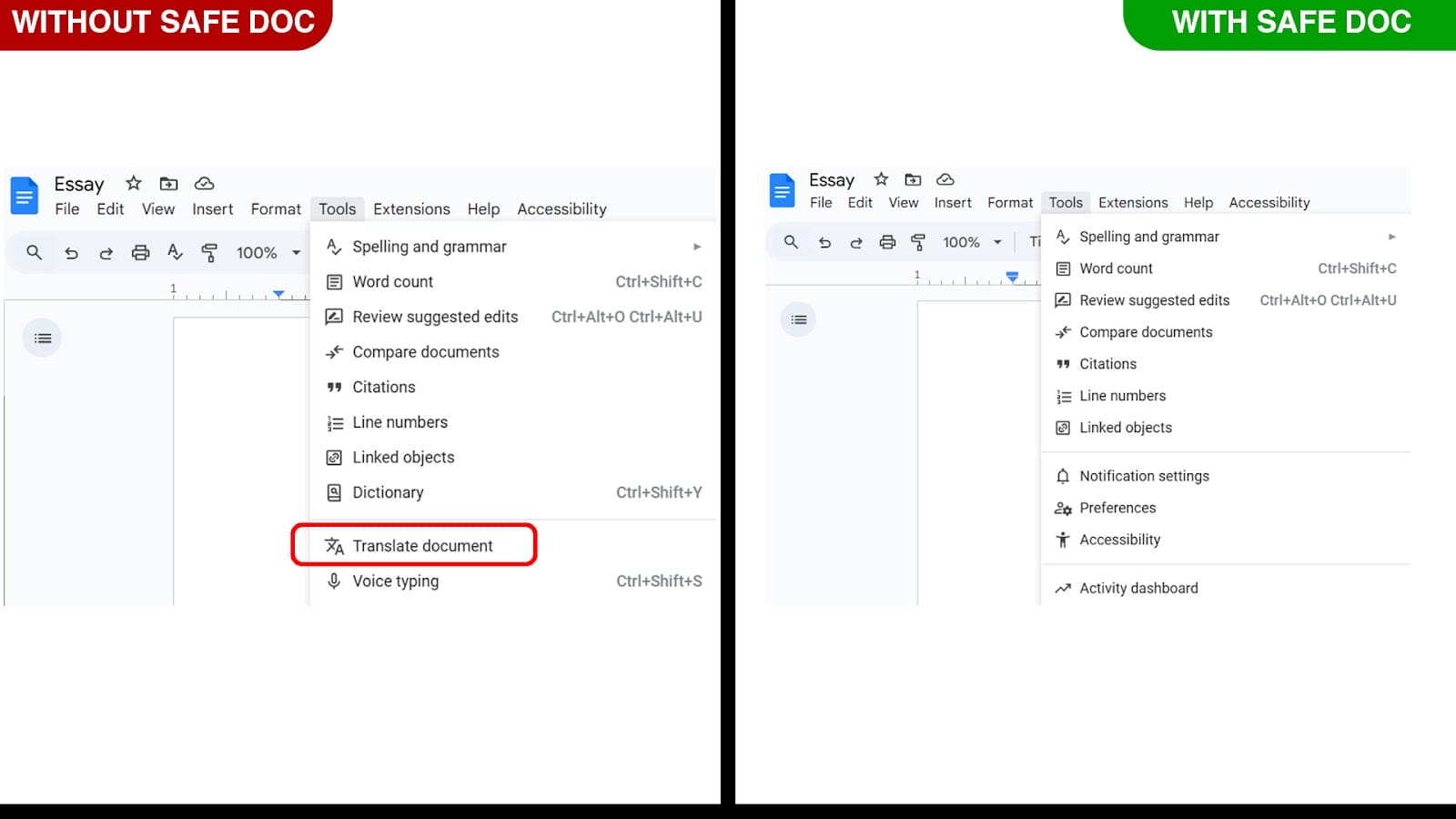
xFanatical Safe Doc removes the Tools > Translate document menu in Google Docs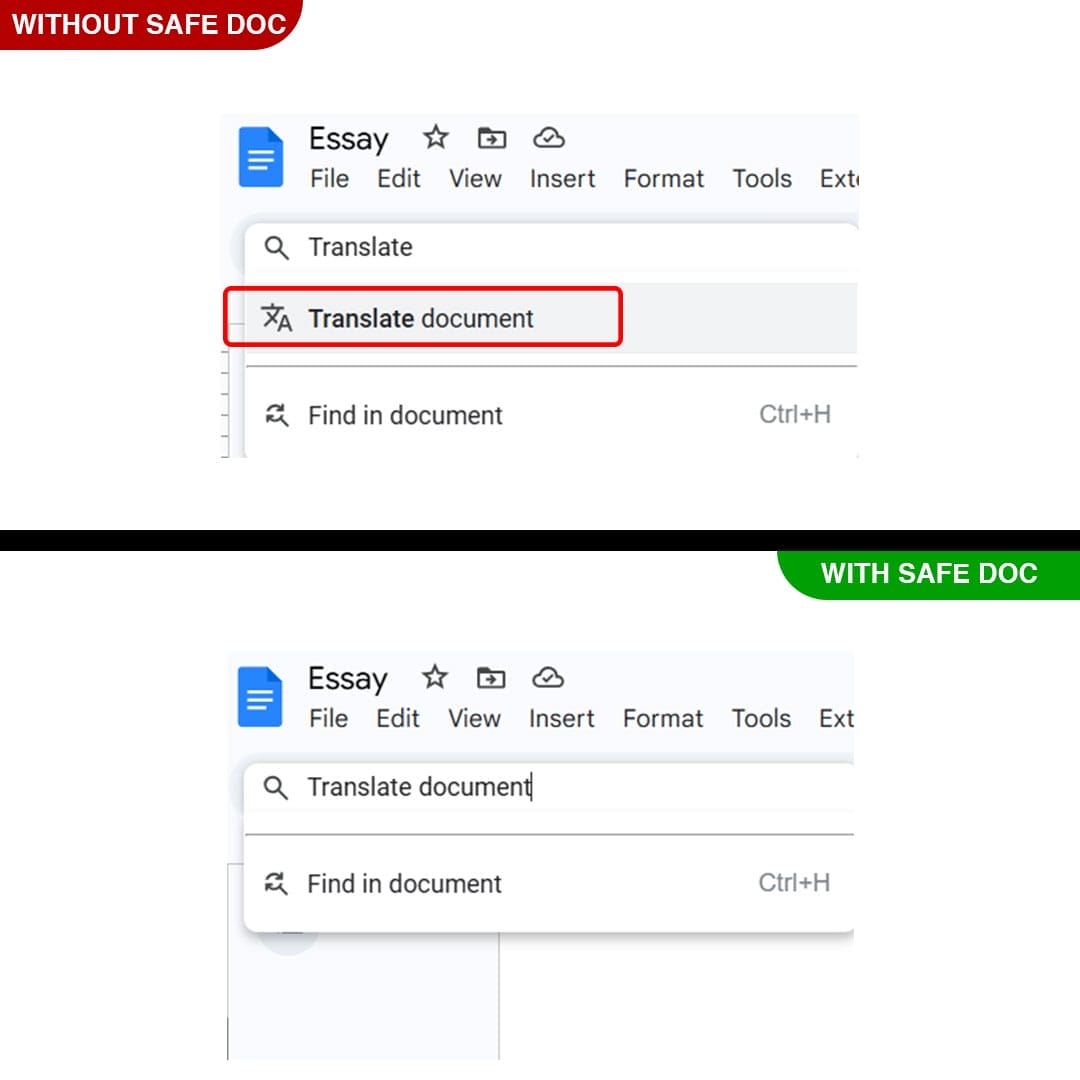
xFanatical Safe Doc removes Help > Search the menus > Translate document in Google Docs
How to Disable Translating Document using xFanatical Safe Doc
Step 1: Install Safe Doc
At the start install Safe Doc in your Google Workspace environment. Safe Doc is a browser extension to provide safe and controlled learning environment for admins and students.
Step 2: Configure Safe Doc settings
Once after you install Safe Doc, configure its settings to implement the block on translating documents in Google Docs.
Step 3: Access Google Admin Console
Now, navigate to the Google Admin Console. Next, click on Devices > Chrome > Apps & Extensions > Users & Browsers.
Step 4: Review the Policy
The next step is to find the policy and set its value to true if not already set. The example is provided below:
"BlockTranslateDoc": {
  "Value": true
}
Step 5: Save the Policy
Finally, click the Save.
How to configure Safe Doc?
First of all, ensure the deployment of Safe Doc on your students' Chrome browsers, and review the xFanatical Safe Doc Configuration document.
Conclusion
In conclusion, blocking the translate document feature in Google Docs is crucial steps in academic settings for students better grip on language learning. By implementing the block educators can reduce the risk of plagiarism and cheating during exams and assignment submissions. Follow the steps provided in the article for Safe Doc installation and setting up the policy for secured and honest academic environment.
To learn more about how xFanatical Safe Doc can help enhance online safety in your educational institution, visit our website xFanatical Safe Doc and install to get a 30 days free trial.
xFanatical Articles
- Disable Voice Typing in Google Docs
- Disable Spell Check in Google Docs
- Block Image Searching in Google Docs Editors
- Block Insert Link Feature in Google Docs, Slides, and Sheets
- How to Disable Dictionary in Google Docs?
- Disable Chat in Google Docs, Sheets, Slides and Drawings
- Disable Link Preview Feature in Docs, Slides and Drawings
- Disable Comments in Google Docs Editors
- Block Email as Attachment in Google Workspace
 xFanatical Safe Doc
