

Introduction
In this article you are going to discuss about how you can disable spell check in Google Docs. Before deep diving, let's understand what is Spell check feature in Google Docs. Spell check is a in-built feature that automatically finds and corrects spelling and grammatical mistakes in your writing. In Google Docs, it highlights misspelled words by underlining them and suggests the correct spelling. To do that so, you have to right-click on the underlined word, Google Docs shows the correct word and you can add the word to your personal dictionary.
The feature is useful but at the same time, for students it's forbidden. In learning institutes, this feature can harm students vocabulary growth by proving readymade suggestions. Students wont take efforts to improve their spellings and grammar by practicing enough. Hence disabling spell check is necessary.
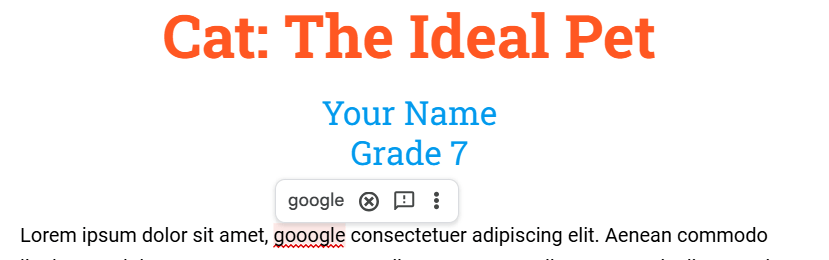
xFanatical Safe Doc removes spelling correction in Google Docs
Importance of Disabling Spell Check in Google Docs
In schools, enhancing students writing skill is essential and equally important for their further learning. Google Docs spell check feature automatically suggest the grammatical and spelling mistakes which restricts students from taking efforts to learn and correct by their own. Instead they rely on spell check feature do correct the writing. This way students loose their understanding about spelling and grammatical issues and struggle while correcting them.
Let’s understand the scenario through a user story:
- Problem: Teacher Mark, assigned English language arts assignment to his students. Students completed the assignment quickly with the help of spell check feature in Google Docs. Later teacher Mark asked to write the same assignment in Notepad. Many students made the spelling and grammatical mistakes, since Notepad did not provide support to highlight errors. Consequently, students could not improve their writing skills and lost ability to correct the errors.
- Solution: When teacher Mark realized the problem, he introduced Safe Doc to support students independent learning so that they will be able to write correct and error-free writing in future. Safe Doc provides policy to block spell check option in Google Docs, so that students develop the habit of writing correct sentences without any help.
- Result: After disabling spell check, Mark observed a positive change in his students’ approach to writing assignments. They started taking more time to review their work before submission. This way they improved spelling and grammar understanding and became independent learners.
Introduction to xFanatical Safe Doc?
xFanatical Safe Doc is a comprehensive browser extension that is used for maintaining a focused and secure online learning environment for students. This extension provides policies for administrators and teachers to manage and restrict access to various unwanted features of Google Workspace for Education (GWFA). This ensures a safe and productive digital learning environment for students.
Disable Spell Check option in Google Docs with xFanatical Safe Doc
Spell check option in Google Docs suggests correction for spelling and grammatical mistakes. Just with one click you can resolve the error. But for students, this is not a good practice, since they have to learn recognizing the mistakes and correct them on their own. Hence disabling the feature with xFanatical Safe Doc is an essential step. Safe Doc offers BlockDocsSpellCheck policy to disable the spell check option in Google Docs. Once the policy is set to true, students will not be able to see the spelling and grammar check option from Tools in Google Docs.
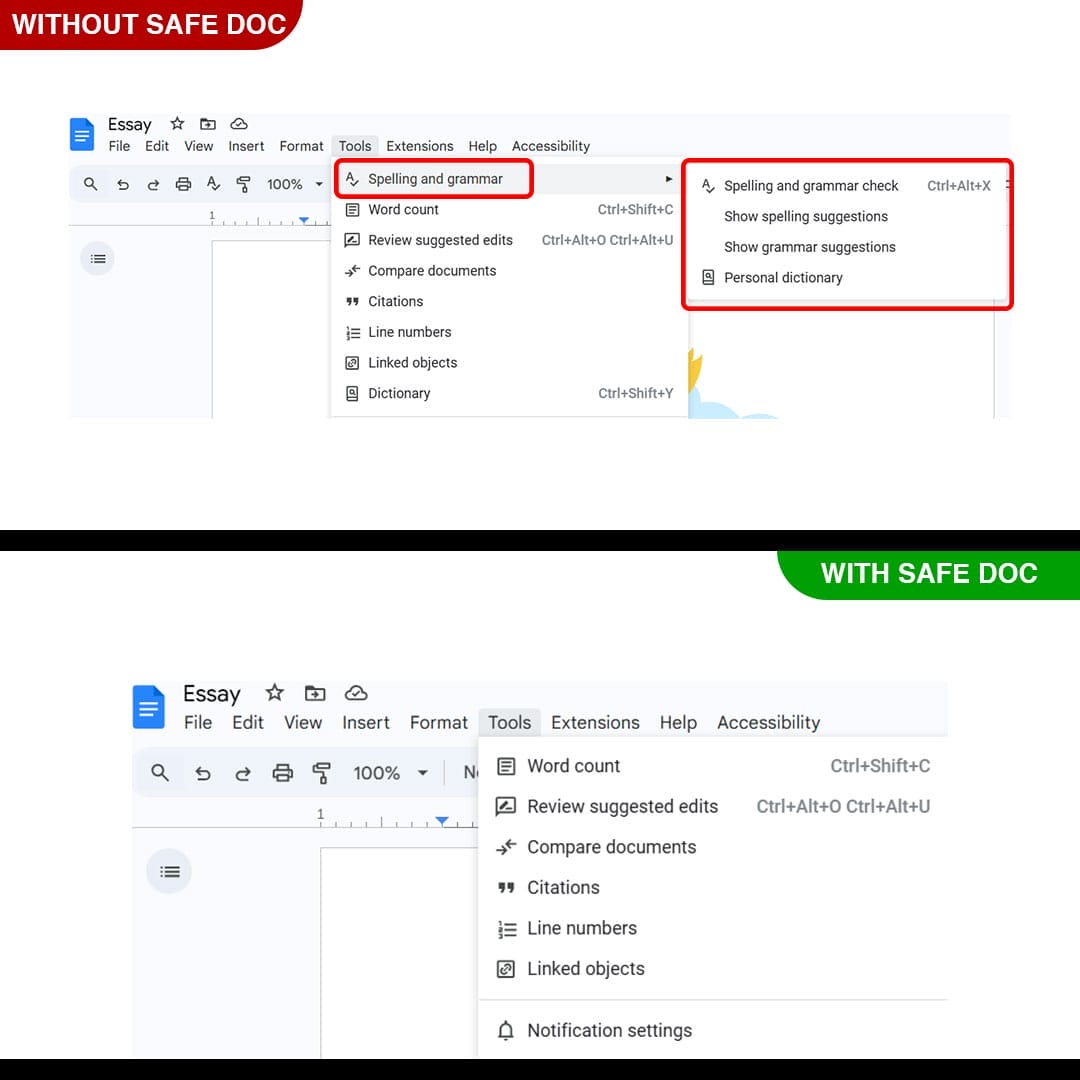
Spelling and grammar menu in Google Docs is removed by xFanatical Safe Doc
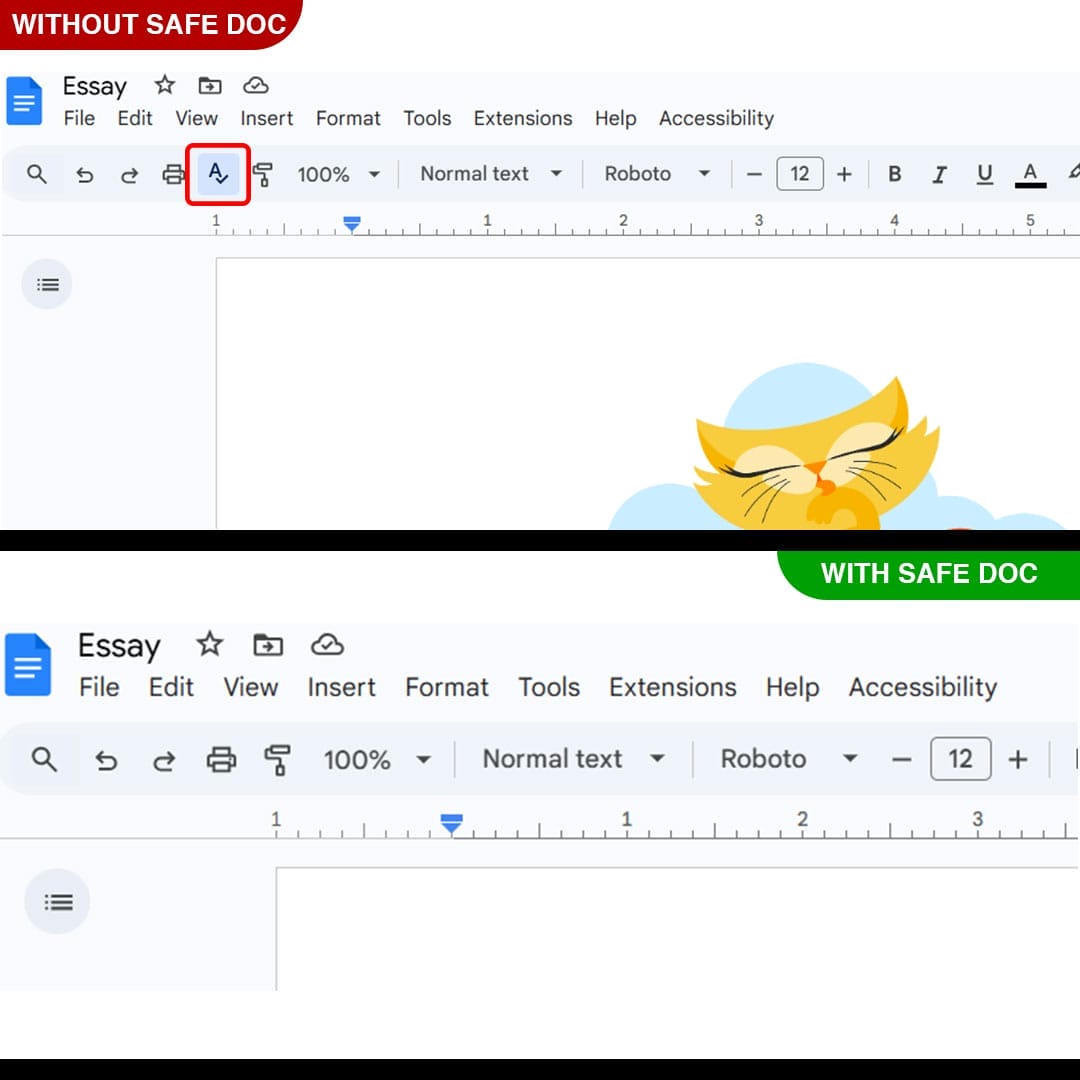
xFanatical Safe Doc removes spelling and grammar checking icon in Google Docs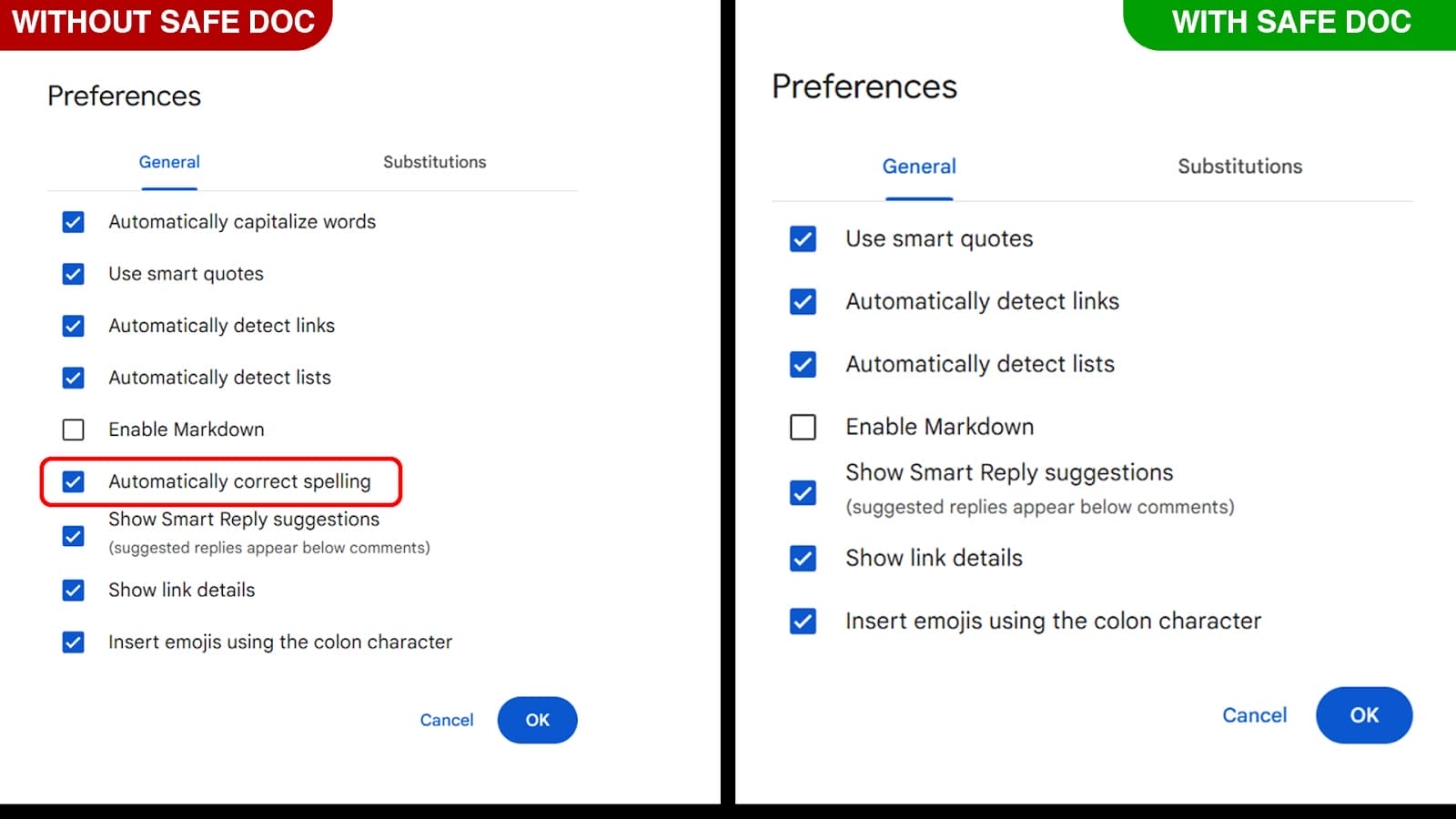
xFanatical Safe Doc removes the Spelling and grammar features from Preferences in Google Docs
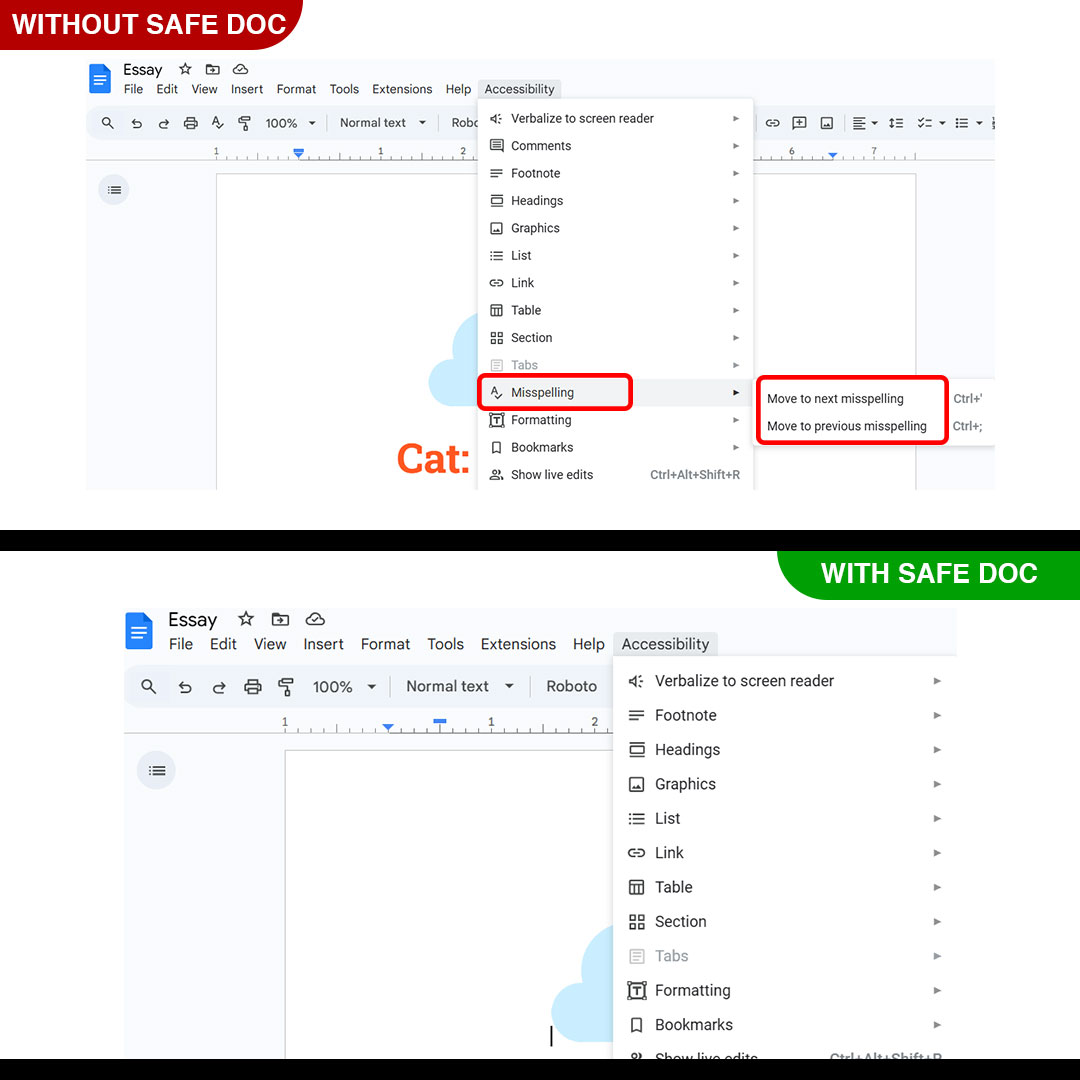
xFanatical Safe Doc removes the Accessibility > Misspelling menu in Google Docs
How to Disable Spell Check in Google Docs with xFanatical Safe Doc
Step 1: Install Safe Doc:
The first step is to install Safe Doc in your Google Workspace environment. Safe Doc is a browser extension that seamlessly integrates with Google workspace, providing enhanced control and security features.
Step 2: Configure Safe Doc settings:
Once Safe Doc is installed, you can configure its settings to disable spell check in Google Docs.
Step 3: Access Google Admin Console:
Now, navigate to the Google Admin Console. In the Google Admin Console, click on Devices followed by Chrome. Then, select Apps & Extensions and click on Users & Browsers.
Step 4: Review the Policy:
Locate the policy that you wish to apply and review it. The policy will display in a specific format similar to the example provided below:
"BlockDocsSpellCheck": {
"Value": true
}
Step 5: Save the Policy:
After applying the policy, click the Save button to apply it.
How to configure Safe Doc?
Ensure the deployment of Safe Doc on your students' Chrome browsers, and review the xFanatical Safe Doc Configuration document for detailed instructions.
Conclusion
After reading this blog completely now you have the understanding of how and why to block spell check feature in Google Docs for schools. Follow the Safe Doc implementation steps correctly as given in the article and feel free to comment below for any questions.
To learn how xFanatical Safe Doc enhances online safety in schools, visit our website xFanatical Safe Doc and install Safe Doc to get a 30 days free trial.
You may also like
 xFanatical Safe Doc
