

Introduction
Blocking Stock and Web features in Google Slides is essentially important for schools using Chromebooks. Students misuse the feature to insert irrelevant and distracting content within their assignment presentation.
Stock and Web in Google Slides allow students to insert images, GIFs and other visual content directly into presentations. The features are really useful for creativity, but students misuse and may end up adding non-education images and content in their slides.
The challenge is that the Google Admin Console does not provide any native setting to disable Stock and Web images in Google Slides.
This blog explains why and how to block Stock and Web in Google Slides and covers:
- The issues of Stock and Web features in educational environment
- The Limitations of Google Workspace controls
- How to how to restrict image sources in Google Slides for schools using xFanatical Safe Doc
The Problem: Unrestricted Stock and Web Access in Google Slides
Google Slides includes built-in manu Insert > Image > Search the web to access stock content libraries. This allows students to browse and insert images directly from the internet within the presentation.
While it is useful for admins and teachers, it creates multiple challenges when accessed by students. They may search and insert irrelevant images, memes or animated GIFs during class, which leads to distractions. Instead of focusing on assignments, they spend time browsing content unrelated to the lesson.
Additionally, since this feature connects directly to web content, students can bypass restrictions placed on external websites. This results in reduced classroom discipline and loss of control for administrators and teachers.
Video Demo
Why Google Workspace Cannot Block Stock and Web Features
The limitation comes from how Google Slides is designed within Google Workspace. Stock and Web search features are built directly into the Google Slides interface and are not separate administrative controls. The Admin Console does not provide any policy to disable specific UI elements like Search the web.
Administrators can restrict external access or manage app usage but they cannot disable in-app features of Google Slides.
Since there is no API or native policy available, administrators are looking for an effective solution to disable inserting images from the web in Google Slides for students.
Disable Stock and Web in Google Slides Using xFanatical Safe Doc
xFanatical Safe Doc is a browser extension that provides policies to maintain focused and secure learning environments for K-12 students. It provides policies to manage and restrict access to irrelevant online content for a safe and productive digital environment.
With Safe Doc, administrators can prevent students from using Stock and Web features by enabling the BlockStockAndWeb policy. Administrators all have to do is set the policy to true and Safe Doc disables the Stock and Web menu from UI, so the students no longer access the feature and cause difficulty during learning.
For more detailed technical steps, kindly refer to step-by-step implementation of Safe Doc.
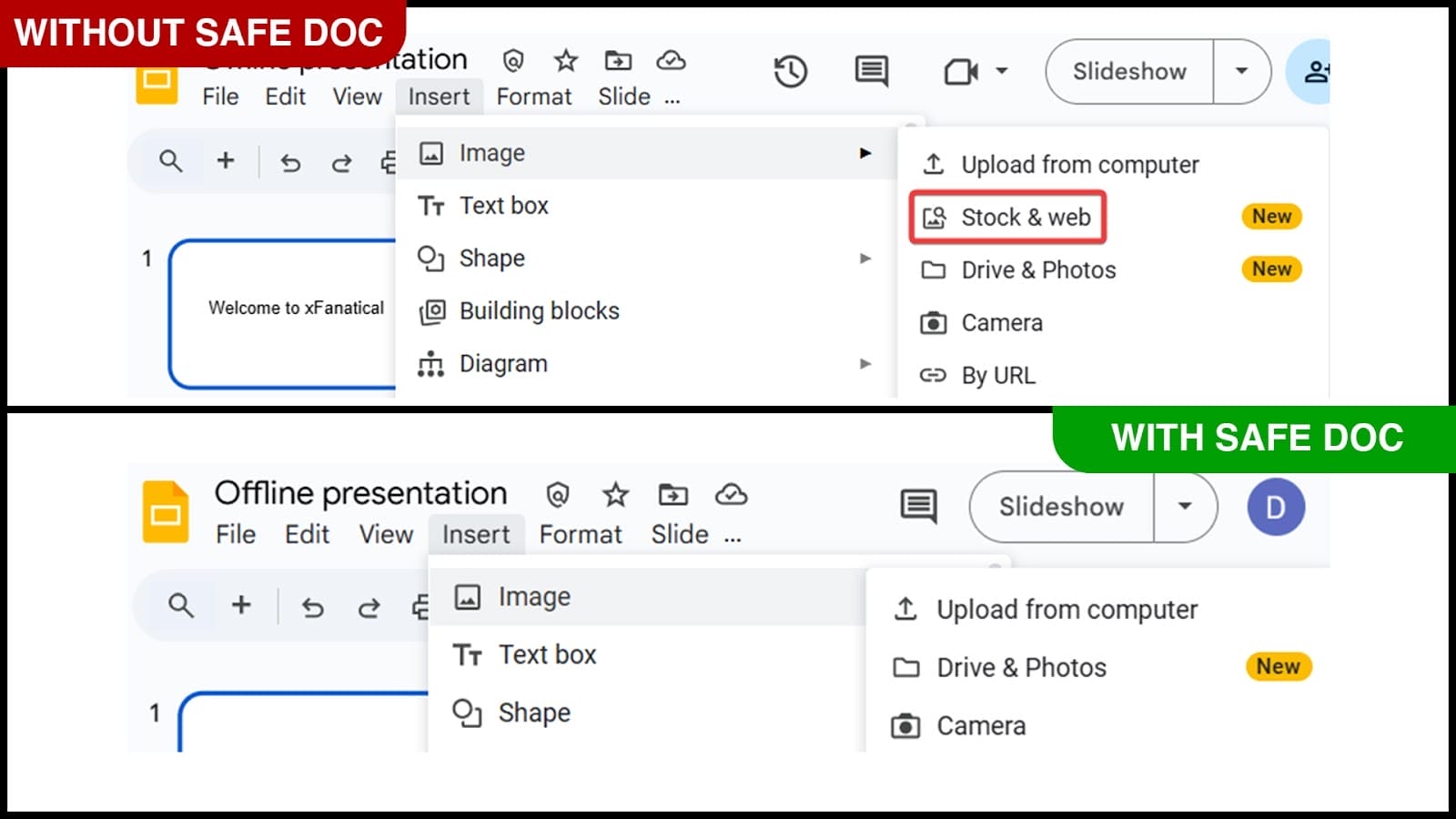 xFanatical Safe Doc removes the Insert > Image > Stock & web menu in Google Slide
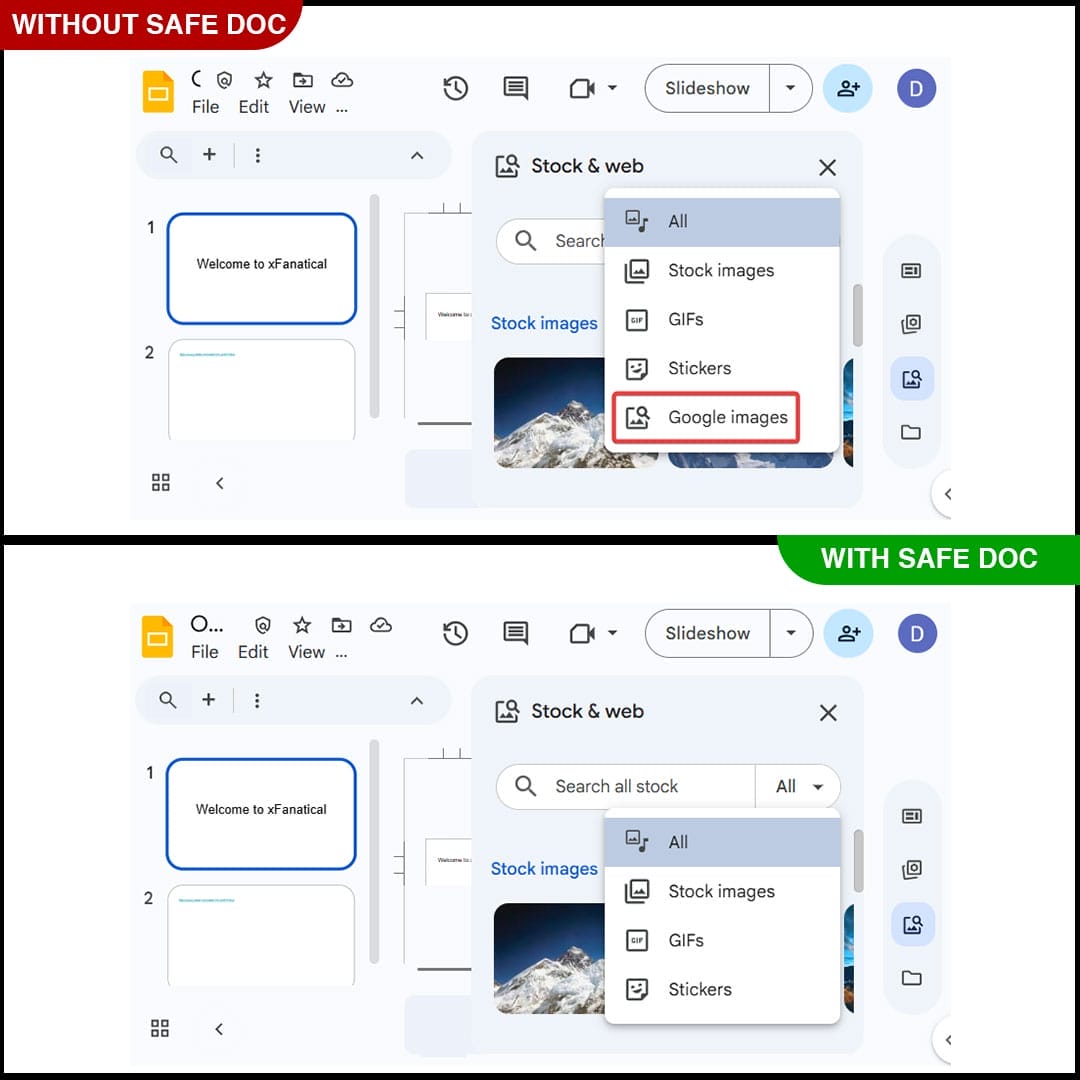 xFanatical Safe Doc removes the Google images dropdown menu in Google Slide
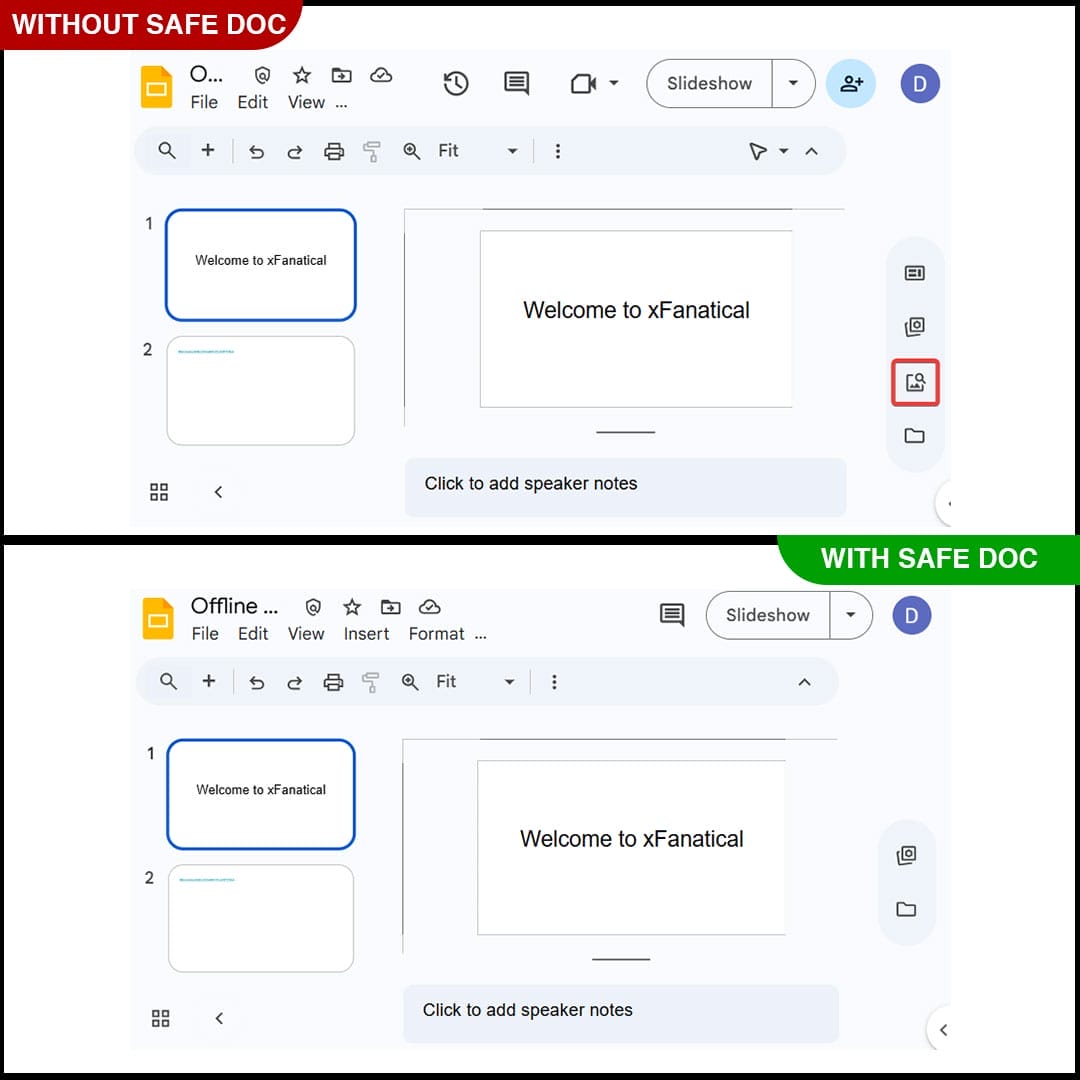 xFanatical Safe Doc removes the Stock and webicon button from the right navigation bar in Google Slide
Steps to Disable Stock and Web in Google Slides Using xFanatical Safe Doc
Step 1: Install xFanatical Safe Doc
The initial steps is to install xFanatical Safe Doc in your Google Workspace environment. Safe Doc is a browser extension that offers policies to manage Google workspace apps.
Step 2: Configure Safe Doc settings
Once Safe Doc is installed, you can configure its settings to restrict Stock and Web images in Google Slides for students. To configure Safe Doc successfully, make sure you have deployed Safe Doc on your students' Chrome browsers and review the xFanatical Safe Doc Configuration document for detailed instructions.
Step 3: Access Google Admin Console
Next, go to the Google Admin Console. In the Google Admin Console, click Devices > Chrome > Apps & Extensions and click Users & Browsers to view list of policies.
Step 4: Apply the policy
Find the policy that you want to apply and if not found add as you see below format:
"BlockStockAndWeb": {
  "Value": true
}
Step 5: Save the policy
Finally, after applying the policy, click Save.
Conclusion
Google Workspace does not provide a native way to disable Stock and Web features in Google Slides, as these are built-in UI functionalities without administrative controls.
To address this issue, browser-level enforcement becomes essential. With xFanatical Safe Doc, administrators gain control over in-app features. Admins can restrict image sources in Google Slides for schools and maintain a distraction-free learning environment. By implementing Safe Doc, schools can ensure that Google Slides remains a productive tool for learning rather than a source of distraction.
To learn more about how xFanatical Safe Doc can help enhance online safety in your educational institution, visit our website xFanatical Safe Doc
Explore xFanatical Safe Doc with 30 days of trial.
 xFanatical Safe Doc
