

Introduction
If you manage student Chromebooks, you have probably seen this. A class is working in Google Docs. And suddenly one student opens Insert > Image > Search the web, types a word, and a picture lands on the page. Whether a meme or a game screenshot. Something no child should see in the middle of a lesson.
At that point you try to block image search in Google Docs from the Admin Console. And come to know that, there is no switch to turn it off, and even google’s own feature SafeSearch does not stop it either. In the schools we work with, this hurts most during a test, when every screen is supposed to be on task, one bad image derails the whole room.
This post explains why the usual fix misses it, what is really going on when a student runs that search, and how to shut it off with xFanatical Safe Doc’s policy.
Why There's No Way to Disable Search the Web in Google Docs
Google Docs has an image search built right into the page. A student opens Insert > Image > Search the web, a Google Images panel opens beside their work, they type a word, and any picture from the web drops onto the page. They never leave the document. The same search sits in Slides, Sheets, and Sites too. Slides just calls it "Stock and web."
That is useful in a classroom. But, it is also a problem. What a school wants is simple. Keep Google Docs, but stop students from using that search. In the schools we've deployed, the request comes back in almost the same words every time, where one admin put it simply: "I was hoping for a way to just disable the search inside docs." Then they open the Admin Console to do it, but they don’t find any solution to it.

Google Docs Insert menu open, Image submenu expanded, showing Search the web as the way to search for images inside a Google Doc
This image search causes two kinds of trouble. Sometimes a student finds an explicit image no child should see. More often, students fill their Docs and Slides with memes and game screenshots instead of doing their work. As one admin put it, students get "a little too preoccupied with the editor and image search." And when admins try to block it themselves, it usually does not work. One admin tried blocking the web link behind the search and said it "doesn't seem to actually block anything."
The IT admin is the one who has to fix it. They run the school's web filter, so this becomes their problem, and the complaint lands on their desk. Teachers see it in class, but they cannot stop it, and students do the same thing at home. As one parent put it, "Unrestricted image search was becoming a major distraction affecting his behavior."
Understanding the Google Workspace Image Search Control Gap
Google Admin Console is built to manage a school's whole Google Workspace from one place. It handles users, devices, apps, and security. It decides who can open an app, which Chrome rules to apply, and what security settings it holds across the school.
But what it cannot do is reach inside an app and switch off one feature on the screen. It can only turn on and off the controls Google decides to build in. Google has built controls for whole apps and for broad Chrome rules. But it has never built one for the image search inside the editors. So there is no switch to turn it off. Google never built one at the admin level. So, if you look through Devices > Chrome > Settings for a switch to turn it off, you will not find one.
The real fix here is an extension that would completely remove the feature for a chosen group of students. Firstly, here is what schools try on their own, and why each one completely fails:
- SafeSearch: This is Google's own filter for explicit content. It helps manage results with things like adult content and graphic violence. A school can turn it on and lock it, so it is useful to keep it enabled. But it has a clear limit.
Google says that SafeSearch only works on Google Search and does not affect other search engines or websites. The image search feature inside Google Docs is not part of Google Search, so it does not apply to it. - A web filter: A web filter blocks whole websites that a school does not want students to access. The problem is that it works on whole domains, not on one small feature inside them. So, blocking a Google domain to stop this one search can also block Docs and Drive.
Trying to block only the smaller link used by the search may not work either. One admin who tried it said the block “doesn't actually seem to block anything.
Each of these misses the mark. They work around the feature instead of removing it.
So what would actually fix it? Based on what school IT admin keep asking for, and how these tools measure up, a real fix has to do four things:
- Remove the in-editor image search itself, not block whole sites.
- Apply to every student device at once, set for a whole group of students (their organizational unit, or OU), so a student cannot switch it back.
- Cover every editor that has the search: Docs, Sheets, Slides, Forms, Drawings.
- Fill the gap Google leaves, without asking you to write the rule from scratch.
That is the gap Safe Doc's EnableImageSearch policy is built to close.
Why a Web Filter Miss the Search Inside the Editor
A web filter sits between the school and the internet. It blocks whole websites. So when a student opens a blocked image site in a new browser tab, the filter sees it and stops it. That is the job it was built for.
The image search inside the editor works differently. The student never leaves the document. They open Search the web, and a Google Images panel opens right inside a file, which the school has already allowed. Here is why the filter misses it, the search is handled by Google's own servers, the same ones that run the editor. It never goes out to the blocked image site your filter is watching. So the request does not look like a visit to a blocked website. It looks like normal work inside a Google page the school already trusts.
How Safe Doc Disables Image Search in Google Workspace
They all work around the search instead of completely removing it. But, Safe Doc is totally different from them. It is a chrome extension that you install on student devices from the Admin Console, and point it at a chosen group of students (their organizational unit, or OU). And add one policy inside it, called EnableImageSearch, which will decide whether the in-editor image search exists for that group or not.
This image search is not a tool or software that blocks the entire website. It is built into the Google Docs screen itself. A web filter only controls which websites a browser can open, so it sits outside the editor and cannot switch off something inside it. But, Safe Doc works inside it, so it can remove the search right where it lives.
Here is Neeraj Nanvani, Development Director of Safe Doc at xFanatical Inc, on what the policy does:
"Safe Doc uses the EnableImageSearch policy to control image-search features available inside supported Google Workspace editors. When the policy is set to false, Safe Doc removes the relevant image-search options from the interface, such as Insert Image and Search the web."
Block Image Search in Google Docs
In Google Docs, a student opens the image search from Search the web. A Google Images panel opens on the right, inside the document, and any web image can be dropped straight onto the page.
Once Safe Doc is installed and the policy is set to false, the "Search the web" option disappears. Students can no longer reach the image search in Google Docs. Uploading a file or picking one from Drive still works. 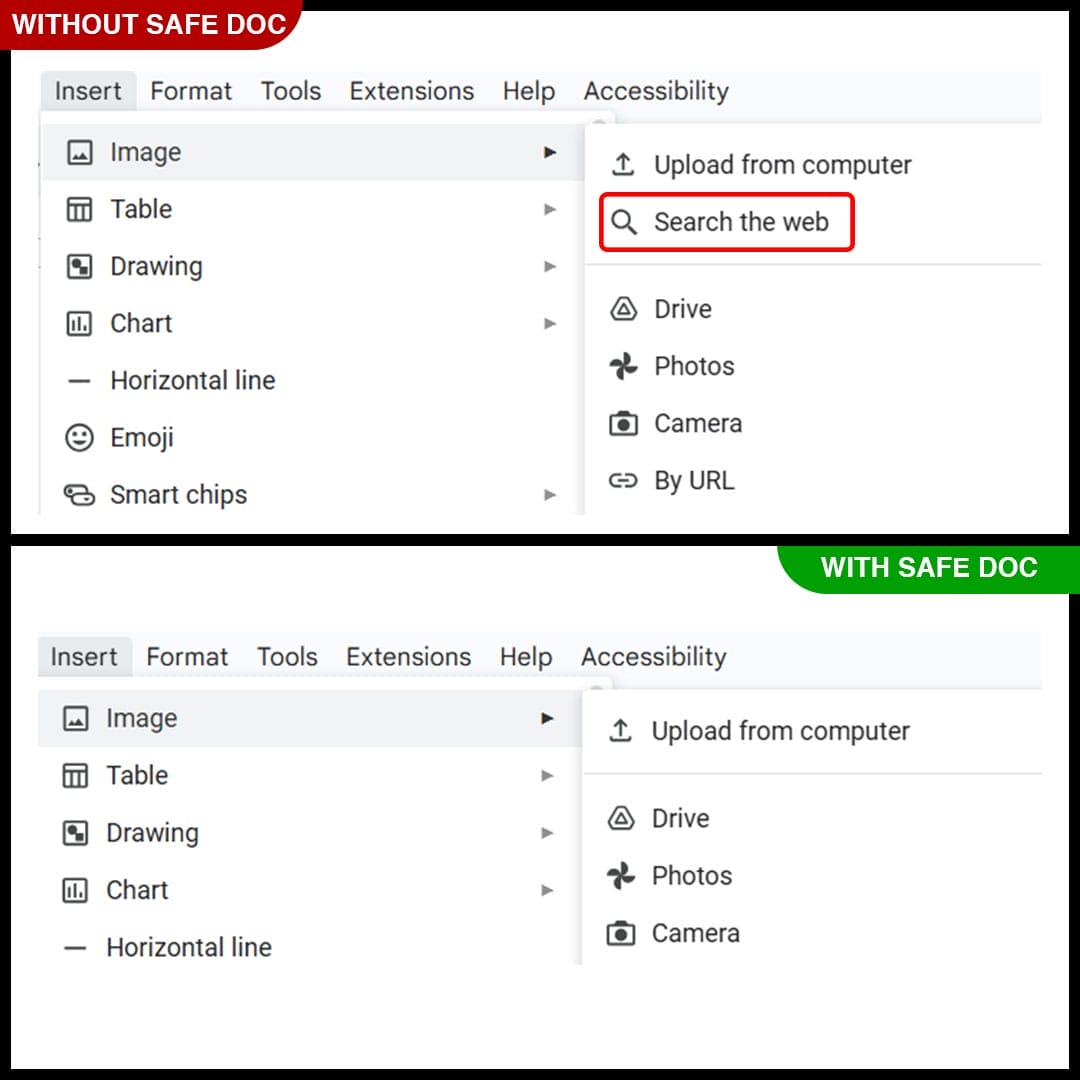
Before and after: the Insert > Image > Search the web option in Google Docs, removed by the EnableImageSearch policy.
Turn Off Image Search in Google Slides
In Google Slides, a student opens the search from Stock and web. It opens the same kind of panel and drops web images onto a slide.
Once Safe Doc is set to false, the "Stock and web" option disappears. This stops students from adding web images in Google Slides.
Before and after: the Insert > Image > Stock and web option in Google Slides, removed by the EnableImageSearch policy.
Stop Image Search in Google Sheets
In Google Sheets, a student opens the search from Insert > Image > Insert image in cell > Google images. From there they can search the web and place a picture in the sheet.
Once Safe Doc is set to false, the "Google images" option disappears. This stops students from adding web images in Google Sheets. Uploading an image still works.
Before and after: the Insert > Image > Insert image in cell > Google images option in Google Sheets, removed by the EnableImageSearch policy.
Schools that made this switch described the change in plain terms:
"We use Safe Doc to ensure that our students do not mis-use the image search function Google Docs. We are very satisfied with the safety provided and with the customer support."— Michael Cohen, Principal, Mesivta of Houston, Houston, TX
What sets Safe Doc apart is the control it gives you. Because you set it per group, you can turn the search off for one set of students and leave it on for another, or for a class that needs it. It is just one setting in the Admin Console.
What EnableImageSearch Handles, and What It Does Not
| The problem | What the usual fix misses | What Safe doc does |
| Admins want to remove the in-editor image search for a group of students, but no feature-level Admin Console control exists | No native control | Acts on the feature itself. Set to false, it removes the image-search options for the chosen OU |
| SafeSearch filters explicit results but does not remove the control or stop off-task memes and GIFs | Explicit-only | Removes the search entry point itself, not just some of what it returns |
To be clear about what this policy is not. It is not a replacement for your filtering or monitoring tool. It closes one specific gap, the in-editor image search, on managed Chrome only. If your school runs a filter or a monitoring tool, this sits alongside it, not instead of it.
Step-by-Step: How to Configure Safe Doc Policy
- Step 1: Apply fora Free 30-day trial license key. The trial license and the sample policy configuration file will be emailed to you.
- Step 2: Sign into the Google Admin Console and deploy xFanatical Safe Doc to the selected student organizational unit (OU).
- Step 3: Go to Devices > Chrome > Apps & Extensions > Users & browsers, navigate to your Safe Doc policy configuration for the relevant organizational unit (OU).

- Click the xFanatical Safe Doc app.
- Step 5: In the right-hand panel, under Policy for extensions, add and edit your policy configuration JSON to include “EnableImageSearch”.

"EnableImageSearch": {  "Value": false
}
- Step 6: Click Save to apply the changes.
- Step 7: Verify that the policy is active. Note: Wait a few minutes for the policy to be propagated to the students' devices. This can also take up to 24 hours.
Full walkthrough: the Safe Doc deployment guide and the Safe Doc configuration reference.
Frequently Asked Questions
- How Do I Block Image Search in Google Docs?
Set Safe Doc's EnableImageSearch policy to false for the student organizational unit (OU). That removes the in-editor image search for those students across the supported editors. It is one setting in the Google Admin Console, scoped to the group you choose.
- Is the Google Images Website the Same as Image Search Inside Docs?
No. The Google Images website (images.google.com) is a separate product you reach in a browser. This feature is the search built into the editor, at Insert > Image > Search the web. Blocking one does nothing to the other, which is why the website approach misses the problem.
- What Does EnableImageSearch = false Actually Disable?
It removes the image-search entry points inside the editors, the spots where a student starts a search. It does not close every way to add an image. Other insertion routes have their own controls.
- Is SafeSearch Enough to Block Image Search in Google Docs?
No. SafeSearch filters explicit results in Google Search, and it is worth keeping on. But it leaves the in-editor feature exactly where it is, and it does nothing to stop students adding memes and off-task images in Google Docs. It cleans some results. It does not remove the search. .
- Can a Web Filter Block the Image Search Inside Docs?
Not reliably. Filters act on whole sites and domains, so this in-editor route can slip past them or break previews awkwardly. It is one reason students bypass a website block and still pull images into Google Docs. The clean fix is removing the feature, not filtering around it.
- Why Use Safe Doc Instead of Completely Blocking Google Images?
Blocking Google Images outright is a blunt, far broader restriction. Safe Doc targets the image-search feature itself inside the editors, so you remove the misused part without cutting off everything else.
- Can I block image search for one class or year group only?
Yes. The policy is set per organizational unit (OU), so one group loses the search while another keeps it.
Conclusion
If students are pulling web images straight into their work, and no Admin Console settings seems to stop it, this is the gap Safe Doc closes. Set EnableImageSearch to false and the in-editor image search comes out of Docs, Sheets, Slides, and for the students you choose. One setting, scoped per organizational unit (OU), working alongside the filter and monitoring you already run. Start a free trial if you have not deployed it yet, or reach out and we will help you set it up across your fleet.
Related Safe Doc guides
Use the related-article block beneath the author card:
 xFanatical Safe Doc
