
Introduction
In this article you will learn about how to disable and enable Google Groups. There can be scenarios where you want to temporarily disable a Google Group without deleting it. This is useful when you want to temporarily block the access to the group by preventing data loss, keeping all messages and memberships intact. If you are Administrator, you have to check whether a group is actively being used or not. If no one reports the issue, then the group remains disabled. If someone reports back, then it can be re-enabled without any data loss.
Admins who manage Google Groups settings, can disable a group to maintain security and gain full control over historical data. This step-by-step guide will help you learn more about disabling and enabling Group Groups.

Importance of Disabling a Google Groups
If you want to maintain security, prevent misuse and control communication flow between groups then it is important to disable Google Groups for organizations. When a group is no longer required then leaving it open can lead to information leakage or unexpected email traffic. Disabling the group makes sure that nobody can post messages, forward sensitive content or use the group address for communication without authorization.
For example: The project has ended but an old group is still active. It confuses members with outdated messages. They may use the same group for discussion of new projects, which leads to security theft since there can be old members of the previous project.
In education settings, students may misuse group addresses to broadcast messages or spam classmates.
How to Disable a Google Group ?
You can disable a Google Group by turning off posting and email delivery permissions. The below steps will stop all members from sending emails to the group and prevent the group from receiving emails. The Google Group will be inactive and can be reactivated later.
Step 1: Open Google Admin Console
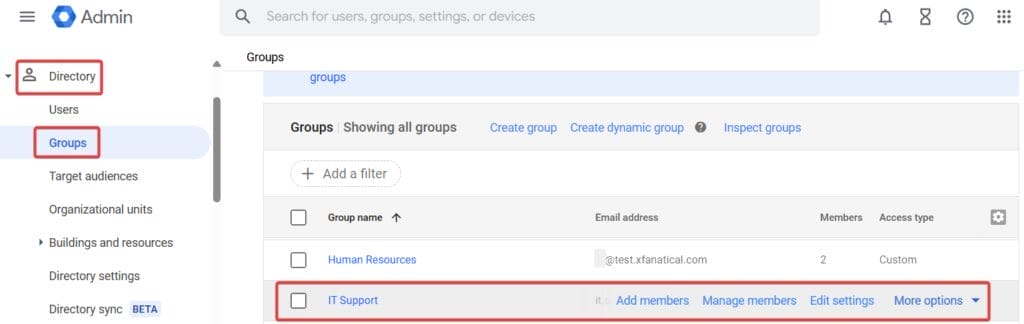
- Sign in to the Google Admin console.
- Go to Directory > Groups
- Select the Group you want to disable.
Step 2: Turn off posting permissions

- Go to Access Settings.
- Scroll down to Moderation and Advanced settings.
- Click moderation settings or advanced settings to open Group settings.
- Open Permissions.
- Change Who can post to Group members.

- Click Save changes.
Step 3: Turn off posting policies

- Navigate to Posting policies.
- Turn OFF Allow email posting settings.
- Click Save changes.
How to Enable a Google Group ?
You can enable a Google Group by following the steps given as follows:
Step 1: Open Google Admin Console
- Sign in to the Google Admin console.
- Go to Directory > Groups
- Select the Group you want to enable.
Step 2: Turn on posting permissions

- Go to Group settings.
- Open Permissions.
- Change Who can post settings to Entire organization or Anyone on the web based on your choice.
- Save changes by clicking the Save changes button.
Step 3: Turn on posting policies

- Navigate to Posting policies.
- Turn ON Allow email posting.
- Click Save changes.
Limitations to Keep in Mind
- Google Groups does not offer a direct disable switch. Admins have to manually change posting and email delivery settings to disable a group.
- If the disabled group is used in Calendar events, file sharing or permissions, those links remain active until removed manually.
- Disabling a group does not delete messages, members or content. The group is still visible to admins.
If you are an admin and perform Google Groups related tasks on daily bases, you must know about xFanatical Foresight automation tool. It will automate all your manual tasks and save your time for more productive work.
Introduction to xFanatical Foresight
xFanatical Foresight is a powerful automation tool designed to automate administrative workflows. It enables admins to perform various Google Workspace related tasks effortlessly. Instead of manually performing Google Group related tasks through the Google Admin Console, xFanatical Foresight efficiently automates your workflows. Additionally, it provides pre-built templates for Google Workspace group management.
It provides Google Group templates for bulk renaming Google Groups in Google Workspace, automatically assigning new users to Groups, bulk exporting Google Groups and many more.
Conclusion
After reading the blog now you know how to enable and disable the Google Groups. Disabling a group when no one is using, keeps the data secure and reduces risk of accidental sharing. By following the steps and best practices, admins can provide a more secured and controlled work environment.
For more questions and doubts, you can comment below. We will reach out to you as soon as possible.
xFanatical Articles -
- Set Default Group Settings For New Google Groups
- Bulk update Google Group settings with xFanatical Foresight
- Bulk Add Email Aliases to Google Groups
- Bulk transfer ownership of Google groups
- Bulk Delete Google Groups in Google Workspace
For more article please visit our website: xFanatical Articles

