
Introduction
This blog explains how to set up auto- replies from a Google Group Email rather than individual email address. When a user sends an email to a shared group address then expects the reply from the same group address. Unfortunately, Google Groups cannot send vacation auto-replies on their own. You can make Gmail handle incoming messages on behalf of the group and send email from the Group email address. This is useful to maintain professional trust and manage communications efficiently.
Why to Set Up Auto-Replies from a Google Group Email?
- Setting up auto-replies from a Google Group email, make sure that all emails will be from the single group sender.
- It maintains communication in a professional way, as the sender is always the group address rather than individual members.
- It keeps group members’ personal email addresses private and prevents exposure of personal email addresses.
- Auto-replies provide immediate acknowledgment to senders, confirming that their message has been received and will be addressed, which improves responsiveness and trust.
- For organizations, schools, or support teams, this system reduces confusion, avoids duplicated responses, and ensures that every incoming email receives a timely, standardized response.
- Finally, by automating replies, teams can save time, streamline workflows, and maintain a clear communication record without manual intervention.
How to Set Up Auto-Replies from a Google Group
You can route the Google Group’s emails into a Gmail inbox, set auto-reply and set up send-as the group address in Gmail.
Step 1: Create a User Account


- Log into Google Admin Console.
- Click Directory > Users.
- Click Add new user to create a user. For example: [email protected]
- Log in once to activate the newly created account.
Step 2: Create a Google Group
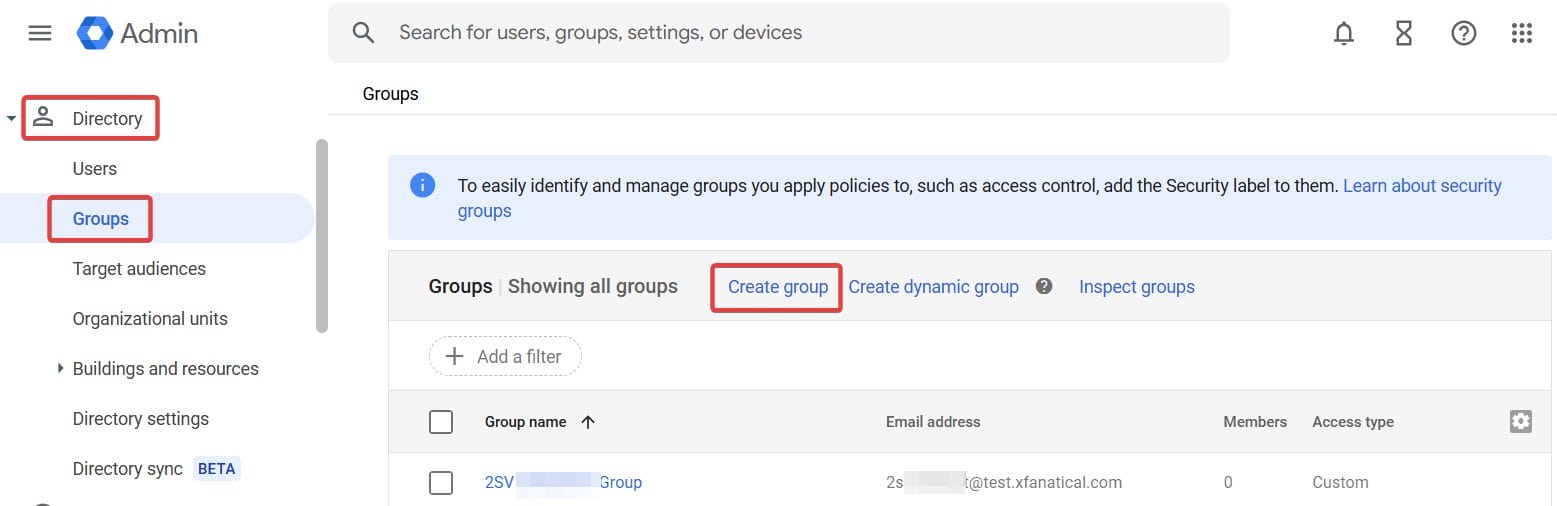
- Go to Google Admin Console > Directory > Groups.

- Click Create Group.

- Enter a name for the group. For example: Support.
- Enter Group email. For example: [email protected]
- Click Next.
- Enter a name for the group. For example: Support.
- Set Who can post option as Entire organization.

- Click Create Group.


Step 3: Add the Members to the Group
- Go to Google Groups.
- Click on the newly created group and click Members.
- Click Add members.

- Add the previously created user as a member. For example: [email protected]
- Click Add to group.

Step 4: Set up Gmail to auto-reply as the Google Group
- Log into your newly created user Gmail account.
- Click Settings > See all settings.

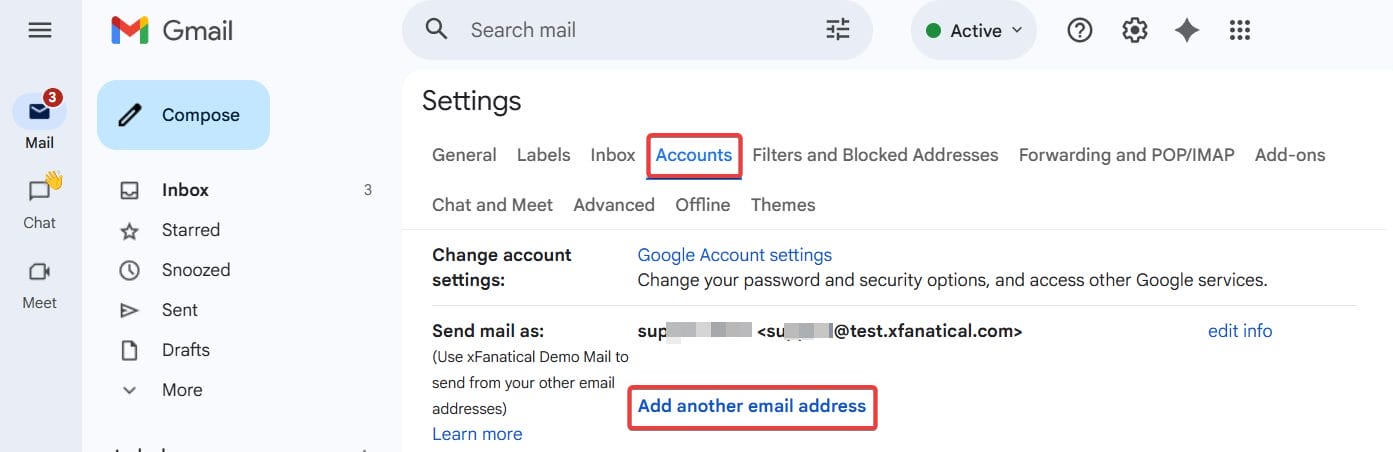
- Go to Accounts.
- In the Send mail as field, click on Add another email address.
- Enter name and group email address. For Example - [email protected]

- Click Next step > Send Verification.
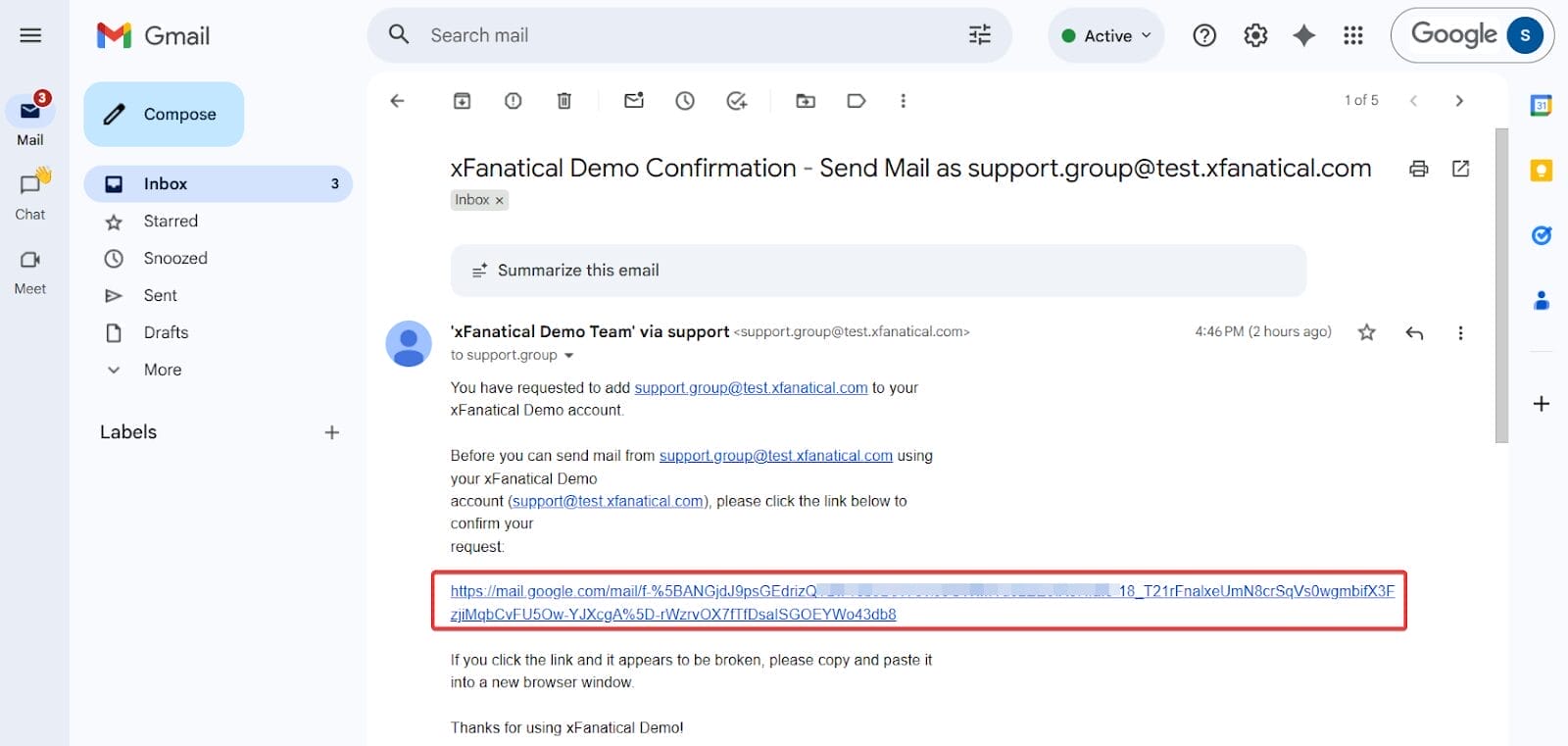
- The verification email will be sent to the Gmail of the user. For example: [email protected]
- Go to the Gmail of the user and click the verification link.

- Click Confirm to confirm sending mails with a group email address.

- Click Settings > See all settings > Accounts and set the newly added email address as the default address.



Step 5: Enable Auto-Reply in Gmail


- Go to the user's Gmail.
- Click Settings > See all settings.
- Find the vacation responder and turn it on.
- Write your auto-reply subject and message.
- Click Save changes.
Set Up Your Google Group Receive the Verification Email
- Go to Google Admin Console > Directory > Groups.
- Click your group. For example: [email protected]
- Click Group settings.
- Inside Group Settings, turn ON the below options:
- Turn ON Allow external senders.
- In the who can post setting, set to Anyone on the internet.
- Turn the group into an email inbox by turning On Conversation history.
- Add yourself as a group member into the group.
- Now you can send verification emails to member’s gmail accounts.
Benefits of Setting Vacation Message in Gmail
- Setting a vacation message will automatically notify senders about received emails.
- It will reduce confusion among users, since they will receive a quick response for the emails they sent.
- Vacation messages will maintain a professional image among external users.
- It reduces repeated follow up email efforts and saves resources.
- Vacation messages support team collaboration.
- Auto-replies can notify external senders when shared inboxes or group emails are involved.
- While setting your vacation messages, you can create customized follow up messages and instructions for users.
To enhance your productivity with automated workflows, you can sign up for our automation tool xFanatical Foresight. xFanatical Foresight provides a wide range of actions and triggers to achieve admin workflows.
Introduction to xFanatical Foresight
xFanatical Foresight is a powerful automation tool designed specifically for Google Workspace. It enables administrators to perform various Google Workspace tasks effortlessly. Instead of manually doing the task through the Google Admin Console, xFanatical Foresight can quickly and efficiently automate the regular tasks. It provides template features, which provide auto defined rules and all you have to do is just copy the rule and run. xFanatical Foresight supports workflows like bulk adding new users in Google Workspace, automating welcome email to new users, bulk adding calendar resources in Google Workspace and many more.
Conclusion
By setting up a vacation auto-replies for a Google Group, you can provide a more professional environment to the clients and users. While users receive timely responses to their emails from the group's email address, it creates enhanced communication. This blog will guide you through steps to set up a vacation responder in Gmail and provide your insights of benefits.
Your questions are important to us, so if you have any doubts or questions, feel free to comment. We will try our best to solve your problem.
xFanatical Articles -
- Bulk Export Groups in Google Workspace
- Export Group Members to CSV in Google Workspace
- Bulk transfer ownership of Google groups
- Automatically Assign New Users to Groups in Google Workspace
For more article please visit our website: xFanatical Articles

