
Introduction
In this blog you will learn how to edit Google Forms responses directly in the linked spreadsheet.
While Google Forms doesn’t allow you to change submitted responses through the Form UI, the connected Google Sheet gives you the flexibility to make corrections, update typos or revise answers. Whether you're an educator adjusting student inputs, a team lead correcting internal survey results or just managing data cleanup, this guide will walk you through safe and effective ways to modify responses in Google Sheets without breaking your form’s structure.
How to Edit Google Forms Responses in the Spreadsheet
Step 1. Prepare your form and spreadsheet
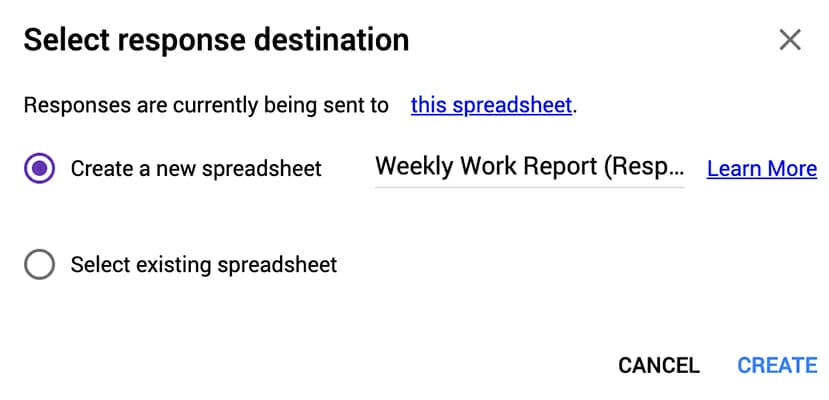
- You have a spreadsheet connected with the form as a response destination.
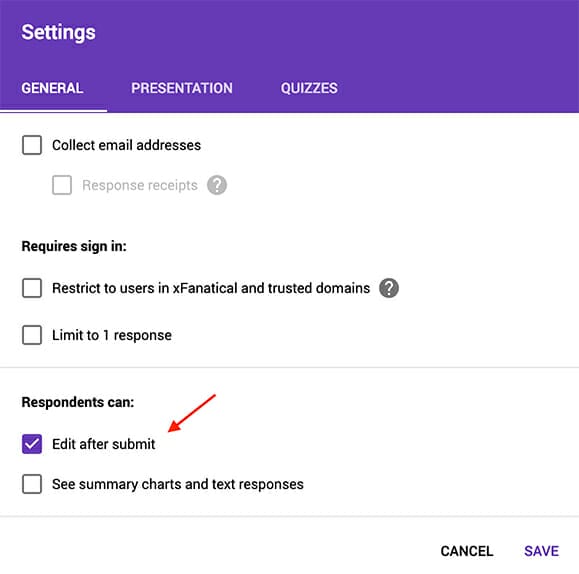
- You have enabled Respondents can Edit after submit option in the Settings of form.
Step 2. Set up the magic Apps Script in Your Spreadsheet
- Copy the apps script in the Source code section below.
- Open up the spreadsheet with which the form is associated.
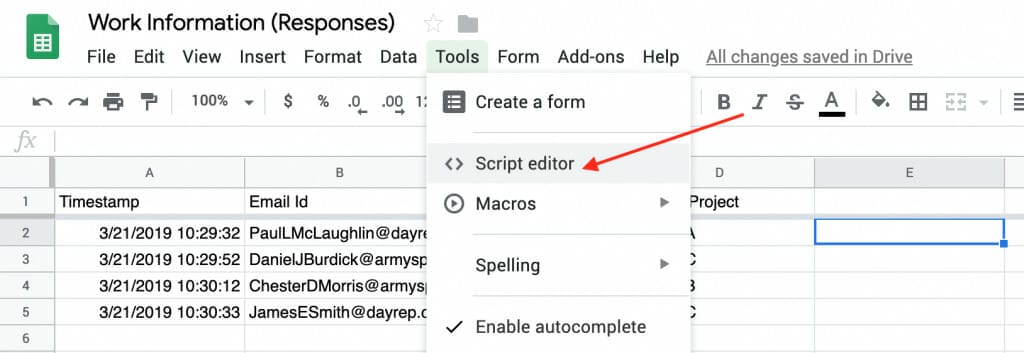
- Click Tools in the menu bar, followed by Script editor.
- In the popped Script Editor tab
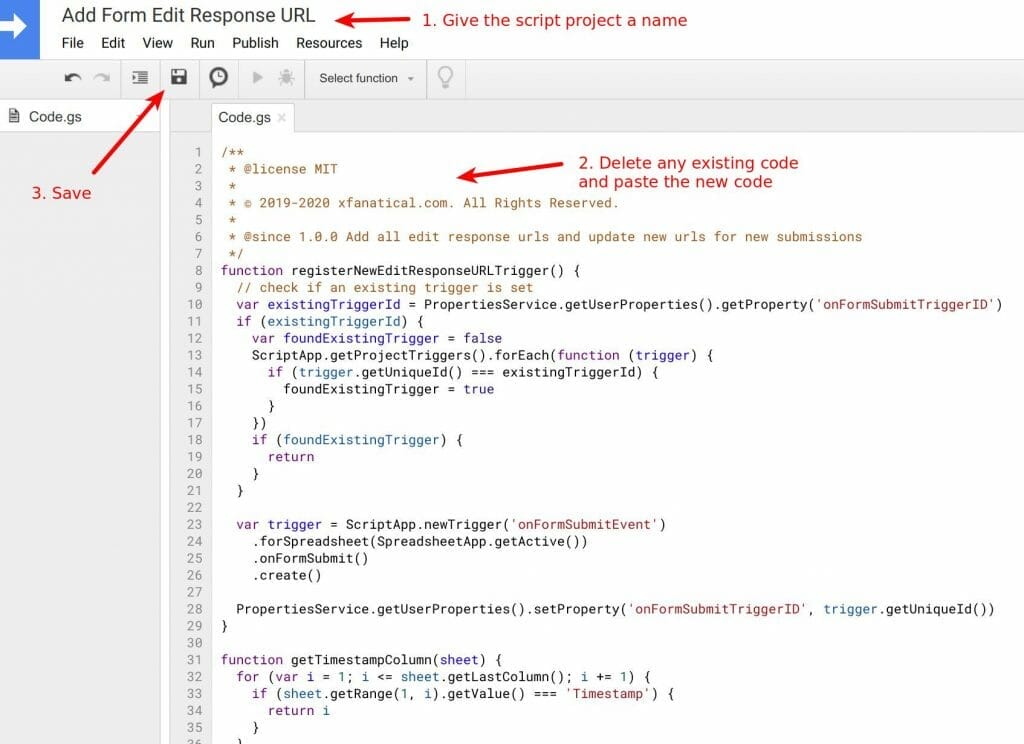
- Give the script editor a name, say Add Form Response Edit URLs
- Paste the code.
- Click save.
- Now go back to Spreadsheet tab. Refresh the page.
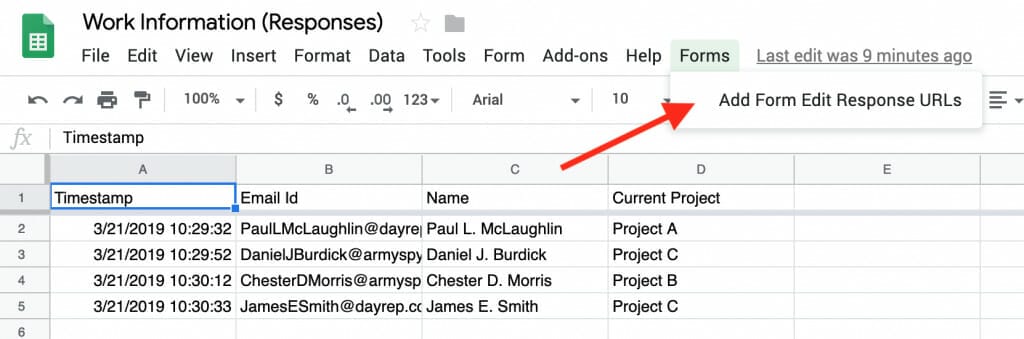
- You will see a new Menu Forms > Add Form Response Edit URLs by the end of menu bar.
Step 3. Automation
It's tiring of setting up all the pieces, isn't it? I know, it's boring to handle technical issues sometimes. But we're almost there.
- Click the Forms > Add Form Edit Response URLs menu.
- Wait for the script running. If the Authorization window popups, don't panic, just go through it. The Apps Script is safe. Also, if nothing happens, you may need to click Forms > Add Form Edit Response URLs menu again.
- You will see the script adds a new column Form Response Edit URL at the far right of sheet (If you don't see it, scroll right). It then adds one-by-one the urls to the responses. Amazing, huh?
If your sheet is large (thousands of responses) and you see an error Exceeded maximum execution, run the script again by clicking the menu Forms > Add Form Edit Response URLs.

- BONUS: Now ask your respondent to submit a new response. The Form Response Edit URL will be automatically attached to Spreadsheet for the new response!
Step 4. Edit responses in the spreadsheet!
- Now you have a response edit url for every submission, you are free to click those links and make changes to them.
- The changes will be reflected soon in the spreadsheet.
Limitations: Inaccuracy with Consecutive Timestamps
Important note: The script may not work reliably when multiple form responses are submitted at the exact same second.
For example - Responses are submitted with identical timestamps as below -
-
- 03/01/2020 10:30:04
- 03/01/2020 10:30:04
- 03/01/2020 10:30:05
- 03/01/2020 10:30:05
- The script relies only on timestamps to match form responses with spreadsheet rows.
- Timestamps can be identical, when multiple responses are submitted within the same second.
- Identical timestamps can cause mismatched edit response URLs or they may be assigned to incorrect rows.
- The approach may not scale reliably for forms with high-frequency or simultaneous submissions.
- Additionally, using unique identifiers or comparing response data, you can handle the edge cases accurately.
Source code
/**
 * @license MIT
 *
 * © 2019-2020 xfanatical.com. All Rights Reserved.
 *
 * @since 1.1.2 interface fix
 * @since 1.1.1 Optimize performance (continued)
 * @since 1.1.0 Optimize performance
 * @since 1.0.0 Add all edit response urls and update new urls for new submissions
 */
function registerNewEditResponseURLTrigger() {
  // check if an existing trigger is set
  var existingTriggerId = PropertiesService.getUserProperties().getProperty('onFormSubmitTriggerID')
  if (existingTriggerId) {
    var foundExistingTrigger = false
    ScriptApp.getProjectTriggers().forEach(function (trigger) {
      if (trigger.getUniqueId() === existingTriggerId) {
        foundExistingTrigger = true
      }
    })
    if (foundExistingTrigger) {
      return
    }
  }

  var trigger = ScriptApp.newTrigger('onFormSubmitEvent')
    .forSpreadsheet(SpreadsheetApp.getActive())
    .onFormSubmit()
    .create()

  PropertiesService.getUserProperties().setProperty('onFormSubmitTriggerID', trigger.getUniqueId())
}

function getTimestampColumn(sheet) {
  for (var i = 1; i <= sheet.getLastColumn(); i += 1) {
    if (sheet.getRange(1, i).getValue() === 'Timestamp') {
      return i
    }
  }
  return 1
}

function getFormResponseEditUrlColumn(sheet) {
  var form = FormApp.openByUrl(sheet.getFormUrl())
  for (var i = 1; i <= sheet.getLastColumn(); i += 1) {
    if (sheet.getRange(1, i).getValue() === 'Form Response Edit URL') {
      return i
    }
  }
  // get the last column at which the url can be placed.
  return Math.max(sheet.getLastColumn() + 1, form.getItems().length + 2)
}

/**
 * params: { sheet, form, formResponse, row }
 */
function addEditResponseURLToSheet(params) {
  if (!params.col) {
    params.col = getFormResponseEditUrlColumn(params.sheet)
  }
  var formResponseEditUrlRange = params.sheet.getRange(params.row, params.col)
  formResponseEditUrlRange.setValue(params.formResponse.getEditResponseUrl())
}


function onOpen() {
  var menu = [{ name: 'Add Form Edit Response URLs', functionName: 'setupFormEditResponseURLs' }]
  SpreadsheetApp.getActive().addMenu('Forms', menu)
}

function setupFormEditResponseURLs() {
  var sheet = SpreadsheetApp.getActiveSheet()
  var spreadsheet = SpreadsheetApp.getActive()
  var formURL = sheet.getFormUrl()
  if (!formURL) {
    SpreadsheetApp.getUi().alert('No Google Form associated with this sheet. Please connect it from your Form.')
    return
  }
  var form = FormApp.openByUrl(formURL)

  // setup the header if not existed
  var headerFormEditResponse = sheet.getRange(1, getFormResponseEditUrlColumn(sheet))
  var title = headerFormEditResponse.getValue()
  if (!title) {
    headerFormEditResponse.setValue('Form Response Edit URL')
  }

  var timestampColumn = getTimestampColumn(sheet)
  var editResponseUrlColumn = getFormResponseEditUrlColumn(sheet)

  var timestampRange = sheet.getRange(2, timestampColumn, sheet.getLastRow() - 1, 1)
  var editResponseUrlRange = sheet.getRange(2, editResponseUrlColumn, sheet.getLastRow() - 1, 1)
  if (editResponseUrlRange) {
    var editResponseUrlValues = editResponseUrlRange.getValues()
    var timestampValues = timestampRange.getValues()
    for (var i = 0; i < editResponseUrlValues.length; i += 1) {
      var editResponseUrlValue = editResponseUrlValues[i][0]
      var timestampValue = timestampValues[i][0]
      if (editResponseUrlValue === '') {
        var timestamp = new Date(timestampValue)
        if (timestamp) {
          var formResponse = form.getResponses(timestamp)[0]
          editResponseUrlValues[i][0] = formResponse.getEditResponseUrl()
          var row = i + 2
          if (row % 10 === 0) {
            spreadsheet.toast('processing rows ' + row + ' to ' + (row + 10))
            editResponseUrlRange.setValues(editResponseUrlValues)
            SpreadsheetApp.flush()
          }
        }
      }
    }

    editResponseUrlRange.setValues(editResponseUrlValues)
    SpreadsheetApp.flush()
  }

  registerNewEditResponseURLTrigger()
  SpreadsheetApp.getUi().alert('You are all set! Please check the Form Response Edit URL column in this sheet. Future responses will automatically sync the form response edit url.')
}

function onFormSubmitEvent(e) {
  var sheet = e.range.getSheet()
  var form = FormApp.openByUrl(sheet.getFormUrl())
  var formResponse = form.getResponses().pop()
  addEditResponseURLToSheet({
    sheet: sheet,
    form: form,
    formResponse: formResponse,
    row: e.range.getRow(),
  })
}
Conclusion
Editing Google Forms responses in the spreadsheet is a simple but powerful way to manage your responses in faster and more efficient way. By using edit response links, you can quickly review and update each responses without searching manually. The approach is useful when you are handling large number of responses. By following the steps given in this blog, you can easily make edits and analyze the responses more effectively. Using spreadsheet's layout, formulas and collaboration features will be advantageous to streamline your editing workflow of Google Forms. Thanks for reading.

