
Introduction
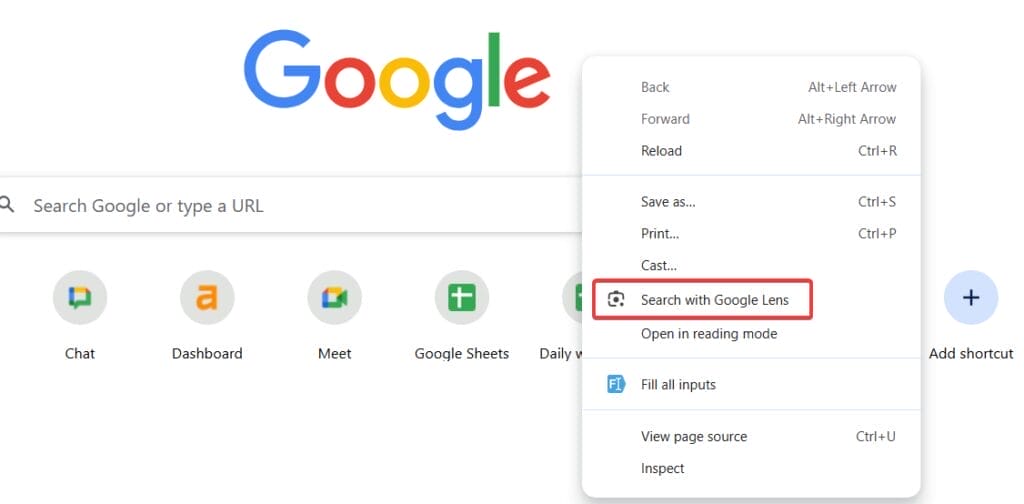
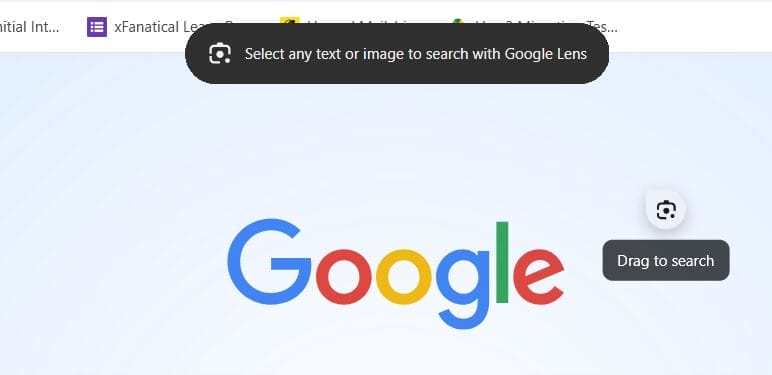
This guide explains how to disable the Google Lens Overlay. The new Google Lens overlay in Chrome enhances the way of image search and visual search panel. Google Lens overlay is a Chrome feature that is available in the right-click menu instead of Search Google for image option. When you right-click and choose Search with Google Lens, Chrome opens an overlay that lets you highlight any part of the screen and displays search results in a side panel.
The feature is useful but many users find it distracting and prefer the original image search method. In this situation disabling the feature is necessary. This guide shows you how to turn off the Google Lens overlay and how admins can disable it across managed Chrome browsers in Google Workspace.
What is Google Lens Overlay?
Google Lens overlay is a built-in Chrome feature that is available at the right click menu. It replaces the Search Google for image option with an interactive visual search panel. When you right-click and choose Search with Google Lens, Chrome opens a side panel overlay and provides results based on the selected area.
Why Turn Off Google Lens Overlay
Turning off the Google Lens overlay can help in maintaining a simple image search experience. In schools and work environments, the Lens overlay allows students and employees to bypass image filtering rules. Additionally, it can confuse users who are not familiar, seeing the new interface all of a sudden.
Users may want to experience traditional image searching methods by disabling the Lens overlay. Turning off is necessary to avoid confusion and distractions.
How to Disable the Google Lens Overlay in Google Admin Console
Steps to turn off the Google Lens Overlay
- Log in to Google Admin Console.
- Navigate to Chrome browser > Settings > Users & browsers.
- Search for Generative AI policy defaults settings.
- In Configurations, select Do not allow GenAI features option from dropdown to turn off the Google Lens.
- Finally, save the changes.


Another Method to Disable the Google Lens Overlay
- Go to Google Admin Console.
- Navigate to Chrome browser > Custom configurations.
- Select the student Organizational Unit (OU).
- Under Configurations, add the following JSON:
{
"SearchContentSharingSettings": 1
} - Click Save.
- Allow up to 24 hours for the policy to propagate to all student devices.


Conclusion
By disabling the Google Lens overlay will help you to restore the traditional image search method and maintain better control over browsing. You will enforce restrictions on bypassing browsing rules by turning off Google Lens overlay through Chrome Flags or the Google Admin Console. By following this article you will know both the methods to disable Google Lens overlay feature.
xFanatical Articles -
- How to Block Students from Using Google Lens Search
- Turning Off AI Overviews in Google Search
- How to Turn off Gemini for Google Workspace?
For more article please visit our website: xFanatical Articles

