Introduction
This blog explains why and how to block chat with external users in Google Chat. Google Chat allows users to communicate internally and externally, including direct messages and Spaces collaboration. While this improves connectivity, it can also introduce challenges related to control, privacy, and security.
When external chat is enabled, users can interact with people outside the organization without restrictions. This may lead to distractions, unmanaged conversations or potential security risks. Managing external communication requires proper configuration through the Google Admin Console.
This blog covers available solutions to block external Google Chat and manage communication settings effectively.
What is External Chat in Google Chat?
External chat in Google Chat allows users to send messages, create Spaces and collaborate with users outside their organization domain.
This includes:
- Users can send and receive direct messages with external Gmail or Workspace accounts.
- Users can join Spaces that are created outside the organization.
- External users can invite users into conversations and Spaces without internal control.
Who is this Guide for?
This guide is intended for administrators, IT teams and organizations that want to control communication in Google Chat and manage external access effectively.
Why Block Chat with External Users?
In any organization, controlled communication is important for maintaining security and productivity. When external chat is enabled, users can interact with unknown people, which can lead to distractions or data exposure.
It also becomes difficult to monitor conversations that occur outside the organization. Even if internal communication is well-managed, external chat creates additional channels that may bypass organizational policies.
From a management perspective, unrestricted external messaging reduces visibility, complicates auditing and increases the risk of data sharing outside approved boundaries.
Available Solutions to Block External Google Chat
Blocking external chat in Google Chat is partially possible using the admin console. However, it depends on correct configuration of external communication settings.
Solution 1: Restrict External Chat Using Admin Console
You can control external messaging by configuring Chat settings in the Google Admin Console.
Follow the steps given below:
- Log in to Google Admin Console.
- Navigate to Apps > Google Workspace > Google Chat.
- Search for External chat settings.
- Select the OFF option to restrict external messaging.
- Save the configuration.

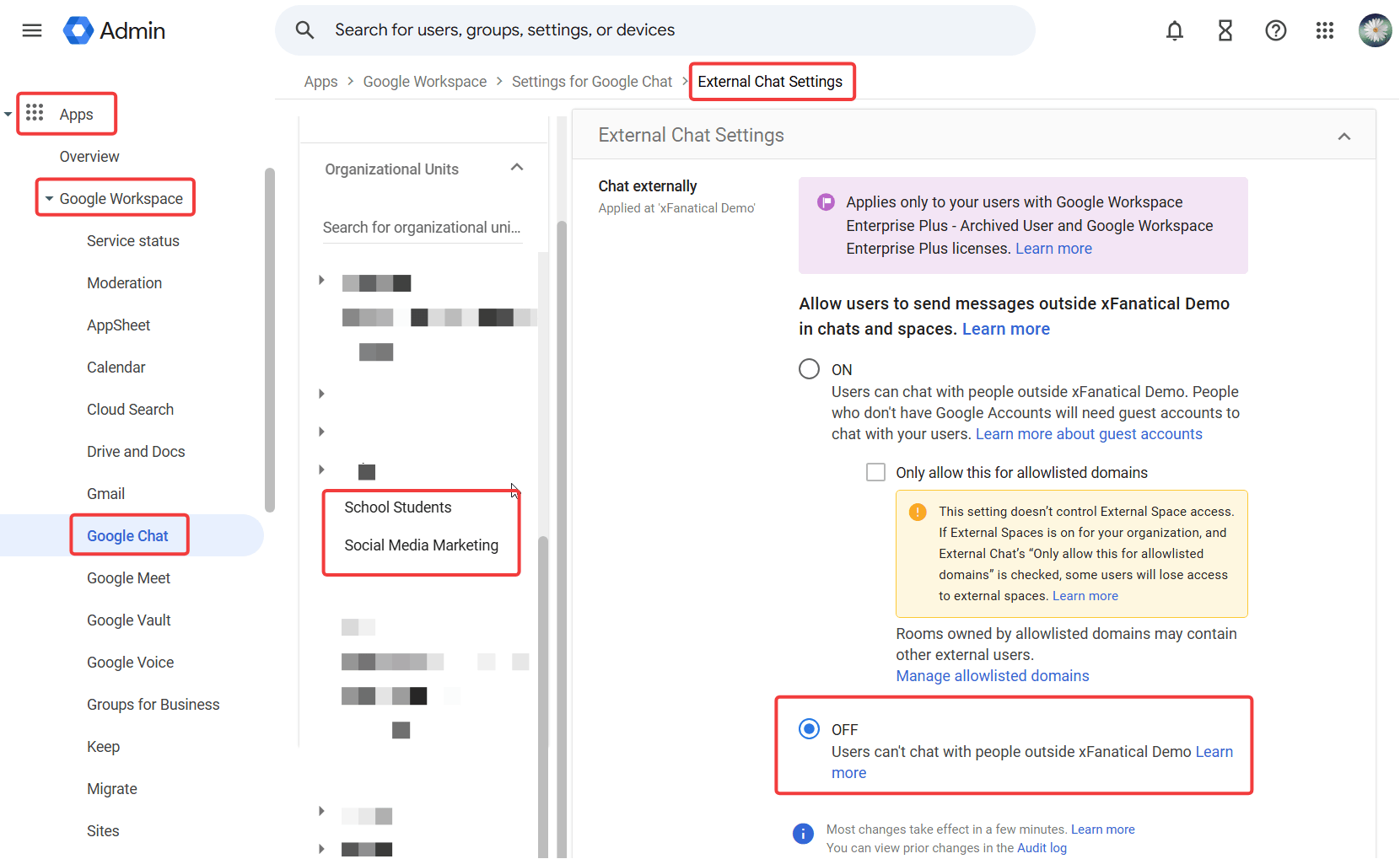
This setting helps block users from sending messages to external domains and prevents receiving messages from outside users.
Solution 2: Restrict External Space and Chat Creation
- In the Google Admin console, go to Menu > Apps > Google Workspace > Google Chat.
- Click External spaces.
- To restrict users from creating and joining spaces with people outside the organization, set the option to Off.
- Click Save.


Solution 3: Restrict External Spaces and Invitations
External Spaces can allow indirect communication even when direct external chat is restricted. You must configure additional settings to fully control this behavior in Google Chat.
Follow the steps given below:
- Log into Google Admin Console.
- Navigate to Apps > Google Workspace > Google Chat.
- Go to Chat and space restrictions.
- Check the checkbox to restrict users from inviting external users to Spaces.
- Save the configuration.


Benefits of Blocking External Google Chat
- Blocking external chat helps maintain better control over communication by limiting interactions to internal users only.
- It improves security by reducing the risk of unauthorized communication and data sharing outside the organization.
- It also enhances visibility, making it easier to monitor conversations and enforce communication policies.
Conclusion
By now you understand what external chat in Google Chat is, how it impacts communication, and why it is important to control it. While the Google Admin Console provides options to restrict external messaging, these controls require careful configuration to eliminate all communication gaps.
Follow the steps discussed in this blog to manage Google Chat settings effectively and ensure that communication remains secure and within organizational boundaries.
xFanatical Articles -
- Disable Chat In Google Docs Editors
- Block Image Searching In Google Docs Editors
- Block Insert Link Feature In Google Docs, Slides and Sheets
For more article please visit our website: xFanatical Articles