
Introduction
This guide explains how to block off time to work on a task in Google Calendar. This is an update in Google Calendar, where users can easily block off time on their calendar to work on a specific task. This feature is available only for Google Workspace accounts and may not appear on personal @gmail.com accounts. It was announced in the Google Workspace Updates blog and rollout may vary across organizations. Now users can customize visibility and do not disturb settings in Google Calendar to work on an important task without disruptions. With this update users can create, manage and complete their tasks within the deadline.
If you are a student, then this feature is more useful to complete assignments and submit them in time without any interruption. If you are an admin handling multiple tasks and need to complete high priority tasks within deadlines this guide is for you. You can mention the deadline for the task and enable the do not disturb flag to work productively and complete your tasks.

Why Blocking Off Time for a Task is Beneficial ?
Nowadays, in busy work environments, tasks can pile up quickly and constant context switching reduces your productivity in work.
- Blocking off time on your important tasks reduces the last minute hustle and improves planning. This small step helps you to measure how long a particular task may take and improve further work plans. By mentioning the deadline on each task, you will have a clear goal on the task completion. Additionally, it reduces your workload since you have a planned schedule.
- Blocking time makes it easy to let your colleagues know about your availability. When your calendar is clear with your focused hour blocks, it is less likely to schedule overlapping meetings. This supports smoother team coordination and helps organizations maintain a productive, interruption-free workflow.
- Overall, blocking off time is a small habit that can significantly improve efficiency, reduce distractions, and help you consistently deliver high-quality work. It is a simple yet powerful technique for better productivity and better time management.
How to Create Tasks in Google Calendar
At the start, it is important to understand how to create your tasks in Google Calendar. You can follow the steps given below to create your tasks.
Tip: To enable Do Not Disturb and Automatically Decline Meetings, make sure you have working hours enabled in Google Calendar > Settings > Working hours & Location.
- Login into your account and go to Google Calendar.
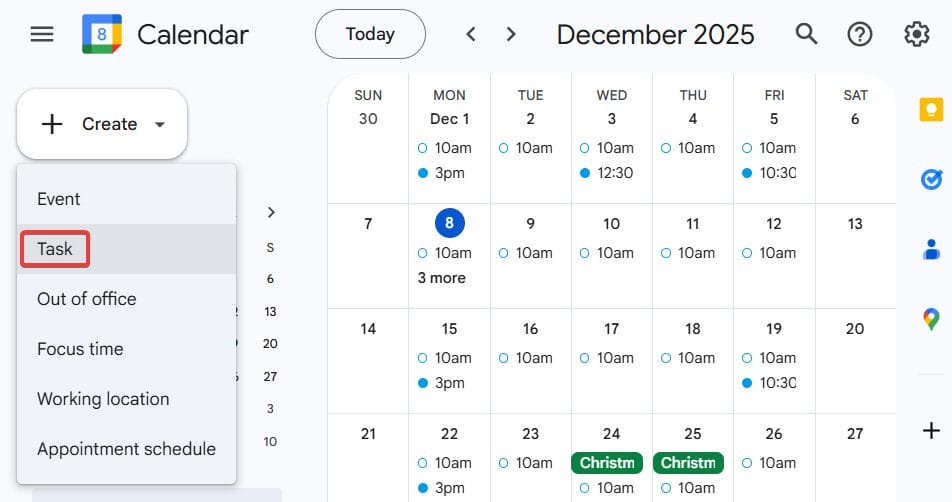
- On your calendar, click an empty slot or directly click on Create.

- Click Task form the dropdown.

- Provide detailed information about the task in the Task tab.



How to Block Off Time for a Task in Google Calendar
- Go to Google Calendar
- Select the task for which you want to block time.
- Click on edit task.

- Click on your calendar for advanced settings.

- Now, customize visibility as Busy and do not disturb settings for the task.

- Click Save to reflect the changes.


Important Notes
- Only work or school accounts can use the Do not disturb and Automatically decline meetings options.
- To get the notification before the task starts, you will have to provide the start time for the task.
FAQs About Block Off Time in Google Calendar
Q1. What is blocking off time in Google Calendar ?
A1. Blocking off time means reserving a dedicated time slot on your calendar for a specific task so you can work without interruptions.
Q2. Can I block off time for recurring tasks?
A2. Absolutely. When creating the task, select a repeat option like daily, weekly, monthly or custom for recurring tasks.
Q3. Is blocking off time the same as creating an event?
A3. Yes. You block time by creating an event and labeling it with your task name. It doesn’t have to be a meeting, it can simply be a personal work block.
Q4. Do blocked time tasks give notification?
A4. Yes. You will have to provide task start time, so that you will receive the notification before the task starts and you will be notified until you complete the task.
Conclusion
In conclusion, a simple update can enhance your way of working and boost productivity by managing your task efficiently. Google Calendar’s update is valuable when you manage multiple tasks and prioritize them to complete on time. By following the steps provided in the article, you can create and manage your tasks more effectively. You can also check the FAQs section to clarify your doubts. Feel free to comment and we will get back to you with your answers as soon as possible.
xFanatical Articles -
- Auto Add Buffer Times to Google Calendar Events
- Auto Decline Conflicting Invitation in Google Calendar
- Auto Accept Invites in Google Calendar
- How can you automate Google Calendar tasks with Foresight?
For more article please visit our website: xFanatical Articles

