Introduction
This blog explains why and how to block the Chrome Customization sidebar using Safe Doc. Google Chrome prefers personalization and allows users to customize as per their likings. While this improves user experience, it creates a challenge for administrators and educators in schools. The Customize Chrome button allows users to change themes, colors and layouts.
In K-12 classrooms, students may spend more time exploring themes instead of focusing on lessons. This behavior affects productivity and classroom discipline. Unfortunately, Google Admin Console does not offer a direct way to remove the Customize Chrome button. This blog covers available solutions to disable the Chrome customization button.
What is the Chrome Customization Sidebar?
The Chrome Customization sidebar is a built-in UI panel that appears when users click the Customize Chrome button on a new tab page. It allows users to change browser background images, apply themes and colors and modify layout and appearance.
This feature is enabled by default and is easily accessible to all users, including students on managed devices.
Who is this Guide for?
This guide is intended for school administrators and educators. Educational institutions who want control of students' behavior during learning sessions will be benefited by this blog.
Why Block Chrome Customization Sidebar?
In a school environment, control and consistency among students is critical. Students often open a new tab during class and start browsing themes or change colors. As a result, their attention shifts away from learning tasks and eventually, it becomes a habit and reduces learning efficiency.
Teachers also face difficulty maintaining classroom discipline. Even a few seconds of distraction makes it hard to keep the class engaged.
From an administrator’s perspective, the problem is deeper. Even after applying policies in the admin console, the Customize Chrome button remains visible, creating a gap between expected control and actual behavior.
Available Solution to Block Chrome Customization Sidebar
The Chrome Customization sidebar in Google Chrome cannot be completely disabled using Google Admin Console. However, administrators can use a temporary approach of using Chrome Flags to reduce the impact. Chrome Flags come under User-level control and they are not enforced by Admin policies and OU-level management.
In Google Chrome, Chrome flags allow users to enable or disable experimental features, including some UI elements related to side panels and customization.
The limitation here is that flags are not stable. They may disappear after updates and cannot be enforced centrally across student devices.
Follow the steps given below:
- Open Google Chrome on the device.
- In the address bar, type chrome://flags and press Enter.
- In the search bar, search for terms like Customize Chrome or side panel.
- Change the setting from Default to Disabled.
- Click Relaunch to restart the browser and apply changes.

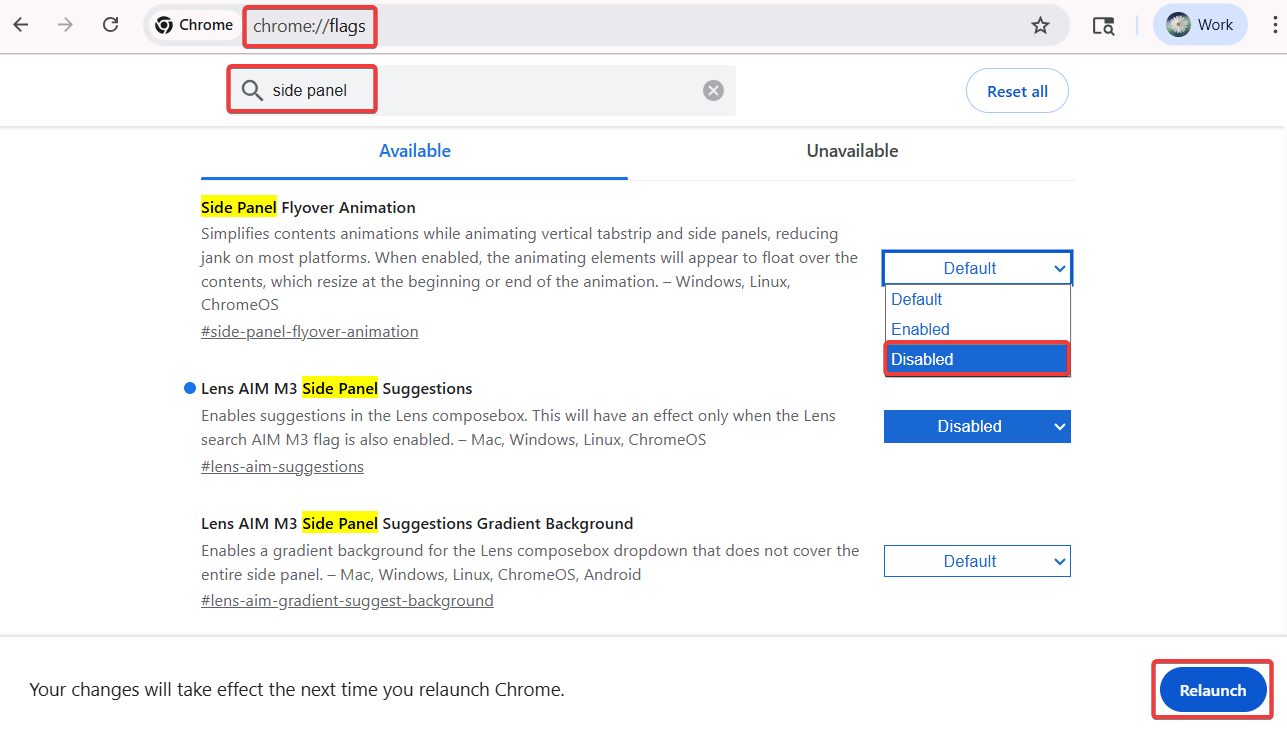
This may temporarily hide parts of the customization UI, but it is not a reliable or long-term solution, especially in school environments.
Benefits of Blocking Chrome Customization Sidebar
- Blocking the Customize Chrome button provides concentrated learning during ongoing classes, since students cannot play with customization colors and themes.
- It improves uniformity since all the students will have the same Chrome theme and colors as set by the administrator.
- For administrators, it helps in managing devices across hundreds of students.
Conclusion
By now you understand what the Chrome Customization sidebar is, how it distracts students and why schools struggle to control it using native settings. Google Admin Console does not completely block the Customize Chrome sidebar in Google Chrome. Administrators can follow the solution given in the blog to prevent misuse of the button.
Follow the steps discussed in this blog to reduce the impact of Chrome customization and ensure that student devices are used primarily for learning purposes.
xFanatical Articles -
- How to Access ChromeOS Telemetry Data
- How to Integrate Trello with Google Chat and Spaces
- How to Manage Emoji Reactions in Gmail
- How to Manage Take Notes for Me Feature in Google Meet
For more article please visit our website: xFanatical Articles