
Introduction
In this guide, we are going to discuss how to list files shared with Anyone with the Link access in Google Drive. For every organization, security is a primary concern and files that can be accessed by anyone outside the organization can be harmful. Public link sharing makes collaboration easy but increases the risk of data exposure. Anyone with the link access makes it difficult to track and control Google Drive external sharing management.
Timely identification of such files can prevent major data loss and security threats across the entire organization. Administrators can conduct an audit to find publicly accessed files and restrict external sharing to protect sensitive information. Let’s read more about how and why restricting file access is important.
What is “Anyone with the Link” Access
Anyone with the link access is a Google Drive sharing permission, which makes a file or folder accessible to anyone who has the link. With the link, users can access the files without signing into the Google account. This permission is commonly used for public link sharing in Google Drive and makes it easy to share the important documents.
This guide is intended for Google Workspace users, who frequently use Google Drive to share files with colleagues or students.
How to List Files with “Anyone with the Link” Access
Google Workspace administrators can use Google Admin Console to list list the files with link access:
- Sign in to your Google Admin Console using admin credentials.
- Navigate to Reporting > Audit and investigation.

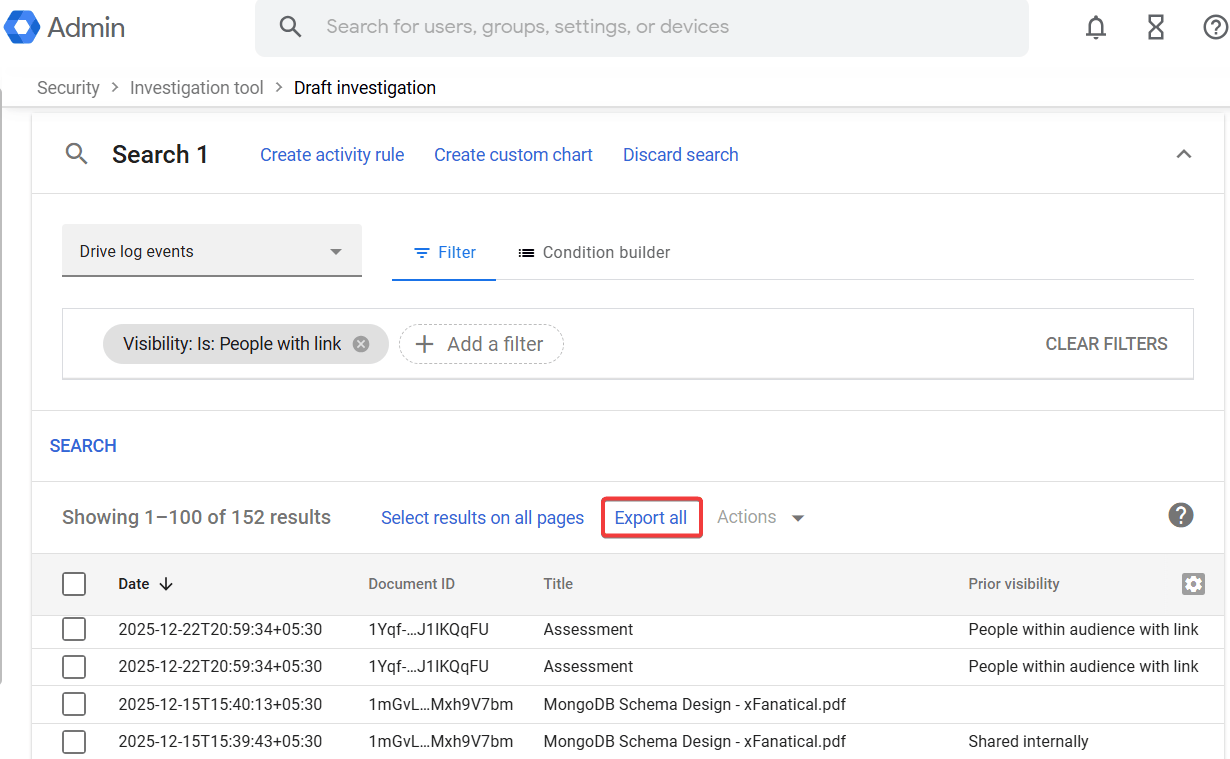
- Click on Drive log events.
- Next, apply filters to get accurate results, Set Visibility to People with link and click Apply.

- Once you apply the filter, the report will generate all files with anyone with the link access, including details such as file name, document ID, visibility, description, owner etc.

- If the administrator wants to export the result for further investigation, click Export all.


Best Practices for Google Drive External Sharing Management
- For effective Google Drive external sharing management, limit sharing of files and folders with anyone with the link access.
- The good practice is to provide this access only for sharing non-sensitive files or folders.
- Always share files to target email addresses rather than making the file accessible for anyone.
- Regularly audit the list of files shared with anyone with the link using Drive audit logs to maintain security across organizations.
- Update outdated or unnecessary file sharing permissions to domain-level sharing restrictions.
- Educate students and employees about the risks of public link sharing in Google Drive to prevent misuse of sensitive data.
In an educational environment, for effective Google Drive management, administrators can install xFanatical Safe Doc browser extension. Safe Doc offers policies to enforce classroom discipline and enhance online learning experience.
Introduction to xFanatical Safe Doc
xFanatical Safe Doc is a browser extension that provides policies to enhance students safety and provides control over digital learning. Safe Doc provides policies for effective Drive management by blocking Google Drive sharing files and disabling uploaded video playing in Google Drive etc.
Conclusion
Enforcing restrictions on Google Drive external sharing is an essential step towards protecting organizational information. Although public link sharing is a quick method to share files and folders, it can lead to unintended data exposure to the outside world. A proactive approach of regularly auditing sharing settings, helps administrators to prevent future data loss and gain control over sensitive information.
xFanatical Articles -
- How to Transfer Files from One Google Drive to Another
- How to Move Files from a Shared Drive to My Drive in Google Drive
- How to Identify Shared Drive files/folders Shared Externally
For more article please visit our website: xFanatical Articles

