
Introduction
In this article, you will learn about what is NotebookLM and how to convert sources into data tables. In the current landscape of AI, most tools are designed to talk to you based on the entire internet. NotebookLM is different and It is designed to think with you, using only the information you trust and provide.
Whether you are a researcher buried in academic papers, a business analyst juggling dozens of market reports, or a student organizing semester notes, NotebookLM acts as a personalized AI collaborator. This blog explores what makes this tool unique and, more importantly, how to use its reasoning engine to extract messy information into clean, structured data tables.
What is NotebookLM ?
NotebookLM (Notebook Language Model) is an AI-powered research assistant developed by Google. While it is powered by Gemini 1.5 Pro, it differs from standard chatbots through a concept called Source Grounding.
Note : Source grounding is a technical approach that anchors the AI's responses directly to the specific documents you provide (your "sources"), rather than letting it rely solely on its general pre-trained knowledge from the internet.
Key Features:
- Source-Centric Intelligence: When you upload documents (PDFs, Google Docs, website URLs, or text files), the AI treats them as its world. It prioritizes your data over its general training.
- Massive Context Window: You can upload up to 50 sources per notebook, with each source containing up to 500,000 words.
- Citations by Default: When you click on the citations, it highlights the exact passage in your original document from where the information was taken, it ensures 100% verifiability.
- Multimodal Synthesis of data: The AI companion not only reads text from the documents you provided it as the primary source, it can summarize complex charts, explain images within the PDFs and can even generate deep dive audio podcasts based on your notes.
How to Transfer Raw Sources into Structured Data Tables Using NotebookLM
One of the most powerful yet underutilized features of NotebookLM is its ability to perform Cross-Source Synthesis. It can look across 50 different documents and extract specific data points into a unified table.
- Step 1: Curate and Upload Your Sources
To build a high-quality table, your input must be relevant.- Create a new Notebook.
- Upload your files. For example - 10 different invoices, 5 medical studies, or 3 competitor whitepapers.
- Wait for the Source Guide to finish indexing.

- Step 2: Use Table-Oriented Prompting
NotebookLM generates tables based on the instructions you provide in the chat box. The more specific your headers, the better the result. - Step 3: Exporting to Excel or Google Sheets
While NotebookLM provides the table in Markdown format, you can easily move this into your professional workflow:- Click the Copy icon on the AI's response.
- Paste it directly into a Google Doc (which preserves the table formatting).
- From there, copy the table and paste it into Google Sheets or Excel. It will automatically snap into the correct cells.

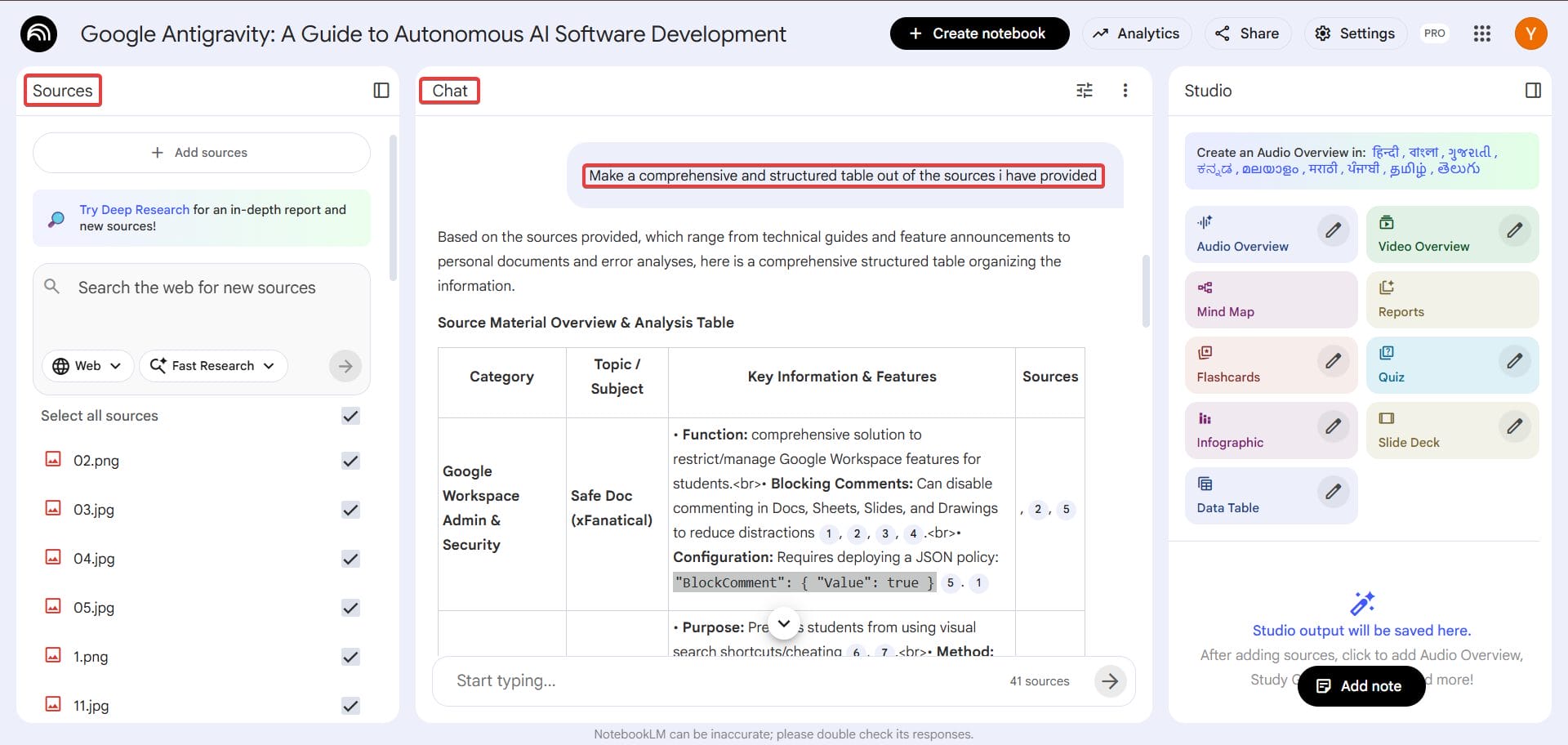
Pro-Tips for Better Data Extraction in NotebookLM
- Clean Your Sources - If the PDF you provided is blurry and the data is not properly visible, then the AI will miss out on crucial information which will hamper the research process. So please make sure that you are providing high quality documents.
- Define Explicit Headers - Please be through with your instructions, don't oversimplify things. Exactly tell the AI what you need from it so that desired results can be provided to you.
- Focus Your Notebooks - Data bleeding is another thing that you have to keep in mind while using NotebookLM. If you are comparing the budget for 2026, then don't include files from 2024. This prevents unnecessary confusion and data spillage.
Privacy and Limitations of NotebookLM
While NotebookLM is a powerhouse for data synthesis, understanding its boundaries ensures you use it safely and effectively.
Data Privacy & Security
For business and academic users, data security is the top priority.
- No Training on Your Data: Google explicitly states that the personal data, files, and queries you upload to NotebookLM are not used to train its global AI models (like Gemini).
- Confidentiality: Your notebook remains private until and unless you make the decision of sharing it with other collaborators. It is completely on you whether you want to make it public or not.
Formatting & Extraction Hurdles
AI is powerful, but it isn’t infallible when it comes to complex layouts.
- Nested Tables: If your source PDF contains complex information, like tables within tables or heavily merged cells, then the AI might struggle to properly understand the information provided hence, compromising the end product.
- The Human-in-the-Loop Necessity: Always use the provided citations to double-check critical figures. While NotebookLM reduces manual labor by 90%, the final 10% the verification should always be done by you to ensure total accuracy.
Conclusion
Hopefully after reading this article you might have got a clear understanding of what is NotebookLM and how you can convert sources into data tables. Additionally, you will know what are the main principles on which this AI powered research assistant works. Please follow all the instructions in the correct order so as to get the desired results, and please feel free to comment below if you stumble upon any problem and we will connect with you as soon as possible.
xFanatical Articles -
- How To Audit, Improve & Enhance Your Foresight Workflows ?
- How To Manage Emoji Reactions In Gmail
- How To Manage Taking Notes For Me Feature In Google Meet ?
For more article please visit our website: xFanatical Articles

