
Introduction
In this blog you will lean about how to create a distribution list in Gmail. If you are tired of manually typing the same email addresses every time and you to want send a team update or client announcement then Gmail distribution list comes in help.
Whether you're a small business owner, educator, project lead or Google Workspace admin, having knowledge about how to create a distribution list in Gmail can help you in communication and will save your valuable time. Instead of copy and pasting individual addresses, you can simply use one group name to reach everyone at once.
This guide covers different methods of creating distribution lists using Google Contacts for individuals and Google Groups for organizations.
What is a Gmail Distribution List?
A Gmail distribution list is a group of email recipients you can send messages with a single email address or group name. It simplifies communication, especially when you're regularly emailing the same people.
You can set this up using:
- Google Groups in Google Workspace for organization-level email distribution lists.
- Google Contacts for individual Gmail users.
Organize Your Contacts
It's crucial to ensure your contacts are organized well before creating a distribution list. This step involves reviewing your existing contacts and updating any outdated information. You can do this by accessing the Google Contacts app, which will sync your Gmail account contacts automatically . Take some time to categorize your contacts into groups such as family, colleagues or clients.
Who Should Use Gmail Distribution Lists?
- Project managers who is responsible for sharing updates with teams.
- Teachers who needs to email updates to students or parents.
- Sales teams who frequently follows up with prospects.
- Clubs or communities to send out announcements.
- Google Workspace admins for managing all internal mailing lists.
Method 1: How to Create a Gmail Distribution List Using Google Contacts
This method is perfect for personal Gmail accounts or small teams.
Follow the below Instructions:
- Go to Google Contacts and log in with your Gmail account.
- Create a New Label (Group)
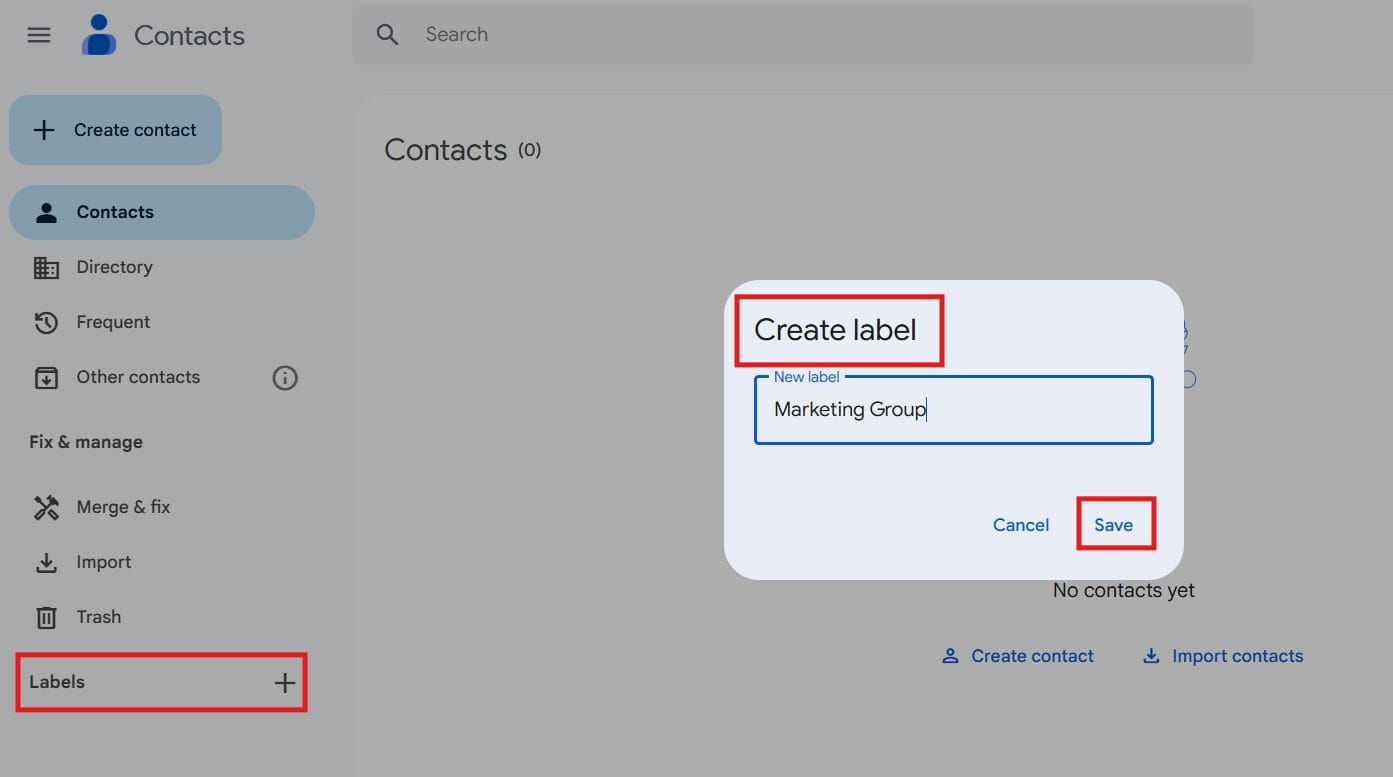
- On the left menu, click Labels > Create Label.
- Name the label. For example -
Marketing Group.
- Add Contacts to the Label
- Select the contacts you want to add within the label.
- Click on the Label and select the created label.
- Now the contacts are grouped under that Marketing Group label.

- Use the Label in Gmail
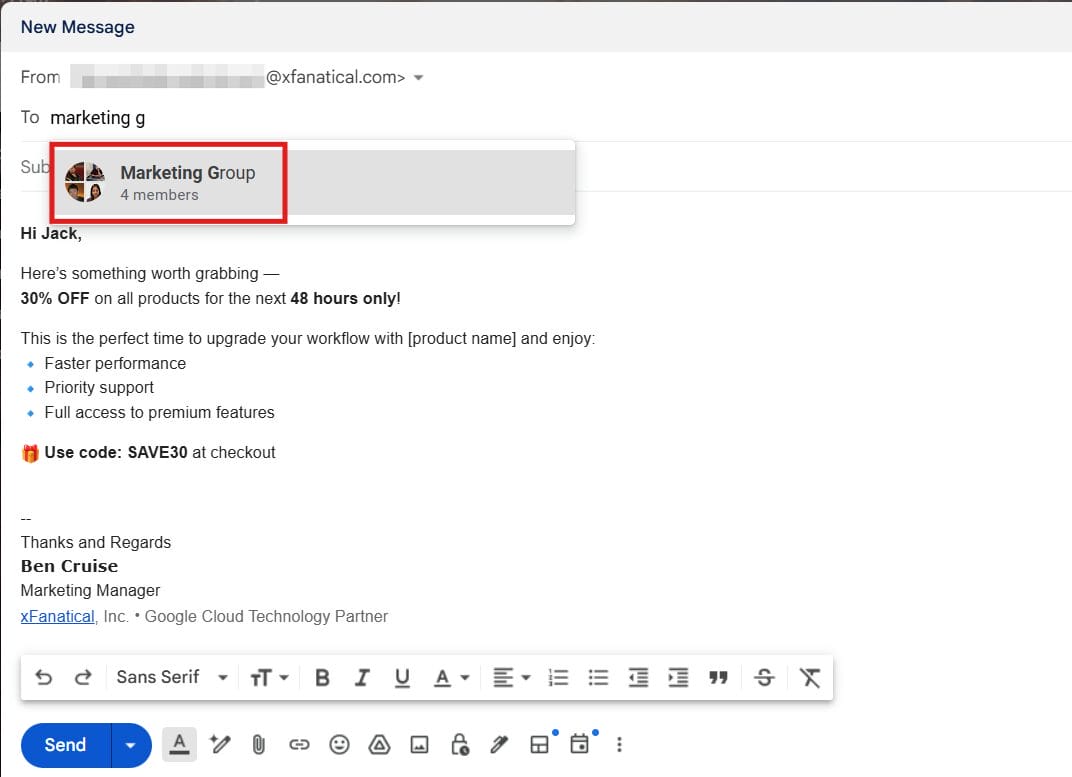
- Open your Gmail and click Compose.
- In the To field, enter the label name.
- Gmail will auto-fill the distribution list with the grouped email addresses.


Method 2: How to Create a Google Workspace Distribution List Using Google Groups
If you’re using Google Workspace, it’s better to set up a managed distribution list using Google Groups. This is the best method to create a email distribution list for teams, departments or external communications.
Benefits of using Google Groups:
- It provides centralized management.
- Helps in access control and permission management.
- You can create custom group email address like
[email protected].
Follow the Below Instructions:
- Sign in to Google Admin Console with your admin credentials.
- Create a new Group
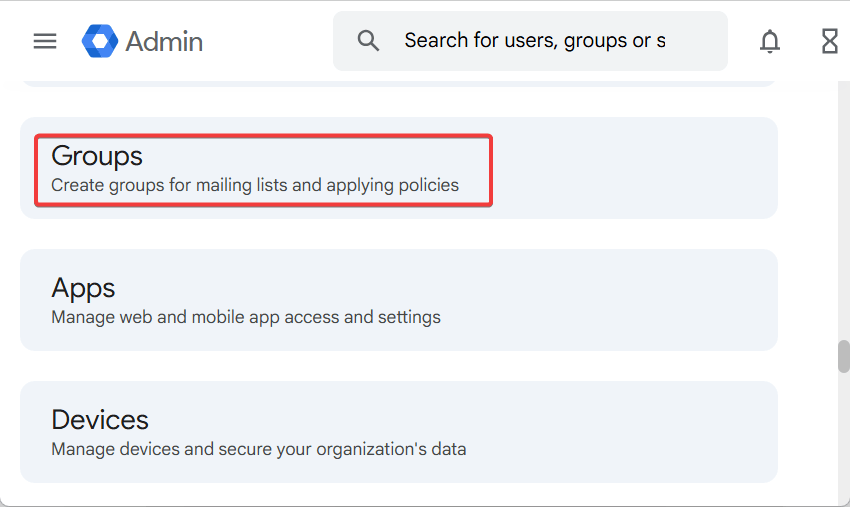
- Go to Apps > Google Workspace > Groups or
- Search for the Groups on the search bar

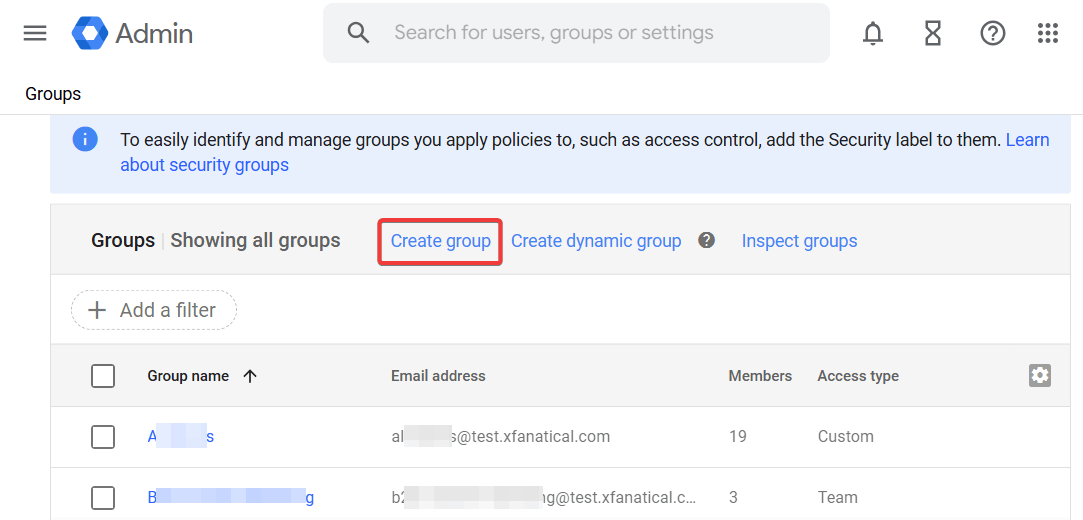
- Click Create Group

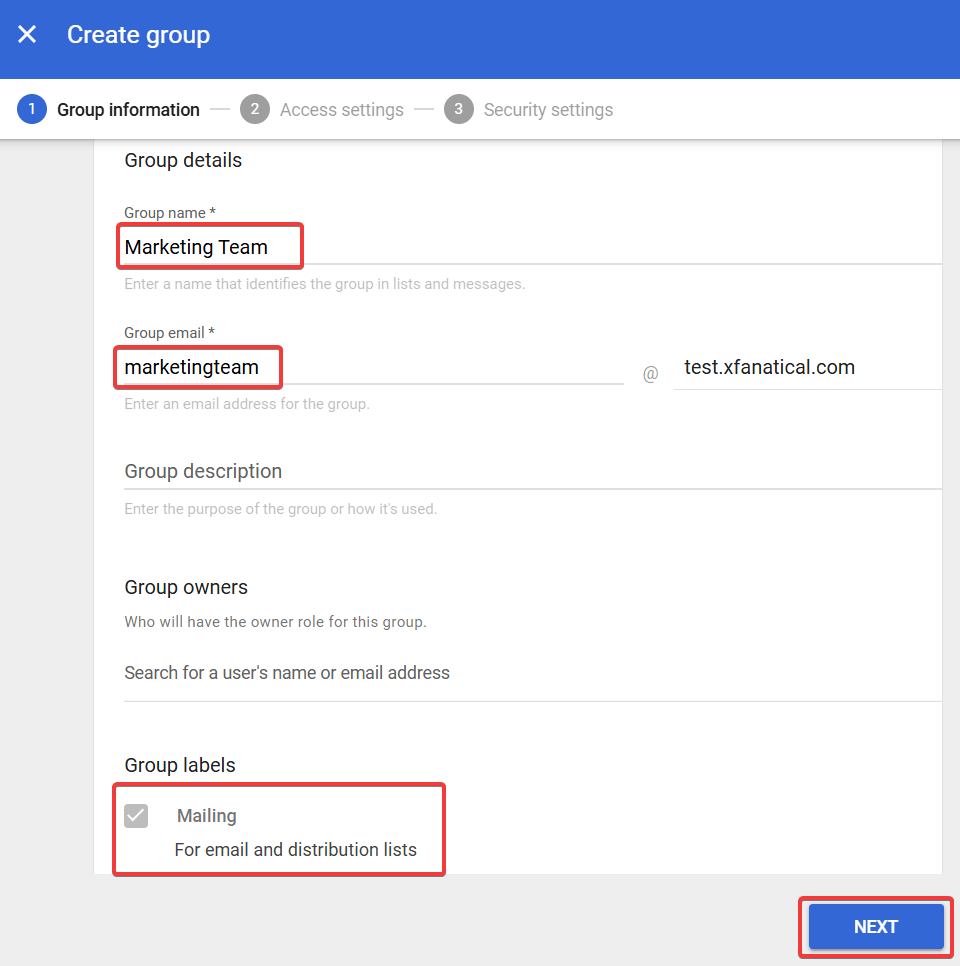
- Enter Group Details
- In the Group Name field, provide name for the group. For example - Marketing Team.
- In the Group Email field, provide group email. For example -
[email protected]. - (Optional) In the Description field, provide group description.
- In the Group labels field, check Mailing option.
- Click Next

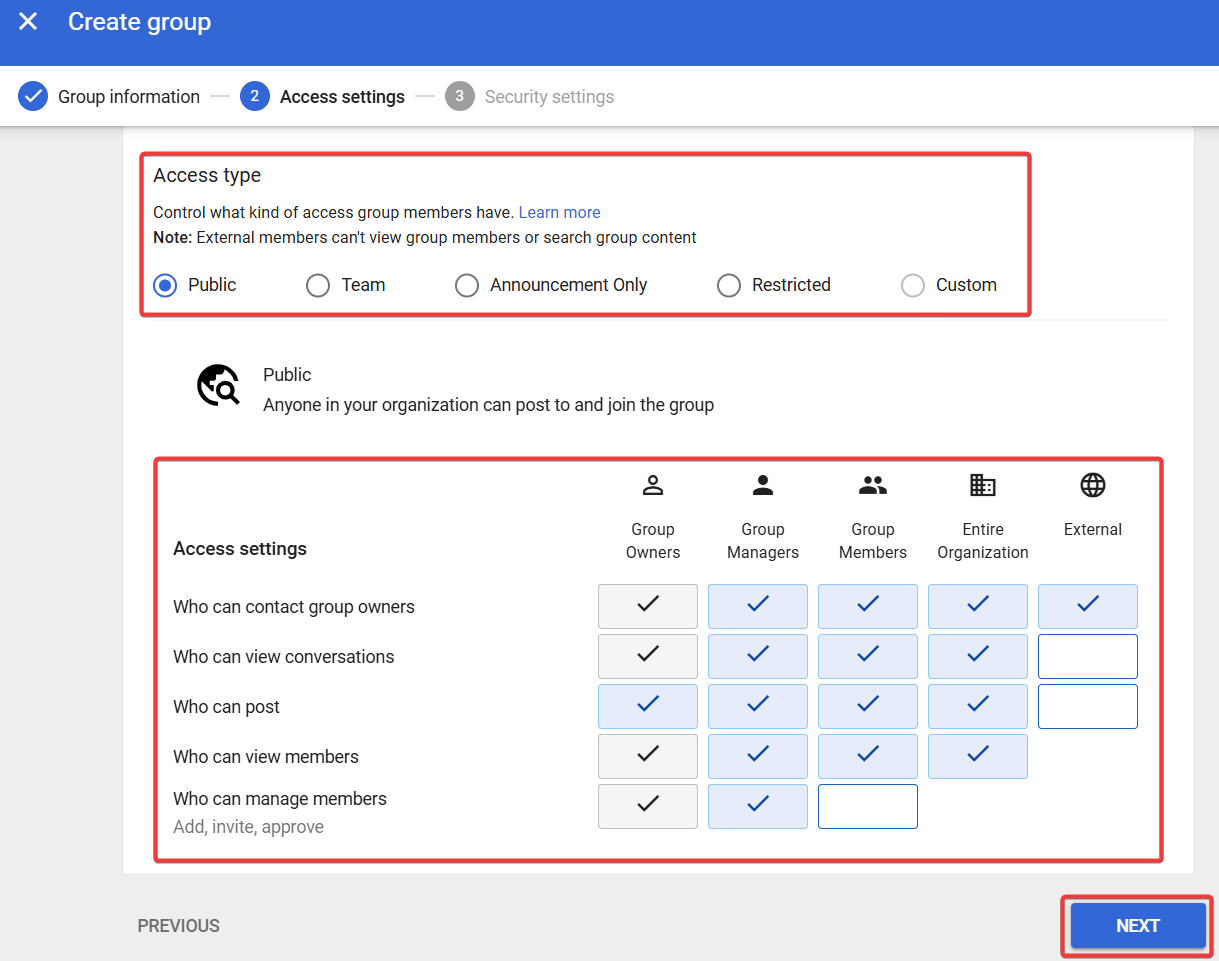
- In the Access settings screen,
- Select the Access type and permissions.
- Select who can join the group.
- Click Next.

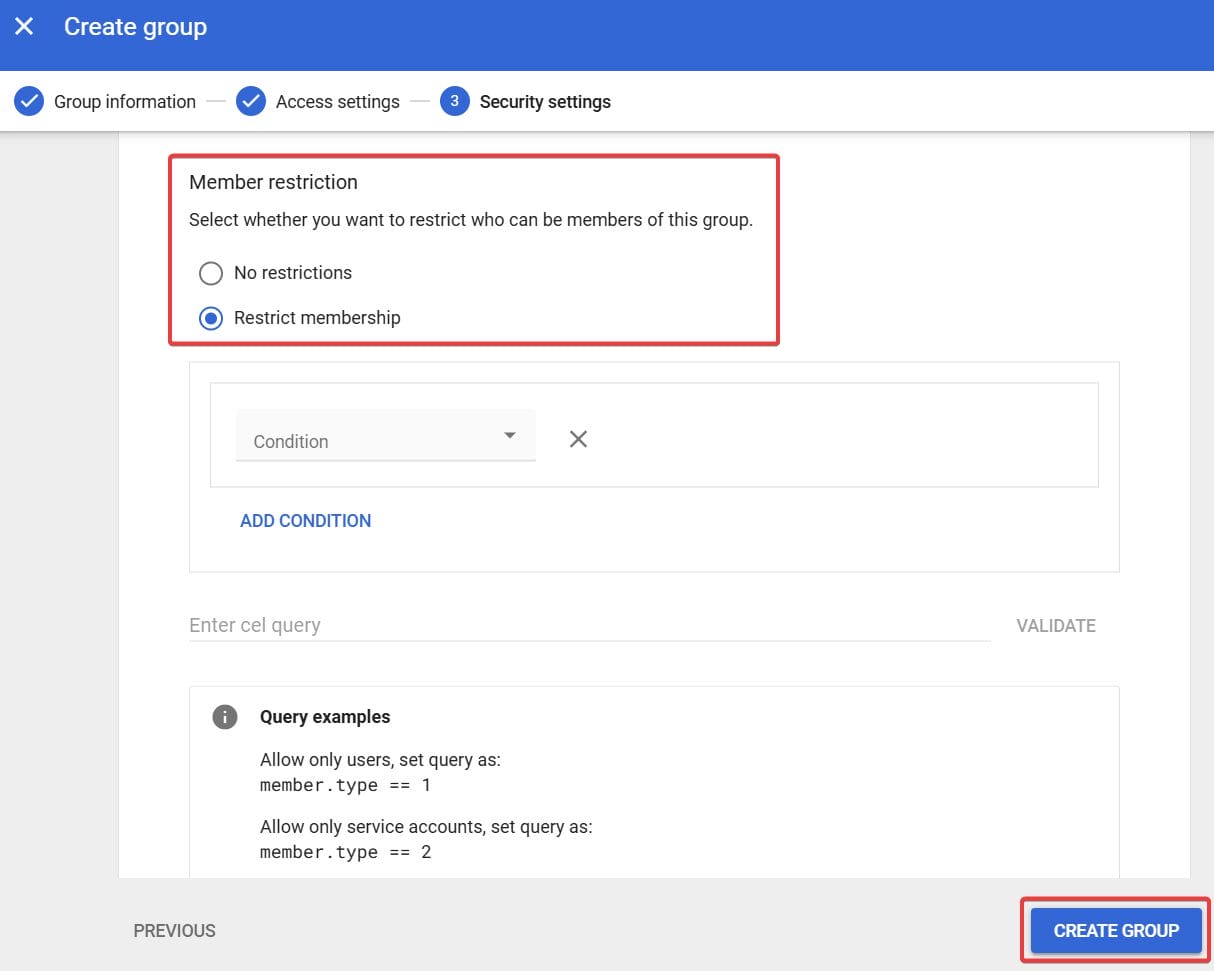
- In the Security settings screen,
- In the Member restriction setting, select the Restrict membership option.
- Click Create group.

- Add Members to the Group
- Click on the created group, once created.
- Click Add Members.
- Enter the email addresses of users you want to include.
- Assign roles:
- Member (can receive emails)
- Manager or Owner (can manage members/settings)
- Save and Test the Group
- Once the group is created, test it by sending an email to the group address. For example -
[email protected]. - All members should receive the message.
- Once the group is created, test it by sending an email to the group address. For example -
Comparison between Gmail Distribution List & Google Workspace Distribution List
| Feature | Gmail Contacts Group | Google Workspace Group |
|---|---|---|
| Best for | Personal use and small teams | Organizations and departments |
| Setup via | Google Contacts | Google Admin Console |
| Group email address | No | Yes ([email protected]) |
| Access control | Limited | Full admin-level control |
| External email support | Yes | Yes |
| Can users join/leave themselves | No | Yes, if allowed by admin |
How to Add the Selected Contacts to the New Label or Group?
- Open your Contacts. In the left corner under the search bar, click Manage labels.
- Select the checkbox next to each contact name.
- Choose the group or groups you want to add your contacts. You'll see a checkmark will appear next to the groups you choose already.
How to Name and Save the Distribution List?
- Click Create label option under Labels.
- Enter a name and click Save.
Benefits of Using a Distribution List
- Distribution list saves times along with reducing the chances of missing important recipients when sending emails.
- It simplifies the process of group communication, making it easy to keep everyone in the loop.
- Additionally, it organizes your contacts in better way and ensure you manage your email interactions more effectively.
FAQs About Gmail Distribution Lists
Q: Can I add external users to a Gmail distribution list?
A: Yes, both Gmail contacts groups and Google Groups support external email addresses.
Q: What is the maximum number of people I can add to a Gmail distribution list?
A: For regular Gmail accounts, Google allows up to 500 recipients per day. Google Workspace users may have higher limits based on the plan.
Q: Can people unsubscribe from a Gmail distribution list?
A: Not if you’re using Google Contacts. But Google Groups allows optional opt-in and opt-out settings.
Q: Is there a difference between Google Contacts groups and Google Groups?
A: Yes. Contacts groups are basic personal mailing lists. Google Groups are more powerful, feature-rich distribution lists with dedicated email addresses and management controls.
Conclusion
Whether you're a individual user or admin of a large organization, using a Gmail distribution list can save your hours of efforts on email and streamline communication. By following just few steps, you can create a distribution list in Gmail or set up a fully managed Google Workspace distribution list for professional use.
From team updates and client announcements to event invites and newsletters distribution lists help you do it faster, cleaner and more effectively.
Start a 14-day free trial with xFanatical Foresight to explore its existing and newly added features.

