
Introduction
This guide explains how to block suspicious senders in Google Workspace. Nowadays, there is a spike in spam and phishing emails from suspicious senders. Being an IT administrator, it's very important to block unwanted email senders in Google Workspace. Google Workspace provides many ways to block specific senders at the organization for a safe and more controlled environment. In this article, you will learn more about those ways to block senders to prevent malicious emails and phishing attacks. Whether you are an IT admin or school administrator, this guide will help you to block email senders at OU level and user level as well.
Why Blocking Suspicious Senders is Important
Blocking suspicious email senders in organizations is very important for the safety of Google Workspace users. By blocking the senders you can prevent phishing and spam attacks. You can stop repeating unwanted emails from suspicious domains. In schools, teachers implement this block to protect students from external misuse. Administrators can maintain productivity in an organization by minimizing distractions. Finally, you can enforce security policies and have control on user’s access across organizations.
How to Block Suspicious Senders in Google Workspace
Following are the multiple methods to block unwanted senders in Google Workspace.
Method 1: Block senders using Gmail settings in Google Admin Console.
- Sign in to Google Admin Console with your admin credentials.
- Go to Apps > Google Workspace > Gmail.
- Click on Spam, phishing, and malware settings.

- (Optional) Select the Organizational Unit, if you want to block senders from specific OU.
- Scroll down to the Blocked senders option and click Configure.

- Now add specific email addresses or entire domains that you want to block.
- Finally, click Save to confirm the changes.


Method 2: Restrict senders using Content Compliance Rules
- Log in to Google Admin Console.
- Go to Apps > Google Workspace > Gmail.
- Scroll down to Compliance and click on it.

- Scroll down to the Content compliance section.
- Click Configure or Add another rule.
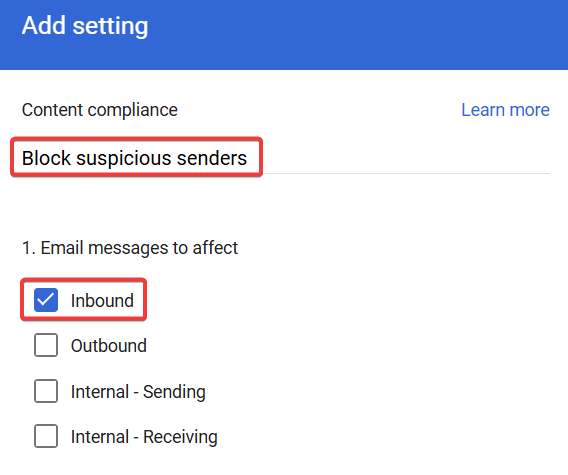
- In the Add setting screen,
- Enter a clear name for the rule.
- Select Inbound under Email messages to affect.

- Go to Add expressions and select Advanced content match.

- choose Sender header and enter the sender’s email address or domain you want to block.

- Click Save.
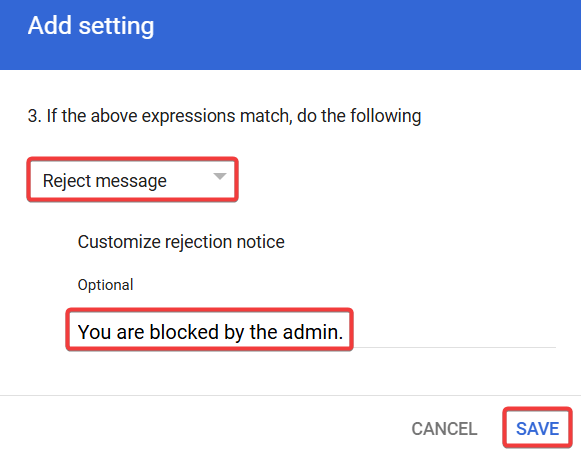
- Next Scroll down to If the above expressions match and choose Reject message or Quarantine message.
- Add a custom rejection message.

- Review the changes and click Save.



Method 3: Block senders at the User Level
Blocking individual users is not recommended for organizational security reasons but this one method to block spammers.
- Go to your Gmail.
- Open the email from the specific sender you want to block.
- Click on the three-dot menu.
- Select Block sender from the menu items.
- Confirm blocking by clicking Block in the pop up dialog.
Best Practices for Blocking Senders
- When you receive spam from multiple emails, block domains instead of individual addresses.
- Make use of the Quarantine message option instead of rejection to avoid blocking legitimate emails.
- Apply rules at the OU level to avoid impacting the entire organization.
- Regularly review blocked sender lists and quarantine reports.
- Combine sender blocking with phishing and malware protection for stronger security.
- Always provide clear names to the rules and document them for future needs.
- Conduct periodic audits and remove outdated blocking rules.
- Before rolling out the new rules, test them on a small group of users.
Conclusion
In conclusion, blocking suspicious senders in Google Workspace is an effective way to improve email security and productive email communication. By following the methods provided in this article, you can prevent unwanted emails before they even reach you. The compliance rules maintain clear communication and reduce security risks across the entire organization. Hopefully this blog will help you to block spam senders in Gmail and Feel free to comment on your further questions and we will get back to you soon.
xFanatical Articles -
- OAuth Scopes Best Practices to Secure your App Permissions
- Enable Ransomware Detection and File Restoration to Google Drive
- Ways to Stop Google Calendar Phishing
For more article please visit our website: xFanatical Articles

